Run Experiments
Learn by example
Check out the LLMeter example notebooks on GitHub for a range of end-to-end worked examples.
Basic test "Runs"
Create and .run(...) a Runner to make a batch of inference requests through your LLM Endpoint and calculate summary statistics on the results.
from llmeter.runner import Runner

endpoint_test = Runner(
    endpoint,
    output_path=f"outputs/{endpoint.model_id}",
)
results = await endpoint_test.run(payload=sample_payload, n_requests=3, clients=5)
A Run spins up clients parallel clients, each of which loops through sending n_requests requests to your target endpoint, one after the other. This means that:
- The total number of requests sent in your Run will be
clients⨉n_requests - Your Run will continue until all the requests are complete (or errored out). If your LLM endpoint had infinite capacity and always took the same amount of time to respond, the Run duration would scale with
n_requestsand be independent of the number of parallelclients. - Metrics like Run duration and requests per minute are results of the run, rather than directly configured.
- Towards the end of long Runs, concurrency may be much lower if most of the clients have already completed.
You can re-use Runners, and will find Run-specific subfolders are automatically created under your provided output_path. If you don't pass the optional run_name argument, runs will be named based on the current date & time.
run_1_results = await endpoint_test.run(payload=sample_payload, n_requests=3, clients=5)
run_2_results = await endpoint_test.run(payload=sample_payload, n_requests=10, clients=10)

# Both will be subfolders under outputs/{endpoint.model_id} from above:
assert run_1_results.output_path != run_2_results.output_path
Time-bound runs
By default, a Run sends a fixed number of requests per client (n_requests). Alternatively, you can use run_duration to run each client for a fixed number of seconds instead — useful when you want to measure sustained throughput over a time window rather than a fixed batch size.
# Run for 60 seconds with 10 concurrent clients:
results = await endpoint_test.run(
    payload=sample_payload,
    run_duration=60,
    clients=10,
)

results.total_requests  # actual number of requests completed
results.stats["requests_per_minute"]  # observed throughput
n_requests and run_duration are mutually exclusive — set one or the other, not both.
During a time-bound run, the progress bar shows two lines: a time bar that fills as seconds elapse, and a request counter with live statistics.
Processing backlogs after your Run time finishes
Duration-bound Runs may take extra time to finalize results after your specified duration has elapsed, due to two main reasons:
- In-flight requests wait for completion (which could take significant time especially if your target endpoint implements queuing)
- Response processing is separated from the client request loop, so Runs with high concurrency may build up a backlog of pending responses to process even after the final in-flight request is completed.
If your Run has progress bars enabled, you'll see a separate "Processing backlog" progress bar rendered if LLMeter still needs to perform processing after the final in-flight request is finished.
Live progress-bar statistics
By default, both count-bound and time-bound runs display live statistics on the progress bar as requests complete. These default statistics include p50/p90 TTFT and TTLT, median output tokens per second, total input/output tokens, requests per minute, and failure count.
You can customize which stats are shown via the progress_bar_stats parameter:
# Show only p99 latency, tokens/s, and rpm:
results = await endpoint_test.run(
    payload=sample_payload,
    n_requests=100,
    clients=5,
    progress_bar_stats={
        "rpm": "requests_per_minute",
        "p99_ttlt": ("time_to_last_token", "p99"),
        "tps": ("time_per_output_token", "p50", "inv"),
        "fail": "failed",
    },
)
Pass progress_bar_stats={} to disable live stats entirely. See DEFAULT_DISPLAY_STATS for the full default configuration.
You can also disable progress bars themselves via run() parameters or by setting the LLMETER_DISABLE_ALL_PROGRESS_BARS environment variable to 1.
Low-memory mode
For large-scale runs where keeping all responses in memory is impractical, set low_memory=True. Responses are written to disk as they arrive but not accumulated in memory. Statistics are computed incrementally and available immediately via result.stats.
results = await endpoint_test.run(
    payload=sample_payload,
    run_duration=300,
    clients=50,
    output_path="outputs/large_run",
    low_memory=True,
)

results.stats          # works — computed incrementally during the run
results.responses      # [] — not in memory
results.load_responses()  # loads from disk on demand
low_memory=True requires output_path to be set.
Analyzing Run results
The Result of a Run provides basic metadata, a wide range of pre-computed .stats, and also access to the individual .responses (InvocationResponse objects).
printing a Result will give you a handy JSON summary which includes a lot of this information. For example:
print(results)
{
    "total_requests": 5000,
    "clients": 50,
    "n_requests": 100,
    "total_test_time": 1044.951942336018,
    "model_id": "my-cool-model",
    "output_path": "outputs/my-cool-model/20260325-1336",
    "endpoint_name": "my-cool-model-endpoint",
    "provider": "openai",
    "run_name": "20260325-1336",
    "run_description": null,
    "start_time": "2026-03-25T13:36:53Z",
    "end_time": "2026-03-25T13:54:18Z",
    "failed_requests": 25,
    "failed_requests_rate": 0.005,
    "requests_per_minute": 287.09454267278744,
    "total_input_tokens": 3360101,
    "total_output_tokens": 1272354,
    "average_input_tokens_per_minute": 192933.33198587512,
    "average_output_tokens_per_minute": 73057.17794957834,
    "time_to_last_token-average": 6.645525417210839,
    "time_to_last_token-p50": 5.731963894009823,
    "time_to_last_token-p90": 6.823606405791361,
    "time_to_last_token-p99": 25.992216924043603,
    "time_to_first_token-average": 1.029764077696831,
    "time_to_first_token-p50": 0.6090650199912488,
    "time_to_first_token-p90": 1.026935306203086,
    "time_to_first_token-p99": 14.661495066354982,
    "num_tokens_output-average": 255.74954773869348,
    "num_tokens_output-p50": 256,
    "num_tokens_output-p90": 256.0,
    "num_tokens_output-p99": 256.0,
    "num_tokens_input-average": 675.3971859296482,
    "num_tokens_input-p50": 676,
    "num_tokens_input-p90": 677.0,
    "num_tokens_input-p99": 679.0
}
Custom statistics
The Result.get_dimension method provides a handy alternative to iterating over Result.responses, and the utils.summary_stats_from_list method can help with calculating custom quantiles, if you want:
from llmeter.utils import summary_stats_from_list

response_ttfts: list[float | None] = results.get_dimension("time_to_first_token")
custom_ttft_stats = summary_stats_from_list(response_ttfts, percentiles=[80])
ttft_p80 = custom_ttft_stats["p80"]
Plotting charts
If you've installed the plotting extras (with e.g. pip install llmeter[plotting]), you can use LLMeter's built-in utilities to plot some basic interactive visualizations, powered by plotly.
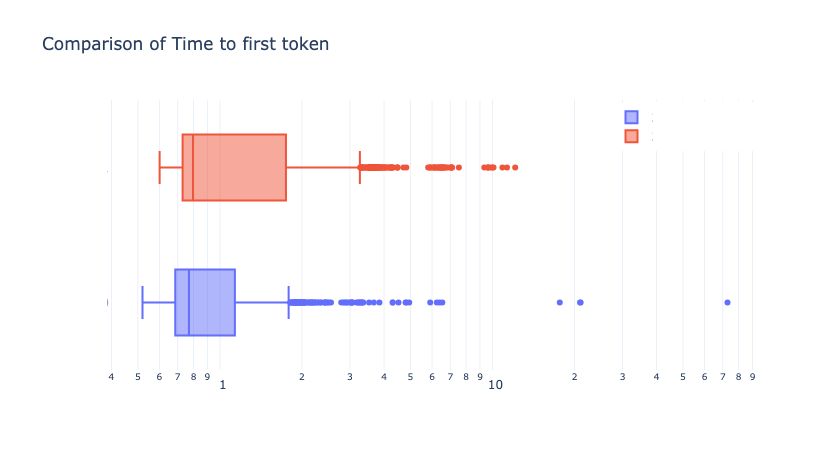
For example, comparing TTFT distributions between two Runs via box plots with boxplot_by_dimension...
from llmeter.plotting import boxplot_by_dimension
import plotly.graph_objects as go

fig = go.Figure()
fig.add_traces([
    boxplot_by_dimension(result=run_1_results, dimension="time_to_first_token"),
    boxplot_by_dimension(result=run_2_results, dimension="time_to_first_token"),
])

# Use log scale for the time axis
fig.update_xaxes(type="log")
fig.update_layout(
    legend=dict(yanchor="top", y=0.99, xanchor="right", x=0.99),
    title="Comparison of Time to first token",
)
fig
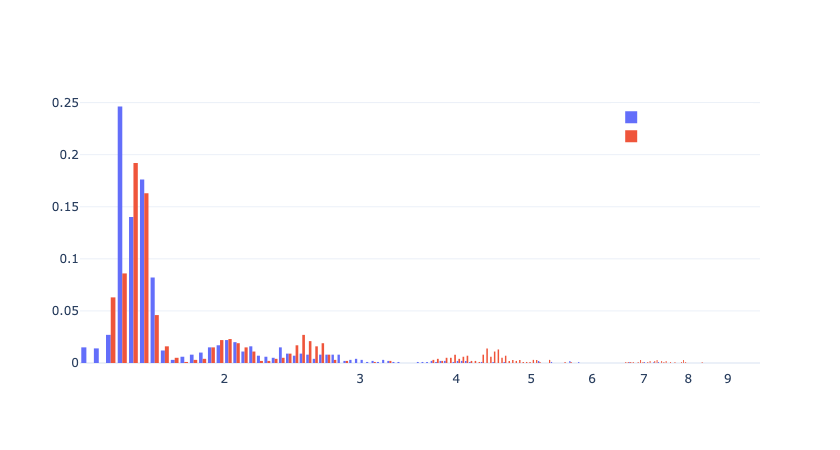
...Or histograms with histogram_by_dimension:
from llmeter.plotting import histogram_by_dimension
import plotly.graph_objects as go

xbins = dict(size=0.02)
fig = go.Figure()
fig.add_traces([
    h1 = histogram_by_dimension(run_1_results, "time_to_first_token", xbins=xbins),
    h2 = histogram_by_dimension(run_2_results, "time_to_first_token", xbins=xbins),
])

# Use log scale for the time axis
fig.update_xaxes(type="log")
fig.update_layout(legend=dict(yanchor="top", y=0.99, xanchor="right", x=0.99))
fig
Higher-level "Experiments"
Load tests
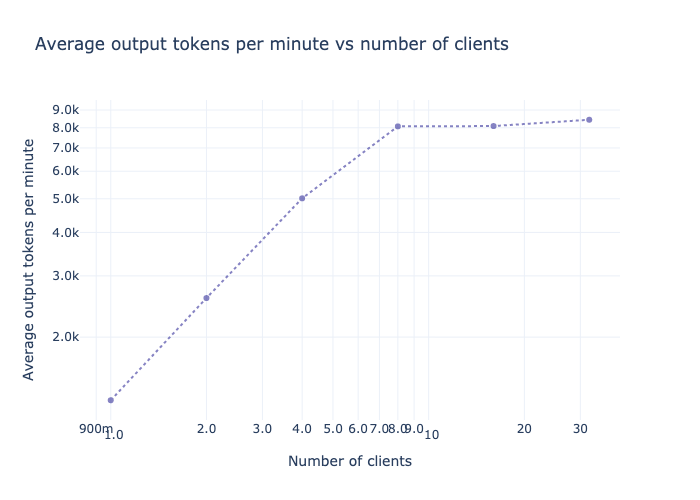
The LoadTest experiment creates a series of Runs with different levels of concurrency, and offers additional visualizations to help you explore how latency and total throughput vary by volume of usage. This is particularly useful for evaluating the optimal configurations for your self-hosted deployments on services like Amazon SageMaker AI.
Check out the Load testing example notebook on GitHub for a worked example.
Latency Heatmap
The LatencyHeatmap experiment attempts to automatically build a set of input prompts and output length limits to quantify how performance varies as a function of input (prompt) length and output (generation) length.
In practice it's difficult to exactly control either input lengths (because different LLM's tokenizers may not be publicly available) or output lengths (because even if you set a high max_len and try to engineer your prompt to promote long answers, the LLM may choose to terminate early)... So it may be challenging to sample the exact target input & output lengths you target but you should be able to get close.