nx-neptune 0.9: Declare your graph with PGQ (CREATE PROPERTY GRAPH)
Your data lake already holds the relationships: who paid whom, which product was
bought with which. nx-neptune projects those tables into
Amazon Neptune Analytics
so you can run graph algorithms on them. Until now, that meant writing the
projection queries in SQL by hand. In 0.9, you can instead declare the graph
with a standard SQL/PGQ CREATE PROPERTY GRAPH statement, and nx-neptune
generates the SQL for you.
Before: hand-written projection queries in SQL
Section titled “Before: hand-written projection queries in SQL”Neptune Analytics loads vertices and edges from CSV with special columns: ~id
and ~label for vertices, ~from, ~to and ~label for edges, and a type
suffix on each property. To project a table of accounts and a table of
transactions correctly, you wrote one Athena query per vertex and edge type,
and joined each edge’s endpoints to the vertex keys so no dangling edges load:
-- customersSELECT DISTINCT "name" AS "~id", 'customer' AS "~label", "name" AS "name"FROM "accounts" WHERE "name" IS NOT NULL;
-- transfers, keeping only edges between known customersSELECT "nameOrig" AS "~from", "nameDest" AS "~to", 'transfer' AS "~label",       "step" AS "step:Int", CAST("amount" AS DOUBLE) AS "amount:Double",       "isFraud" AS "isFraud:Int"FROM "transactions"JOIN (SELECT DISTINCT "name" AS "~key" FROM "accounts") "~source"  ON "nameOrig" = "~source"."~key"JOIN (SELECT DISTINCT "name" AS "~key" FROM "accounts") "~destination"  ON "nameDest" = "~destination"."~key";
Most hand-written projections skip those joins. That one is correct, but it’s easy to get wrong, and the shape of the graph is hidden inside the aliases.
After: CREATE PROPERTY GRAPH
Section titled “After: CREATE PROPERTY GRAPH”nx-neptune 0.9 accepts the standard SQL/PGQ (SQL:2023) CREATE PROPERTY GRAPH
statement. This is the same graph:
CREATE PROPERTY GRAPH financial VERTEX TABLES ( accounts AS customer KEY (name) LABEL customer PROPERTIES (name) ) EDGE TABLES ( transactions SOURCE KEY (nameOrig) REFERENCES customer DESTINATION KEY (nameDest) REFERENCES customer LABEL transfer PROPERTIES (step, CAST(amount AS DOUBLE) AS amount, isFraud) )nx-neptune translates it into the queries above, then runs the same import as before: CREATE PROPERTY GRAPH → Athena SQL → CSV in Amazon S3 → Neptune Analytics graph.
The translator handles the details for you:
- Types come from the catalog. Each property’s type is read from the source
column in the Athena catalog.
CASToverrides it, and a type clash between tables that share a label fails with theCASTthat fixes it. - Properties are flexible. Leaving out
PROPERTIESexposes all columns, as in the standard, andPROPERTIES ALL COLUMNS EXCEPT (...)drops a few. - Edges stay consistent. Each edge endpoint is joined to the keys of the
vertex table it
REFERENCES, so only edges between declared vertices are loaded.
For the full syntax, property types and required permissions, see Property graph schema.
Use it from Python
Section titled “Use it from Python”Import straight from the DDL with SessionManager:
from nx_neptune import SessionManager
session = SessionManager("fraud-demo")graph = await session.get_or_create_graph()await session.import_from_graph_schema(    graph, s3_location, DDL, catalog=catalog, database=database)
Or look at the generated SQL first, without importing:
from nx_neptune import AthenaTableMetadata, property_graph_to_sql
queries = property_graph_to_sql(    DDL, AthenaTableMetadata(catalog=catalog, database=database))
For a full run on the PaySim fraud dataset, see the PGQ notebook.
Use it from the Proxy UI
Section titled “Use it from the Proxy UI”The Proxy UI’s Import page now starts from the property graph schema. Write the
CREATE PROPERTY GRAPH statement, choose Translate and Validate SQL Queries, and review or
edit the generated Athena SQL before you import.
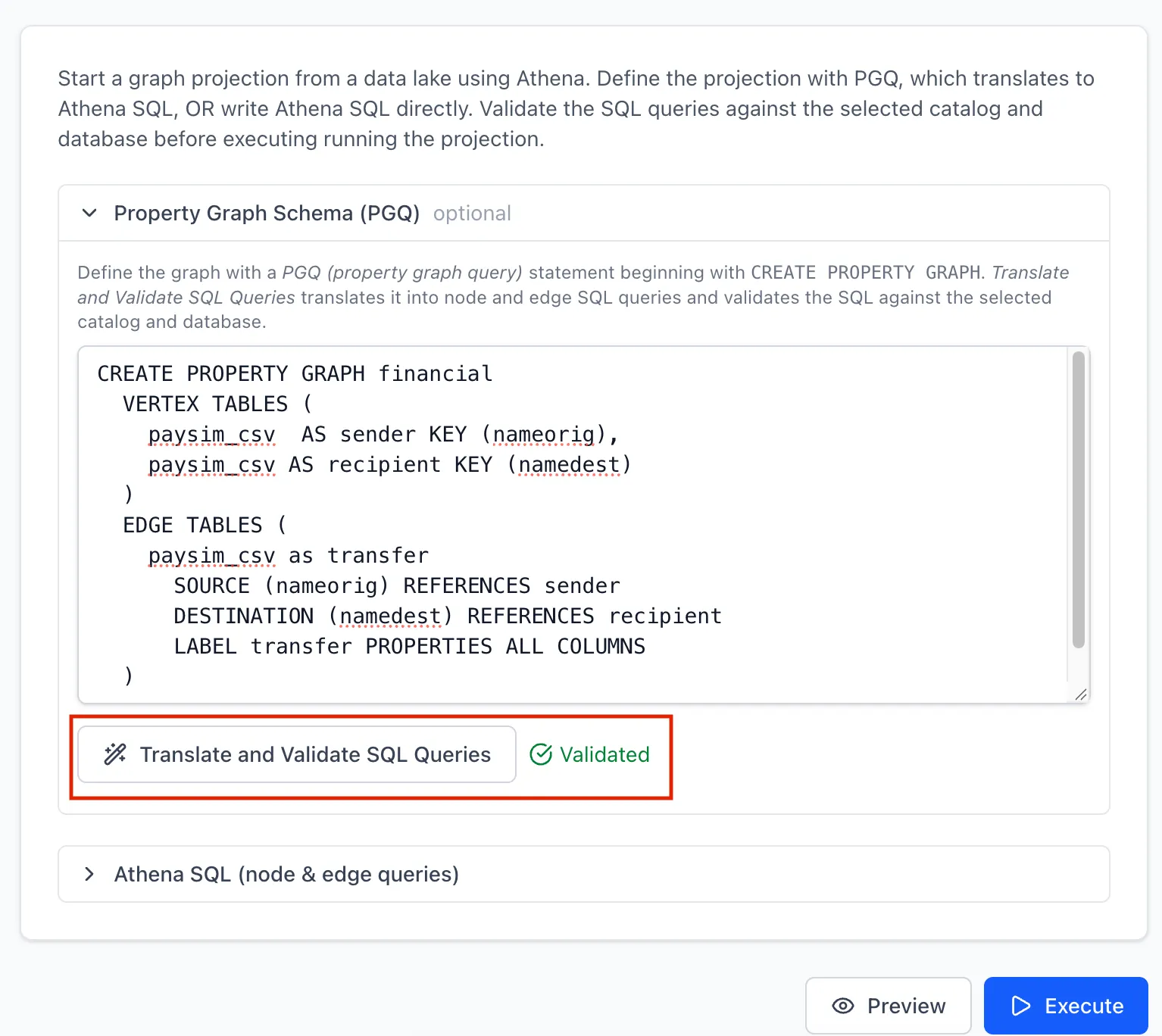
To go from a data-lake table to a graph in Graph Explorer, follow the end-to-end walkthrough.
Also in 0.9
Section titled “Also in 0.9”- Proxy UI docs. A new setup guide and walkthrough cover running the proxy and Graph Explorer locally, with finch or Docker.
- Project export and import. Save a project’s configuration as JSON and import it elsewhere, to share a setup or back it up.
Get started
Section titled “Get started”pip install --upgrade nx-neptuneQuestions or ideas? Open an issue. We’d love to hear how you use it.