3D Preview Thumbnail Pipeline
The 3D Preview Thumbnail pipeline generates animated GIF or static image previews from 3D files, providing visual thumbnails for assets in the VAMS web interface. It supports a wide range of mesh, point cloud, CAD, and USD file formats. The pipeline uses CPU-based headless rendering with PyVista, VTK, and Xvfb inside an AWS Batch Fargate container.
Supported Formats
Mesh Formats
| Format | Extension | Library |
|---|---|---|
| PLY | .ply | Trimesh |
| STL | .stl | Trimesh |
| OBJ | .obj | Trimesh |
| GLB | .glb | Trimesh |
| GLTF | .gltf | Trimesh (with external dependency download) |
| FBX | .fbx | Trimesh |
| DRC (Draco) | .drc | Trimesh |
Point Cloud Formats
| Format | Extension | Library |
|---|---|---|
| LAS | .las | laspy |
| LAZ | .laz | laspy + laszip |
| E57 | .e57 | pye57 |
| PTX | .ptx | Open3D |
| PCD | .pcd | Open3D |
| FLS | .fls | Open3D |
| FWS | .fws | Open3D |
CAD Formats
| Format | Extension | Library |
|---|---|---|
| STEP | .stp, .step | CadQuery / Open CASCADE |
USD Formats
| Format | Extension | Library |
|---|---|---|
| USD | .usd | OpenUSD (pxr) |
| USDA | .usda | OpenUSD (pxr) |
| USDC | .usdc | OpenUSD (pxr) |
| USDZ | .usdz | OpenUSD (pxr) |
Architecture
Processing Steps
- Download -- The container downloads the input file from the asset Amazon S3 bucket. For GLTF files, external dependencies (buffers, textures) are also downloaded.
- Load -- A format-specific handler loads the file into a PyVista PolyData object. The handler is selected based on file extension: mesh, point cloud, CAD, or USD.
- Normalize -- The pipeline detects and normalizes the coordinate up-axis to Y-up for consistent rendering. Z-up formats (LAS, LAZ, E57, STL, etc.) are rotated automatically. Variable formats use a bounding-box heuristic.
- Render -- PyVista generates rotating preview frames using headless off-screen rendering via Xvfb. If animated rendering fails, the pipeline falls back to a single static frame.
- Save -- The requested format is written:
autoassembles multiple frames into an animated GIF and saves a single frame as a JPEG, whilegif,jpgandpngwrite that format whatever the frame count. The pipeline ensures the output stays under a size limit for efficient web display. - Upload -- The preview file is uploaded to the asset bucket alongside the source file, preserving the relative directory structure.
Output Files
The pipeline generates preview files with the following naming convention:
<original_filename>.previewFile.gif    (animated, multi-frame)
<original_filename>.previewFile.jpg    (static, single-frame fallback)
These files are written to outputS3AssetFilesPath, which maps to the asset bucket. The relative subdirectory from the input path is preserved so the VAMS process-output step can locate and register the previews correctly.
If the input file is at <assetId>/subfolder/model.glb, the preview is written to <assetId>/subfolder/model.glb.previewFile.gif. The assetId is threaded through the pipeline from the workflow state to ensure correct path computation.
Example Output
The following are example animated GIF previews generated by the pipeline across different file types:
| GLTF Mesh | USD Scene | Point Cloud (E57) | Point Cloud (LAZ) |
|---|---|---|---|
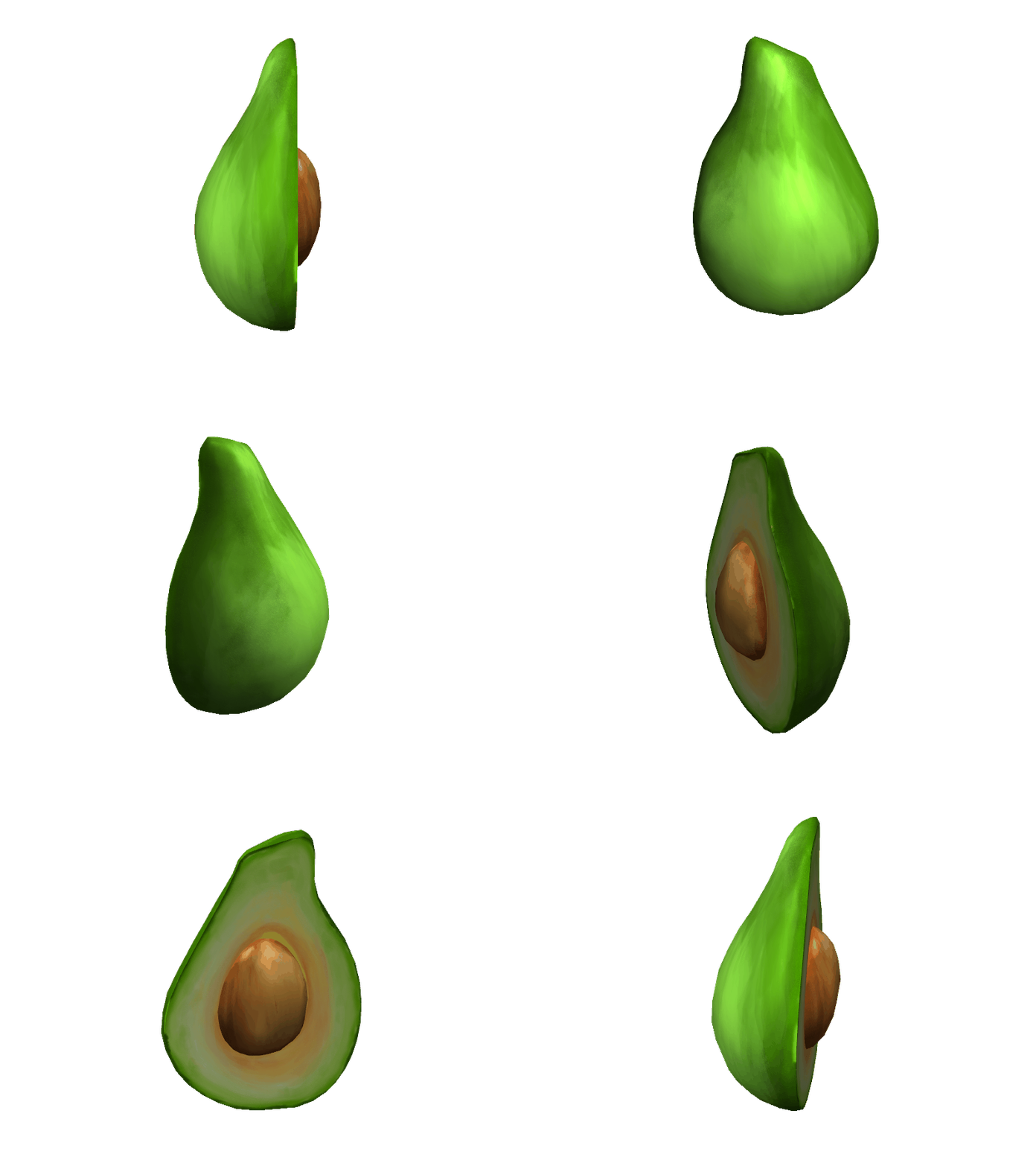 |  | 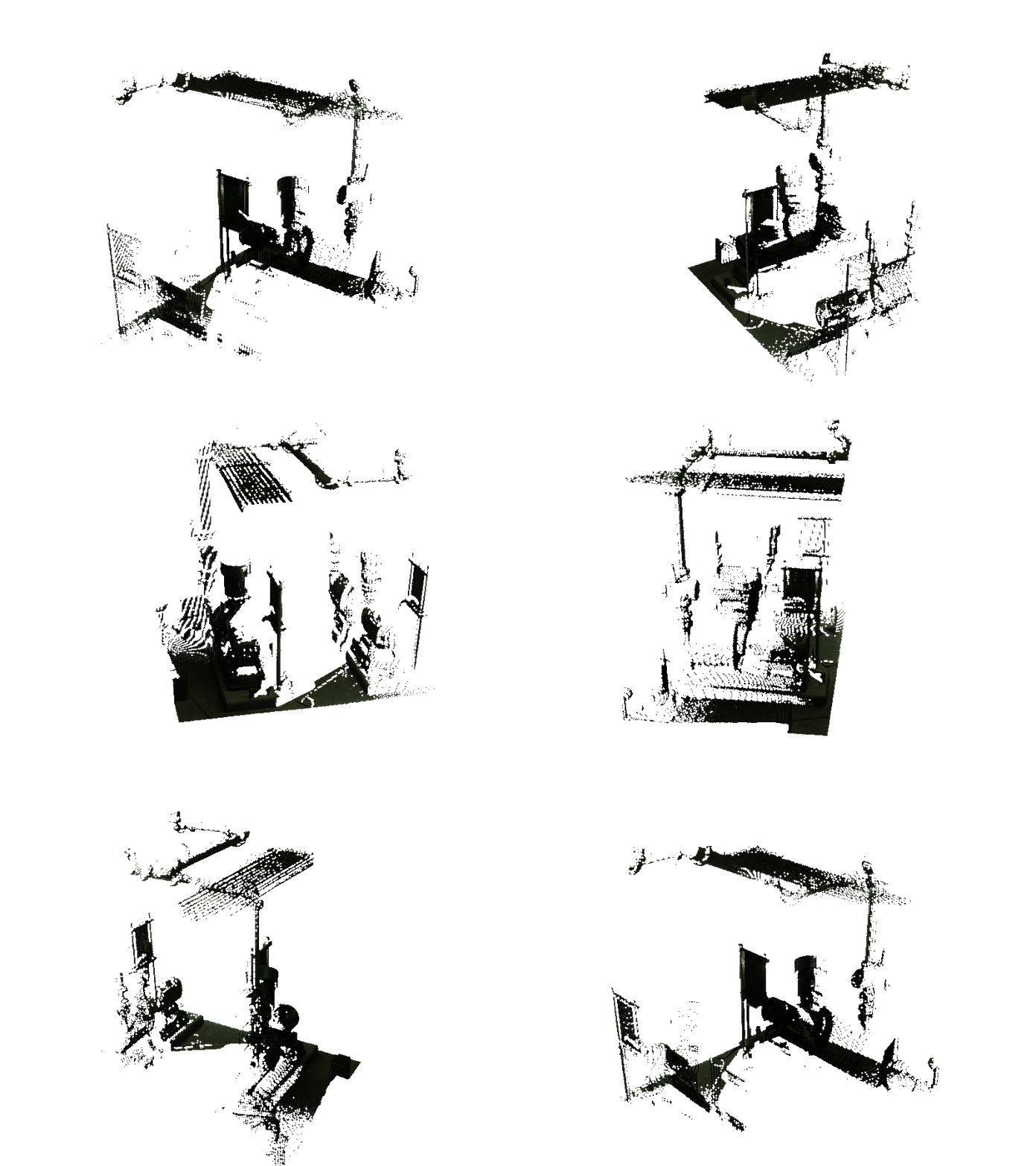 | 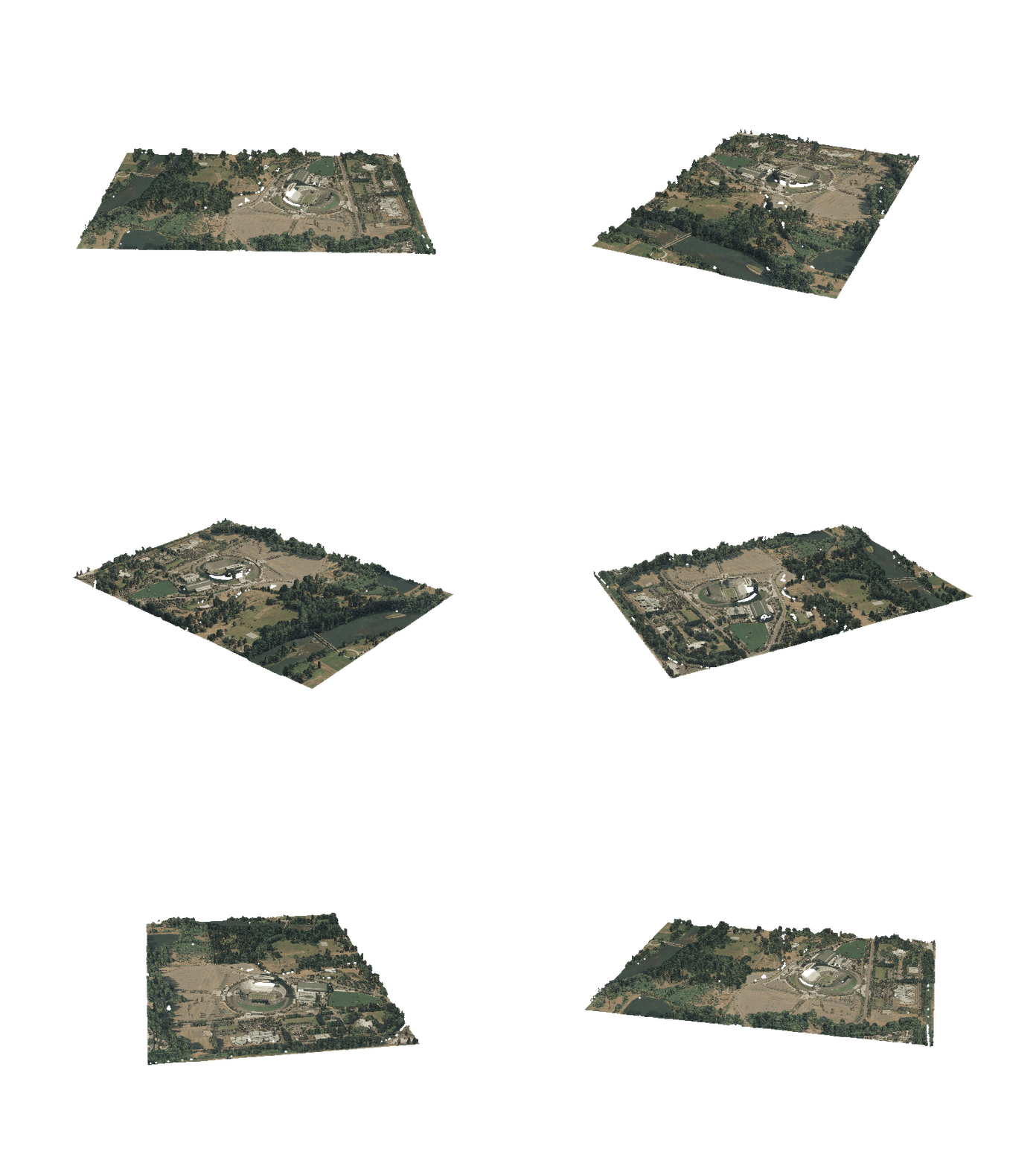 |
Avocado.gltf | gramophone.usdz | pump.e57 | autzen.laz |
Configuration
Enable this pipeline in infra/config/config.json:
{
    "app": {
        "pipelines": {
            "usePreview3dThumbnail": {
                "enabled": true,
                "autoRegisterWithVAMS": true,
                "autoRegisterAutoTriggerOnFileUpload": true
            }
        }
    }
}
Configuration Options
| Option | Default | Description |
|---|---|---|
enabled | false | Deploy the 3D thumbnail pipeline infrastructure. Enables the global VPC. |
autoRegisterWithVAMS | false | Automatically register the pipeline and workflow during CDK deployment. |
autoRegisterAutoTriggerOnFileUpload | false | Automatically trigger the pipeline when supported 3D files are uploaded. |
This pipeline is disabled by default because it depends on libraries with LGPL licenses (CadQuery/Open CASCADE for STEP file support). Review the requirements.txt file in the container directory and consult your legal team before enabling this pipeline. Other format handlers use MIT-licensed or Apache-licensed libraries.
Input Parameters
Parameters reach the pipeline through the template selected for the run. Deployment registers the preview-3d-thumbnail-default template, whose configuration body carries the parameters below and declares the two tags that the execute screen prompts for.
| Parameter | Template tag | Type | Default | Description |
|---|---|---|---|---|
overwriteExistingPreviewFiles | OVERWRITE_EXISTING_PREVIEW_FILES | boolean | true | When true, regenerates preview files even if they already exist for the input file. When false, the pipeline skips files that already have a preview. |
outputType | OUTPUT_TYPE | enum | auto | The preview file format written for the input file. auto writes an animated GIF when the renderer produces several frames and a JPG otherwise; gif, jpg and png write that format for every input. |
Template configuration body
{
    "overwriteExistingPreviewFiles": {{OVERWRITE_EXISTING_PREVIEW_FILES}},
    "outputType": "{{OUTPUT_TYPE}}"
}
{{OVERWRITE_EXISTING_PREVIEW_FILES}} and {{OUTPUT_TYPE}} are template tags: the execute screen presents the first as a checkbox and the second as a list of the supported formats, and substitutes both values before the pipeline receives the configuration. The template also allows per-run edits, so a single run can supply a replacement body without changing the registered template.
Limits and Constraints
| Constraint | Value |
|---|---|
| Maximum input file size | 100 GB |
| Container ephemeral storage | 200 GiB |
| Point cloud downsampling threshold | 20 million points |
| Rendering method | CPU-based (no GPU required) |
Point clouds exceeding 20 million points are automatically downsampled for rendering performance. The original file is not modified; only the rendering input is reduced.
Prerequisites
VPC
This pipeline runs on AWS Batch with AWS Fargate and requires the global VPC. Set app.useGlobalVpc.enabled to true when enabling this pipeline — deployment fails with a configuration error otherwise (the VPC is not enabled automatically). With the VPC enabled, the VPC builder creates the necessary VPC endpoints for AWS Batch, Amazon ECR, and Amazon ECR Docker.
Container Image
The container image is built during CDK deployment from backendPipelines/preview/3dThumbnail/container/Dockerfile. It is based on Python 3.12 slim and includes:
- PyVista / VTK -- 3D rendering engine (MIT license)
- Trimesh -- Mesh loading for PLY, STL, OBJ, GLB, GLTF, FBX, DRC (MIT license)
- laspy -- LAS/LAZ point cloud reading (BSD license)
- pye57 -- E57 point cloud reading (MIT license)
- Open3D -- Additional point cloud formats: PTX, PCD, FLS, FWS (MIT license)
- CadQuery -- STEP/STP CAD file support (LGPL license)
- OpenUSD (pxr) -- USD format support (Modified Apache 2.0 license)
- Xvfb -- Virtual framebuffer for headless rendering
How It Works
- The workflow triggers the
vamsExecuteLambda function with the input file path, all S3 output paths, and theassetId. - The
constructPipelineLambda function builds aPREVIEW_3D_THUMBNAILstage definition, directing output tooutputS3AssetFilesPath(the asset bucket). - AWS Batch submits an AWS Fargate job. The container starts Xvfb for headless rendering, then runs the preview pipeline.
- The container downloads the input file, loads it with the appropriate format handler, normalizes the up-axis, renders rotating frames, saves the output in the requested format (GIF, JPEG, or PNG), and uploads it to Amazon S3.
- AWS Step Functions receives the task token callback, and the process-output step registers the preview file in VAMS.
Related Resources
- Pipeline System Overview
- Potree Point Cloud Viewer Pipeline -- interactive point cloud visualization (complementary to thumbnail previews)
- CAD/Mesh Metadata Extraction Pipeline -- extracts metadata from similar file formats