Metadata Management
VAMS supports rich, typed metadata on every entity in the system. Metadata enables you to attach structured information to databases, assets, files, and asset links -- making your content searchable, categorized, and integrated with geospatial and 3D visualization features.
Entity types
Metadata can be attached to five different entity types. Each entity type has its own storage and API endpoints.
| Entity type | Description | Accessed from |
|---|---|---|
| Database metadata | Key-value pairs attached to a database itself | Database detail page |
| Asset metadata | Key-value pairs attached to an asset | Asset detail page, Metadata tab |
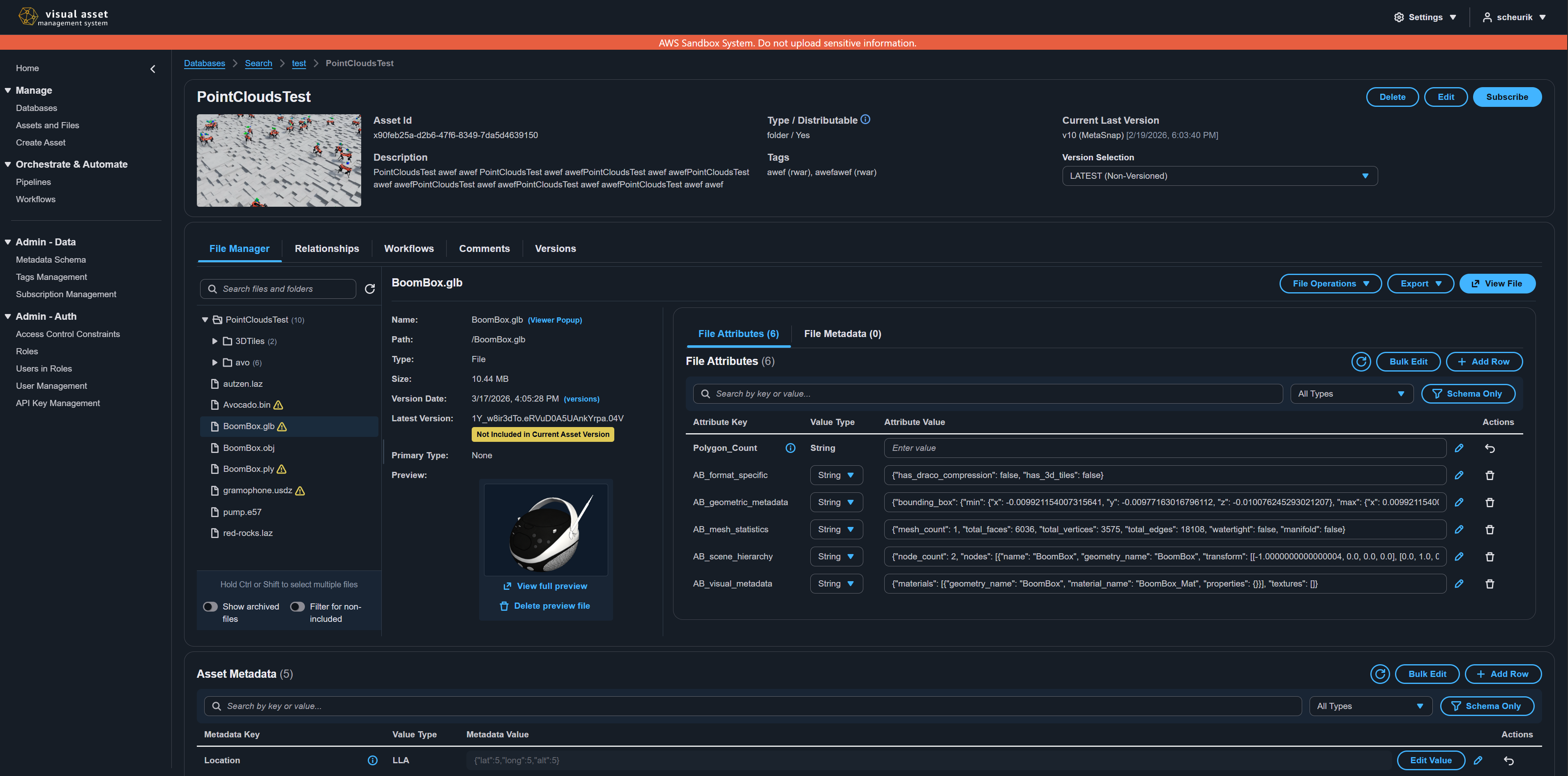
| File metadata | Typed key-value pairs attached to a specific file within an asset | File detail panel, Metadata tab |
| File attributes | String-only key-value pairs attached to a specific file (separate index) | File detail panel, Attributes tab |
| Asset link metadata | Key-value pairs attached to a relationship between two assets | Asset link detail panel |
File metadata and file attributes are stored in separate indexes. File metadata supports all value types and is indexed in the primary metadata store. File attributes are string-only and are indexed in a separate Amazon OpenSearch Service index, enabling attribute-specific search patterns.
Metadata value types
Every metadata field has a value type that determines validation rules and the input control displayed in the user interface.
| Value type | Description | Example value |
|---|---|---|
string | Single-line text | Steel beam |
multiline_string | Multi-line text | Detailed description\nwith line breaks |
number | Numeric value (integer or decimal) | 42.5 |
boolean | True or false | true |
date | ISO 8601 date string | 2025-03-15T10:30:00Z |
xyz | 3D coordinate (x, y, z) | {"x": 1.0, "y": 2.0, "z": 3.0} |
wxyz | Quaternion rotation (w, x, y, z) | {"w": 1.0, "x": 0.0, "y": 0.0, "z": 0.0} |
matrix4x4 | 4x4 transformation matrix | [[1,0,0,0],[0,1,0,0],[0,0,1,0],[0,0,0,1]] |
geopoint | GeoJSON Point geometry | {"type": "Point", "coordinates": [-122.4, 37.8]} |
geojson | Any valid GeoJSON geometry | {"type": "Polygon", "coordinates": [...]} |
lla | Latitude, longitude, altitude | {"lat": 37.8, "long": -122.4, "alt": 10.0} |
json | Arbitrary JSON data | {"custom": "data", "count": 5} |
inline_controlled_list | Value selected from a predefined list | Option A (from list: Option A, Option B, Option C) |
File attributes only support the string value type. Attempting to create a file attribute with any other type will result in a validation error.
Creating metadata
Single metadata entry
- Navigate to the entity's metadata view (for example, the Metadata tab on an asset detail page).
- Choose Add or the add button in the metadata table header.
- Enter a key (field name), select the value type, and provide the value.
- Choose Save to persist the metadata.
If a metadata schema is active for this entity type, the form may pre-populate required fields and provide type-specific input controls.
Bulk metadata creation
To create multiple metadata entries at once:
- Navigate to the entity's metadata view.
- Switch to Bulk Edit mode using the toggle in the toolbar.
- Add multiple key-value-type rows.
- Choose Save All to persist all entries in a single operation.
The bulk operation response indicates how many items succeeded and failed, with detailed error messages for any failures.
Editing metadata
VAMS supports two update modes for metadata:
| Update mode | Behavior |
|---|---|
| UPDATE (default) | Updates only the specified metadata keys. Existing keys not included in the request are left unchanged. |
| REPLACE_ALL | Replaces the entire metadata set for the entity. All existing metadata keys not included in the request are deleted. Limited to 500 items per operation. |
To edit a metadata entry:
- Choose the Edit button (pencil icon) on the metadata row.
- Modify the value using the type-appropriate input control.
- Choose Save to persist the change.
The REPLACE_ALL mode permanently removes any metadata keys not included in the update request. Use this mode with caution.
Deleting metadata
Single deletion
Choose the Delete button (trash icon) on the metadata row you want to remove, then confirm the deletion.
Bulk deletion
- Select multiple metadata rows using the checkboxes.
- Choose Delete Selected in the toolbar.
- Confirm the deletion. The operation removes all selected metadata keys.
Metadata schemas
Metadata schemas define the expected structure for metadata on a given entity type. Schemas enforce field names, value types, required fields, and controlled list options.
Schema scope
Schemas are scoped to a specific database or to GLOBAL:
| Scope | Behavior |
|---|---|
| Database-specific | Applies only to entities within that database |
| GLOBAL | Applies to entities across all databases in the system |
Schema entity types
Each schema targets one entity type:
| Entity type | Key | Description |
|---|---|---|
| Database Metadata | databaseMetadata | Defines metadata fields for databases |
| Asset Metadata | assetMetadata | Defines metadata fields for assets |
| File Metadata | fileMetadata | Defines metadata fields for files |
| File Attribute | fileAttribute | Defines attribute fields for files (string-only) |
| Asset Link Metadata | assetLinkMetadata | Defines metadata fields for asset links |
Creating a schema
- Navigate to Metadata Schema from the left navigation menu.
- Select a database (or GLOBAL) from the database selector.
- Choose Create Schema.
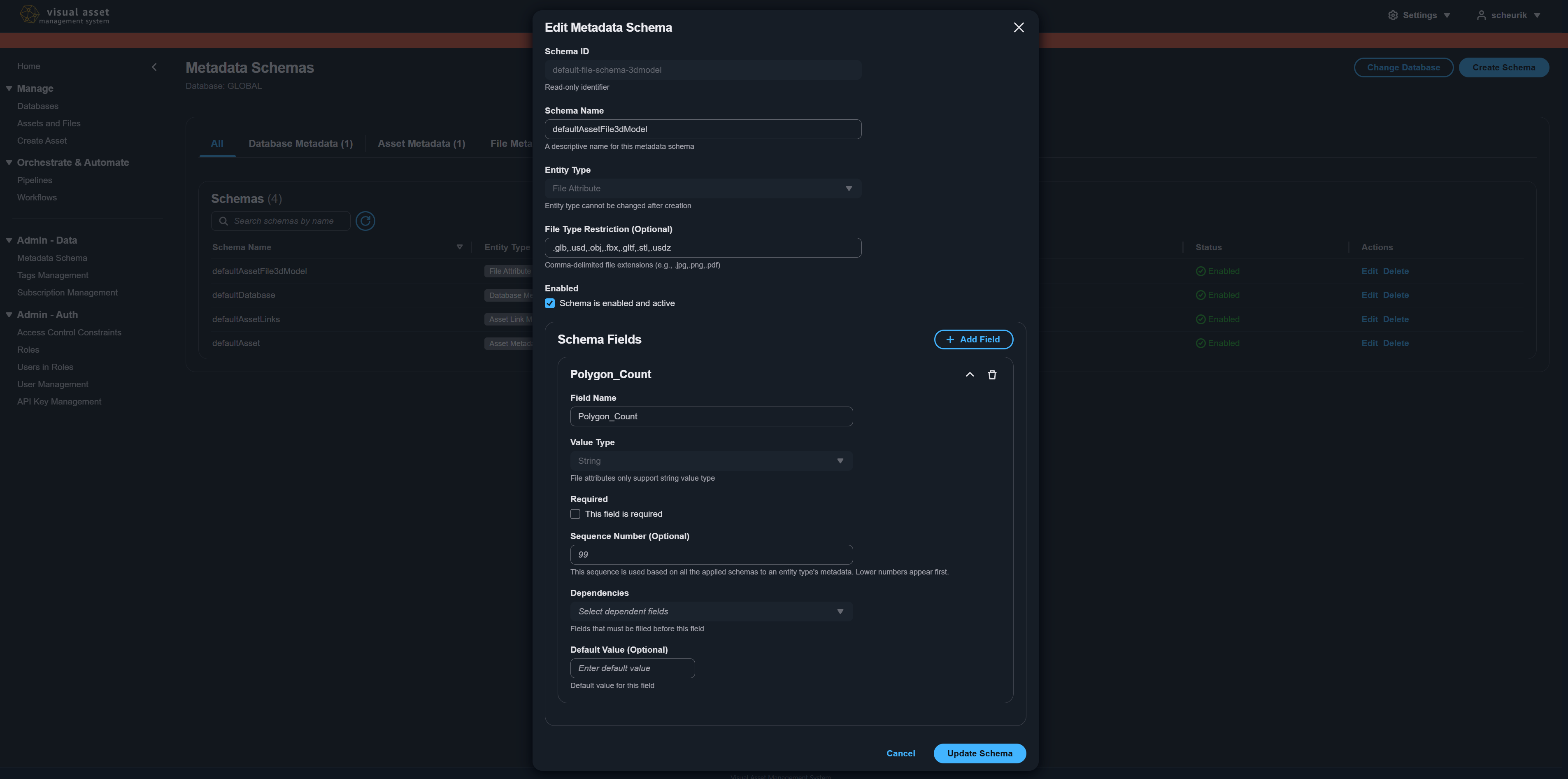
- Fill in the schema details:
- Schema Name -- A descriptive name for the schema.
- Entity Type -- The target entity type (cannot be changed after creation).
- Enabled -- Whether the schema is currently active.
- File Type Restriction (optional, for
fileMetadataandfileAttributeonly) -- Comma-delimited file extensions that this schema applies to (for example,.jpg,.png,.pdf). If left empty, the schema applies to all file types.
- Add one or more schema fields.
- Choose Create Schema.
File type restriction matching
A File Type Restriction is compared against the extension of the file's name:
- Extensions are written with a leading dot (
.glb). Saving a schema is rejected when an entry has no leading dot, is a bare., has a second dot (.tar.gz), or contains/or\, because no file name can match it. An entry of that form already stored in a restriction matches no file, and the editor sends the stored list with every save, so correct the list when you next edit that schema. - The extension is read from the file's name, not from the whole path. A dot in a folder name is not an extension, so
folder.v2/part.glbmatches a schema restricted to.glb. - Matching is case-insensitive, and the last dot in the name decides the extension.
archive.tar.gzmatches.gz. - A file whose name carries no extension --
LICENSE,Dockerfile,README-- is matched by every enabled schema for its entity type, restricted schemas included. This is the same for a file at the root of an asset and for one under a folder whose name contains a dot. .allin the list applies the schema to all file types, as does leaving the restriction empty.
Schema field definitions
Each field in a schema has the following properties:
| Property | Required | Description |
|---|---|---|
| Field Name | Yes | The metadata key name (must be unique within the schema) |
| Value Type | Yes | The data type for this field (see Metadata value types) |
| Required | No | When checked, this field must have a value when creating or updating metadata through the API |
| Sequence | No | Display order number. Lower numbers appear first. Ordering is applied across all schemas for an entity type. |
| Dependencies | No | Other fields in the schema that must be filled before this field |
| Default Value | No | A pre-populated value for this field, validated against the field's value type |
| Controlled List Values | Conditional | Required when value type is inline_controlled_list. Comma-delimited list of allowed values. |
File attribute schemas can only contain fields with the string value type. Selecting the fileAttribute entity type automatically restricts all fields to string.
Multi-schema overlay behavior
Multiple schemas can apply to the same entity type within a database. When this occurs:
- Fields from all applicable schemas are merged and displayed together.
- Fields are ordered by their sequence number across all schemas.
- If the same field name appears in multiple schemas with conflicting definitions, a conflict indicator is shown in the metadata interface.
- Schema names are displayed alongside each field to indicate which schema defines it.
Schema enforcement rules
Schema enforcement applies under specific conditions:
- Enforced on API create/update operations -- When creating or updating metadata through the API, required fields defined in active schemas must be provided.
- Not enforced on pipeline output -- Metadata written by processing pipelines is not validated against schemas. This allows pipelines to write arbitrary metadata without schema constraints.
- Database setting -- When a database has the Restrict Metadata Outside Schemas option enabled and at least one schema exists for the entity type, users cannot create metadata keys that are not defined in a schema.
CSV import and export
VAMS supports bulk metadata editing through CSV files:
- Export -- From the metadata table, export current metadata to a CSV file.
- Edit -- Modify the CSV file in a spreadsheet application. Each row represents a metadata key-value pair with its type.
- Import -- Upload the modified CSV to apply changes in bulk.
This workflow is useful for large-scale metadata updates across many fields.
Metadata versioning
Metadata is captured as part of asset versioning:
- When a new asset version is created, the current metadata state is saved as a snapshot.
- You can view metadata for any previous version by selecting the version from the version selector on the asset detail page.
- When viewing a historical version's metadata, the interface switches to read-only mode.
Restricting metadata outside schemas
Database administrators can enable the Restrict Metadata Outside Schemas setting on a database:
- When enabled and at least one schema exists for the entity type, users cannot create metadata keys that are not defined in any active schema.
- This ensures all metadata follows the defined schema structure.
- The restriction applies only through the API and user interface, not to pipeline-generated metadata.
For more information about managing databases and their settings, see Asset Management.
Metadata operations can also be performed via the command line. See CLI Metadata Commands.