Search and Discovery
VAMS provides a powerful search interface for locating assets and files across all databases. The search system is powered by Amazon OpenSearch Service and supports full-text queries, metadata filtering, and geospatial map visualization.
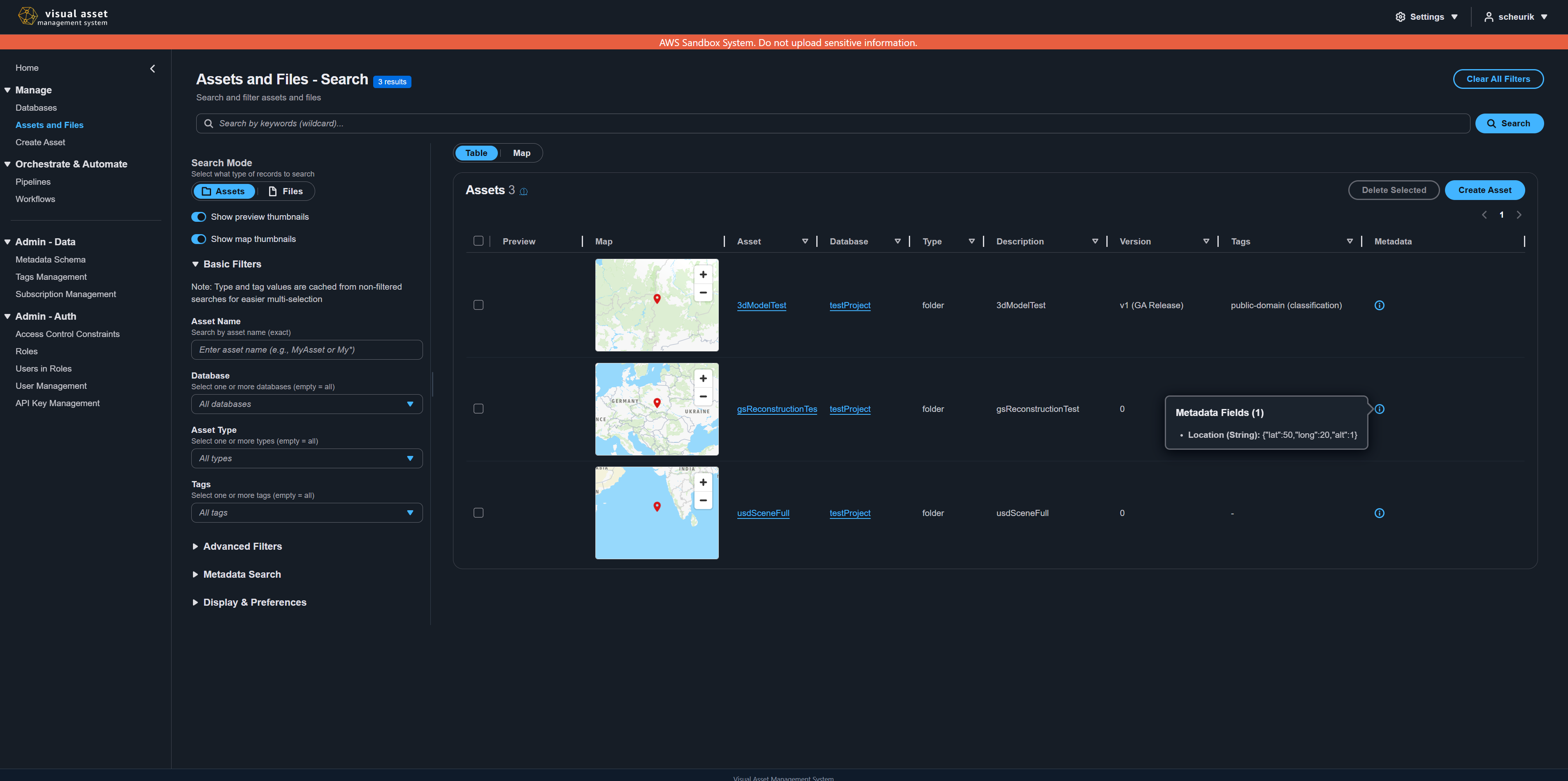
Search modes
The search page supports two entity types that you can toggle between using the mode selector in the sidebar.
| Entity type | Description | Selection |
|---|---|---|
| Assets | Searches across asset records (name, description, tags, type, metadata) | Multi-select enabled for bulk actions |
| Files | Searches across individual file records within assets (file path, size, extension, metadata, attributes) | Selection disabled |
When you switch between Assets and Files mode, filters that do not apply to the new mode are automatically removed. For example, file extension filters are removed when switching to Assets mode.
Text search
The search bar at the top of the page performs a general text query across all indexed fields. Type any term and press Enter or choose the search button. The search runs against asset names, descriptions, tags, metadata values, file paths, and other indexed fields simultaneously.
The text query is combined with all other active filters using AND logic — results must match both the text query and any filters you have applied. For example, searching for "pump" with a database filter of "facility-db" returns only items that contain "pump" AND belong to "facility-db".
Results include a relevance score. Choose the information icon next to any result to see which fields matched and why the result was returned.
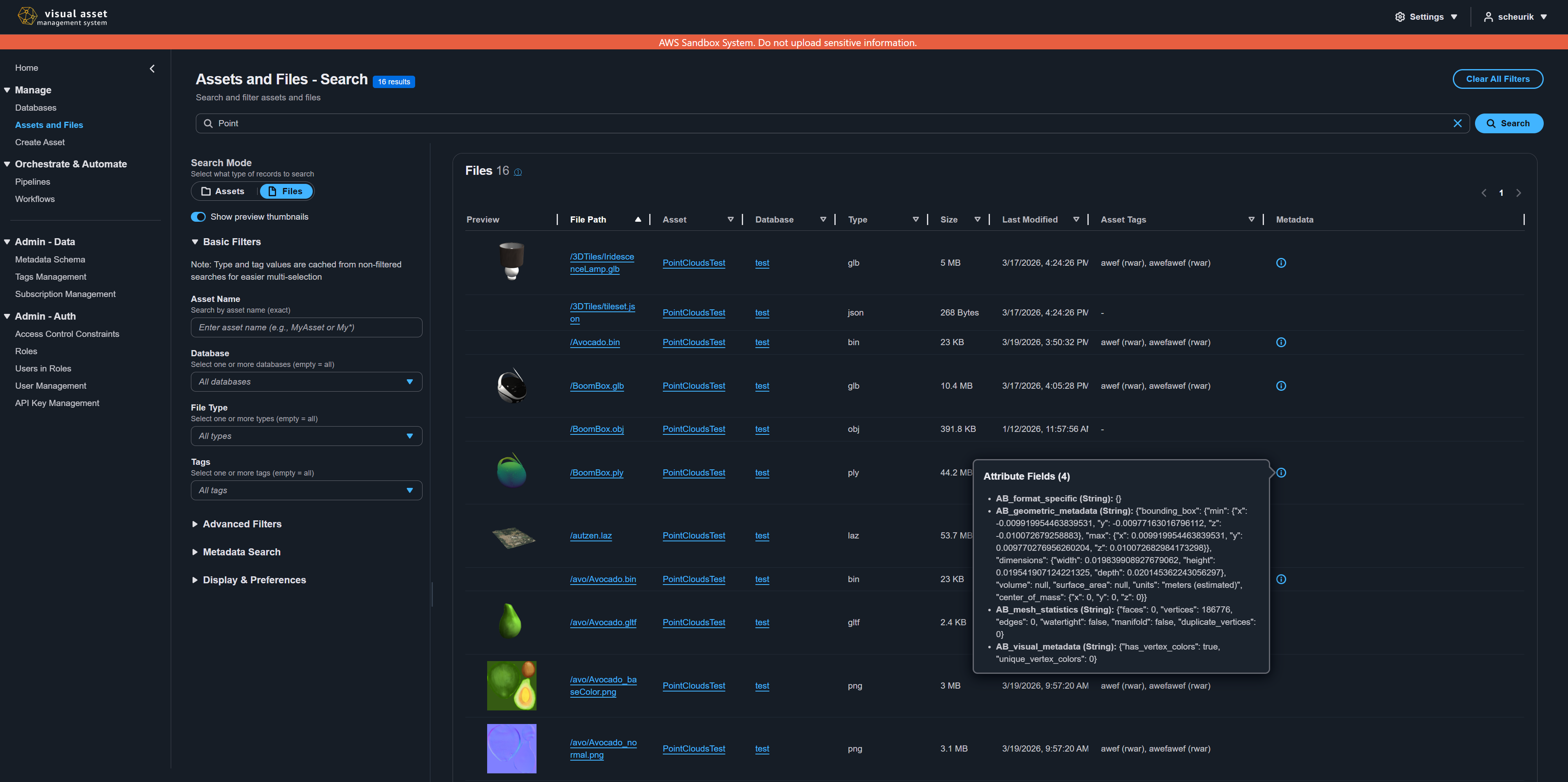
Filters
The sidebar provides several categories of filters that narrow search results in real time. Filters are applied automatically as you change them.
Basic filters
| Filter | Applies to | Description |
|---|---|---|
| Database | Assets, Files | Restrict results to a specific database. Automatically locked when viewing a database-specific page. |
| Asset type | Assets | Filter by the asset type classification (for example, 3D Model, Point Cloud). |
| Tags | Assets | Filter by one or more tags assigned to assets. |
| File extension | Files | Filter by file extension (for example, .e57, .las, .pdf). |
Advanced filters
| Filter | Applies to | Description |
|---|---|---|
| Archived status | Assets | Include archived assets in results. When enabled, an Archived column is automatically added to the table. |
| Has child assets | Assets | Filter to assets that have child asset links. |
| Has parent assets | Assets | Filter to assets that have parent asset links. |
| Has related assets | Assets | Filter to assets that have related asset links. |
| File size | Files | Filter files by size range. |
| Last modified | Files | Filter files by last modified date. |
Metadata search
Metadata filters allow you to search by specific metadata key-value pairs attached to assets or files.
- In the Metadata Search panel, choose Add Filter.
- Enter the metadata key (field name).
- Select an operator (
=,!=,>,<,>=,<=,contains,exists). - Enter the value to match.
- Repeat to add multiple metadata filters.
You can configure two additional options for metadata search:
- Search mode: Choose whether to match against metadata keys, values, or both.
- Operator: Choose AND (all metadata conditions must match) or OR (any metadata condition can match) within the metadata group.
Metadata filters are combined with the text search bar and other filters using AND logic. For example, if you enter "pump" in the text search and set a metadata filter for material = steel, results must match both "pump" in any field AND have material equal to steel. Within the metadata group, you can choose whether multiple metadata conditions use AND or OR logic.
View modes
VAMS provides multiple ways to view search results. Use the segmented control above the results area to switch between views.
Table view
The default view displays results in a sortable, paginated table. Key features include:
- Resizable columns -- Drag column borders to adjust widths.
- Sortable columns -- Choose any column header to sort ascending or descending. Sorting is performed server-side.
- Sticky header -- Column headers remain visible as you scroll.
- Dual scroll bars -- A synchronized scroll bar appears above the table when content overflows horizontally.
- Clickable links -- Asset names link to the asset detail page. Database names link to the database asset listing. In Files mode, file paths link to the asset detail page and navigate directly to that file.
Asset columns include: Preview, Asset Name, Database, Type, Tags, Description, Created Date, Created By, Version, and Archived status (when the archived filter is active).
File columns include: Preview, File Path, Asset Name, Database, Asset Type, Tags, File Size, Last Modified, and Asset Description.
Card view
The card view displays results as visual cards arranged in a responsive grid. Each card shows:
- Preview thumbnail (when enabled)
- Asset or file name as a clickable link
- Database badge
- Asset type badge
- Description excerpt (truncated to 100 characters)
- Tags (up to 3 displayed, with a count badge for additional tags)
- Metadata summary popover
- Creation date and author
Card sizes can be configured through preferences (small, medium, or large).
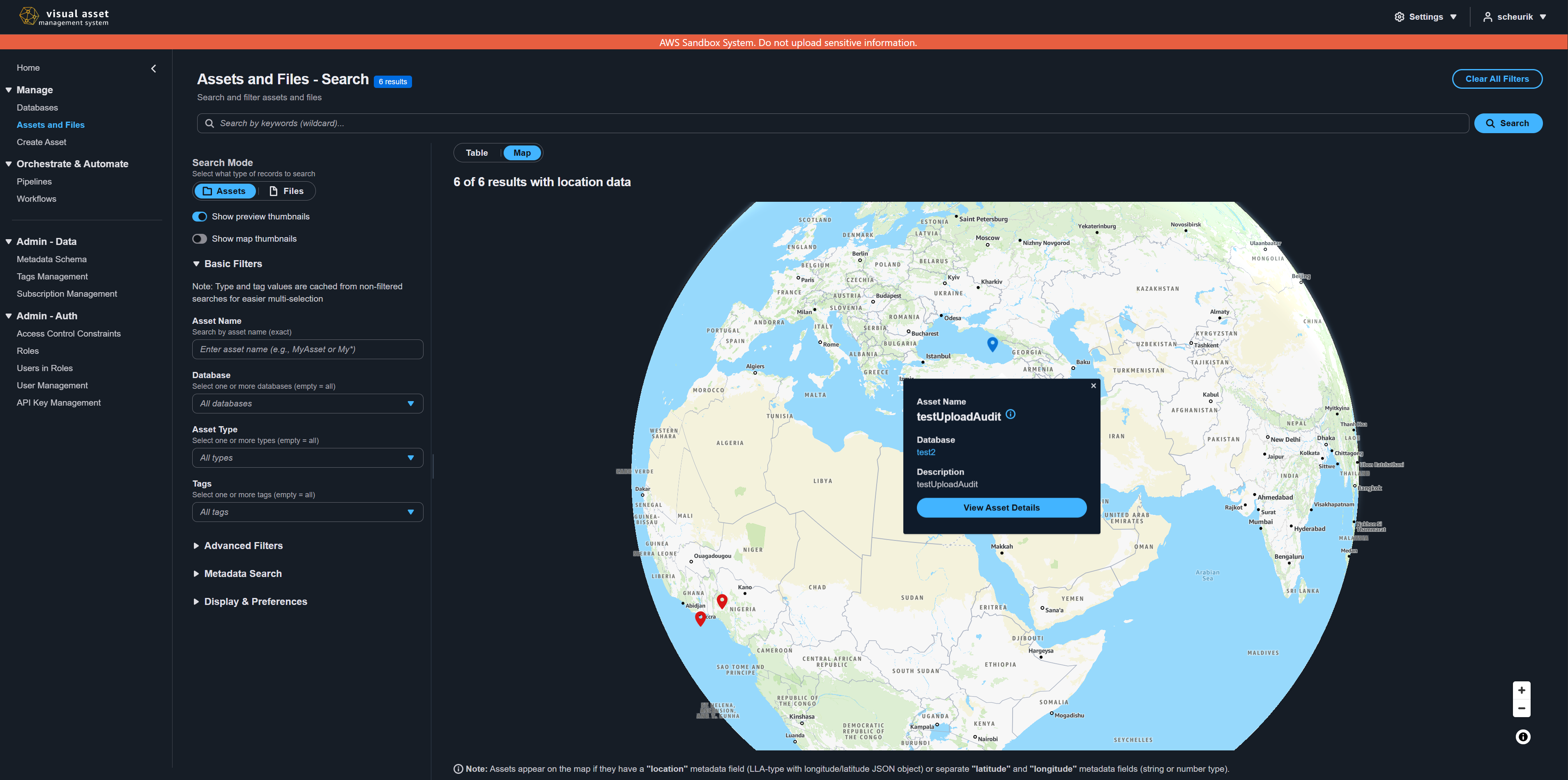
Map view
Map view requires the Location Services feature to be enabled in your VAMS deployment. It is available in both Assets and Files modes.
The map view plots search hits on an interactive map. A result appears on the map when VAMS can determine a location for it from its metadata. Three forms of location metadata are recognized, in this order of preference:
- A geographic shape indexed for the asset or file. This is derived from the asset's or file's location metadata and is what the Geospatial filter matches against.
- A location metadata field containing GeoJSON or a
{longitude, latitude, altitude}object. - Separate latitude and longitude metadata fields.
To place an asset on the map, add a location metadata field of type geopoint or geojson, or add latitude and longitude number fields. See Metadata Management for the available value types.
When you switch to map view, location-related metadata filters are automatically added so only geolocated results are returned. Choosing a map marker opens a popup with the entity's name, database, description, tags, and a View Asset Details button (or View Parent Asset for file results).
GeoJSON polygons and multi-polygons are rendered as filled shapes with outline borders. Points are rendered as map markers.
Geospatial filter
The Geospatial filter panel in the sidebar (visible when Location Services is enabled) lets you constrain results to a geographic area. Three modes are available:
- Point + radius — Filter to results within a circle around a (latitude, longitude) center.
- Bounding box — Filter to results inside an axis-aligned rectangle defined by the top-left and bottom-right corners.
- GeoJSON — Paste a GeoJSON Geometry, Feature, or FeatureCollection (Polygon, MultiPolygon, etc.) for arbitrary shapes.
The Relation dropdown controls the spatial relationship between the input shape and the indexed geometry:
| Relation | Match condition |
|---|---|
intersects | Indexed shape overlaps the input shape (default). |
within | Indexed shape lies entirely inside the input shape. |
contains | Indexed shape fully contains the input shape. |
disjoint | Indexed shape has no spatial overlap with the input shape. |
The geospatial filter applies in addition to all other filters; results must satisfy every active filter group.
The geospatial filter matches only against the indexed geographic shape, so an asset or file whose location has not been indexed as a shape is not returned by the filter. The map view is more forgiving and continues to plot such results using the other location metadata forms listed above. If an asset appears on the map but never satisfies the geospatial filter, ask your administrator to reindex the search data.
Preview thumbnails
The Show Thumbnails toggle in the sidebar enables inline preview images in table, card, and map views.
- For assets, the thumbnail is loaded from the asset-level preview image.
- For files, the thumbnail shows the file-specific preview (for example, a rendered image of a 3D model or the first page of a PDF).
Choosing a thumbnail opens a full-size preview modal with download options.
When the Map Thumbnails toggle is enabled (and Location Services is on), a small map column appears in the table showing the geographic location of each asset or file with valid location data.
Column customization
You can control which columns are visible in the table view through the Preferences panel in the sidebar:
- Expand the Display & Preferences section in the sidebar.
- Check or uncheck columns to show or hide them.
- Columns are stored separately for Assets and Files modes, so each mode retains its own column configuration.
Column preferences are saved to your browser and persist across sessions.
Sorting and pagination
- Sorting is performed server-side. Choose any sortable column header to sort results. The current sort field and direction are indicated in the column header.
- Pagination controls appear at the bottom of the results. Page sizes of 10, 25, 50, or 100 are available through preferences. Navigate between pages using the pagination controls.
- The total result count is displayed in the table header. When the count is approximate (more results exist than can be precisely counted), a
+suffix is shown.
Direct URL navigation to files
You can navigate directly to a specific file within an asset using the URL format:
/#/databases/{databaseId}/assets/{assetId}/file/{filePath}
When you choose a file path in search results (Files mode), the application navigates to the asset detail page and automatically selects the corresponding file in the file tree.
Bulk actions
In Assets mode, you can select multiple assets using the checkboxes and perform bulk actions:
| Action | Description |
|---|---|
| Delete Selected | Archive or permanently delete the selected assets. If any selected asset is already archived, the delete modal offers permanent deletion. |
| Unarchive Selected | Restore a single archived asset. This button appears when exactly one archived asset is selected. |
| Create Asset | Navigate to the upload page to create a new asset. |
Permanently deleting an archived asset cannot be undone. The asset and all its files are removed from the system.
Limited search mode
If your deployment has Amazon OpenSearch Service disabled (the NOOPENSEARCH feature flag is active), the search page falls back to a basic asset listing mode. In this mode, full-text search, metadata filtering, and map view are unavailable. Only a paginated table of assets is displayed.
Search operations can also be performed via the command line. See CLI Search Commands.