Web Interface Overview
This page provides a comprehensive tour of the VAMS web interface, covering each major page and its capabilities. For first-time setup, see Getting Started.
Navigation Structure
The VAMS interface uses a persistent side navigation panel on the left and a top navigation bar. The side panel groups pages into six sections: Home, Manage, Orchestrate & Automate, Admin - Data, Admin - Auth, and User. Pages within these sections are filtered based on your role permissions -- you will only see navigation items you are authorized to access.
If the navigation panel shows No Access, your account does not have any web route permissions assigned. Contact your administrator to request the necessary role assignments.
The side navigation panel can be collapsed or expanded using the toggle control. VAMS remembers your panel state across page navigations within a session.
Database Listing Page
The Databases page displays all databases you have access to in a searchable, sortable table.
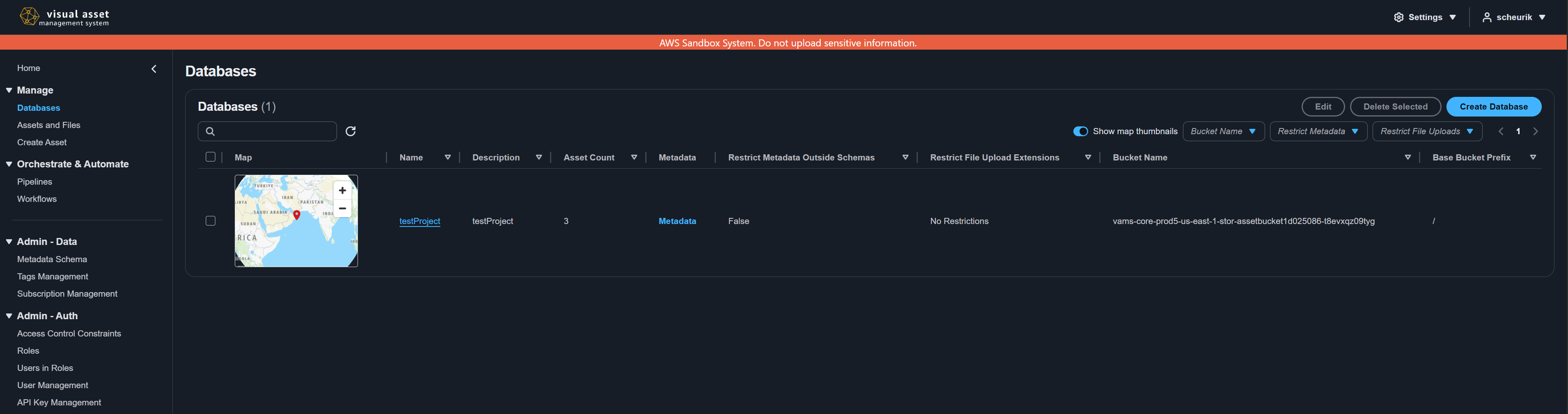
Key Features
| Feature | Description |
|---|---|
| Create Database | Opens a modal dialog to create a new database with a name, description, default bucket, and optional restrictions. |
| Edit Database | Modify an existing database's description, bucket assignment, metadata schema restrictions, and file extension restrictions. |
| Metadata modal | Select a database to view and edit its metadata in a dedicated modal. |
| Map thumbnails | When Amazon Location Service is enabled, toggle the Show map thumbnails option to display geographic previews for databases that contain geospatial assets. |
| Text filtering | Use the search box to filter databases by name or other visible fields. |
| Column sorting | Select any column header to sort the table in ascending or descending order. |
| Pagination | Navigate through large database lists using pagination controls. |
Database Properties
Each database record displays the following information:
| Column | Description |
|---|---|
| Database Name | The unique identifier for the database. |
| Description | A human-readable description of the database's purpose. |
| Asset Count | The number of assets contained within the database. |
Asset Search Page
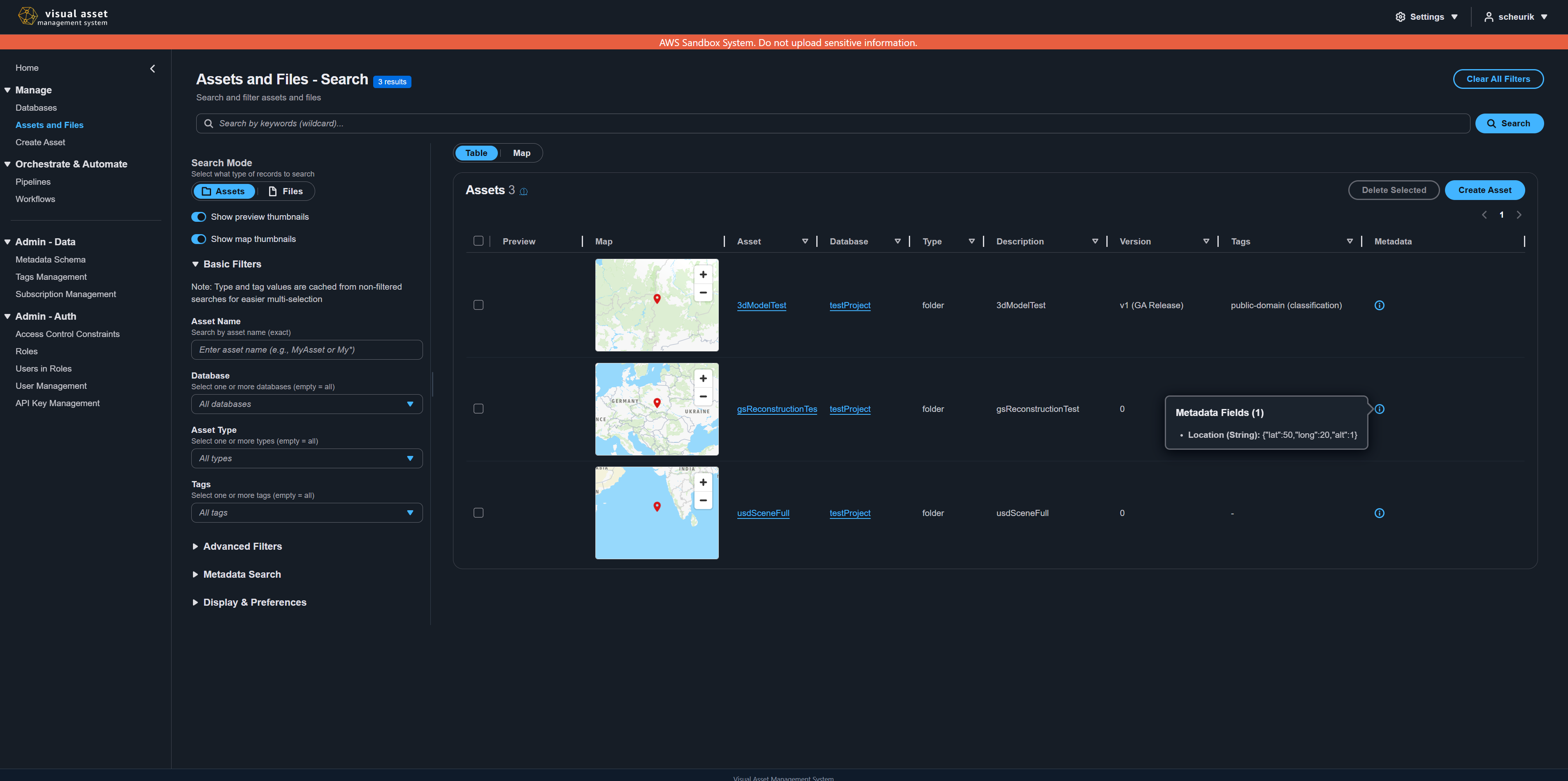
The Assets and Files page is the primary interface for discovering and browsing assets. It supports multiple view modes and powerful filtering capabilities.
View Modes
VAMS provides three ways to browse assets:
| View Mode | Description |
|---|---|
| Table view | A detailed tabular layout with sortable columns. Best for reviewing asset properties in bulk. |
| Card view | A grid of asset cards showing preview thumbnails. Best for visual browsing. |
| Map view | A geographic map display showing asset locations. Available only when Amazon Location Service is enabled. |
Search and Filtering
The search page provides several mechanisms for finding assets:
- Text search -- Enter keywords to search across asset names and properties.
- Database filter -- Filter assets to a specific database by navigating from the Databases page or using the database selector.
- Column customization -- Show or hide table columns to focus on the properties that matter to you.
- Property filtering -- Use the filter bar to build complex queries combining multiple properties with AND/OR logic.
Preview Thumbnails
When assets have preview images, thumbnails are displayed alongside each asset in all view modes. Previews are generated automatically by configured pipelines or can be uploaded manually during asset creation.
Navigating to an Asset
Select any asset row in the table view or any card in the card view to navigate to the asset detail page. You can also access an asset directly using its URL in the format /#/databases/{databaseId}/assets/{assetId}.
Asset Detail Page
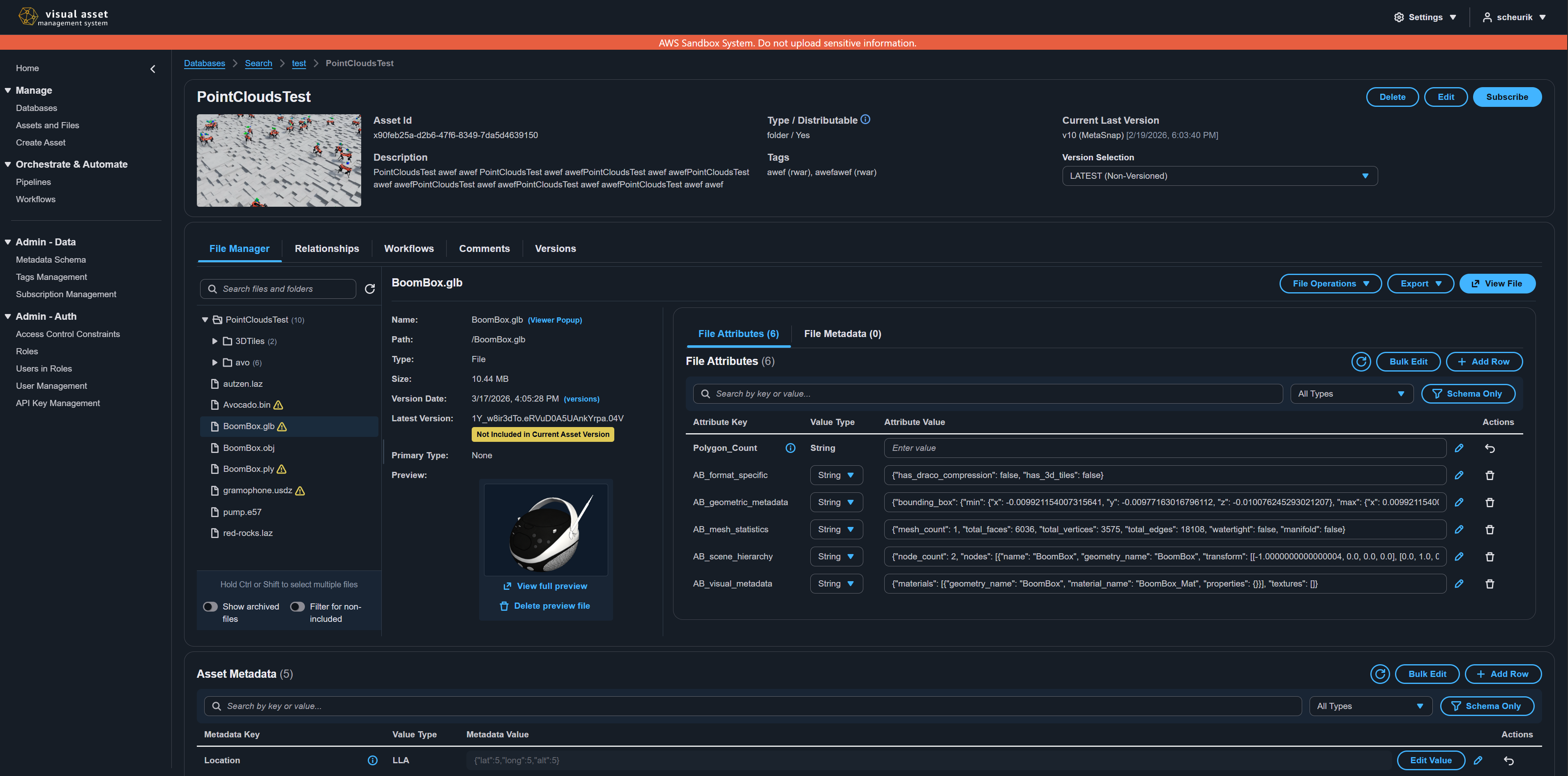
The asset detail page is the central hub for viewing and managing a single asset. It is divided into three main sections: the details pane, the tabbed container, and the metadata section.
Breadcrumb Navigation
A breadcrumb trail at the top of the page shows your current location in the hierarchy: Databases > {Database Name} > {Asset Name}. Select any breadcrumb segment to navigate back to that level.
Details Pane
The details pane displays the asset's core properties and provides action buttons.
| Element | Description |
|---|---|
| Asset Name | The display name of the asset, shown as the container header. |
| Preview thumbnail | If a preview image exists, a clickable thumbnail is displayed. Select it to open a larger preview modal. |
| Asset Id | The unique identifier assigned to the asset. |
| Description | The asset's description text. |
| Type / Distributable | The asset type (file extension or "folder" for multi-file assets) and whether downloads are enabled. An info tooltip explains these fields. |
| Tags | Any tags applied to the asset. |
| Version selector | A dropdown to switch between asset versions. The current (latest) version is selected by default. |
| Delete button | Opens the asset deletion dialog (archive or permanent delete). |
| Edit button | Opens the update asset modal to modify name, description, type, distributable status, and tags. |
| Subscribe / Subscribed button | Toggle notification subscription for this asset's version change events. |
Tabbed Container
Below the details pane, a tabbed interface provides access to the following sections:
| Tab | Description |
|---|---|
| File Manager | A split-pane file browser with a directory tree on the left and file details on the right. Supports uploading, moving, copying, renaming, archiving, and deleting files. When viewing a specific version, the label updates to File Manager (v{versionId}) and file operations are read-only. |
| Relationships | View and manage asset-to-asset relationships. Supports parent, child, and related link types, including cross-database relationships. |
| Executions | View workflow execution history for this asset and trigger new workflow executions. |
| Comments | View and add comments on the asset using a rich text editor. |
| Versions | View the full version history of the asset, including version aliases, comments, and archive status. |
Metadata Section
Below the tabbed container, the metadata section displays all key-value metadata pairs associated with the asset. When a metadata schema is applied to the database, the interface enforces schema-defined fields and types. In online mode, edits are saved directly to the backend.
File Viewer Page
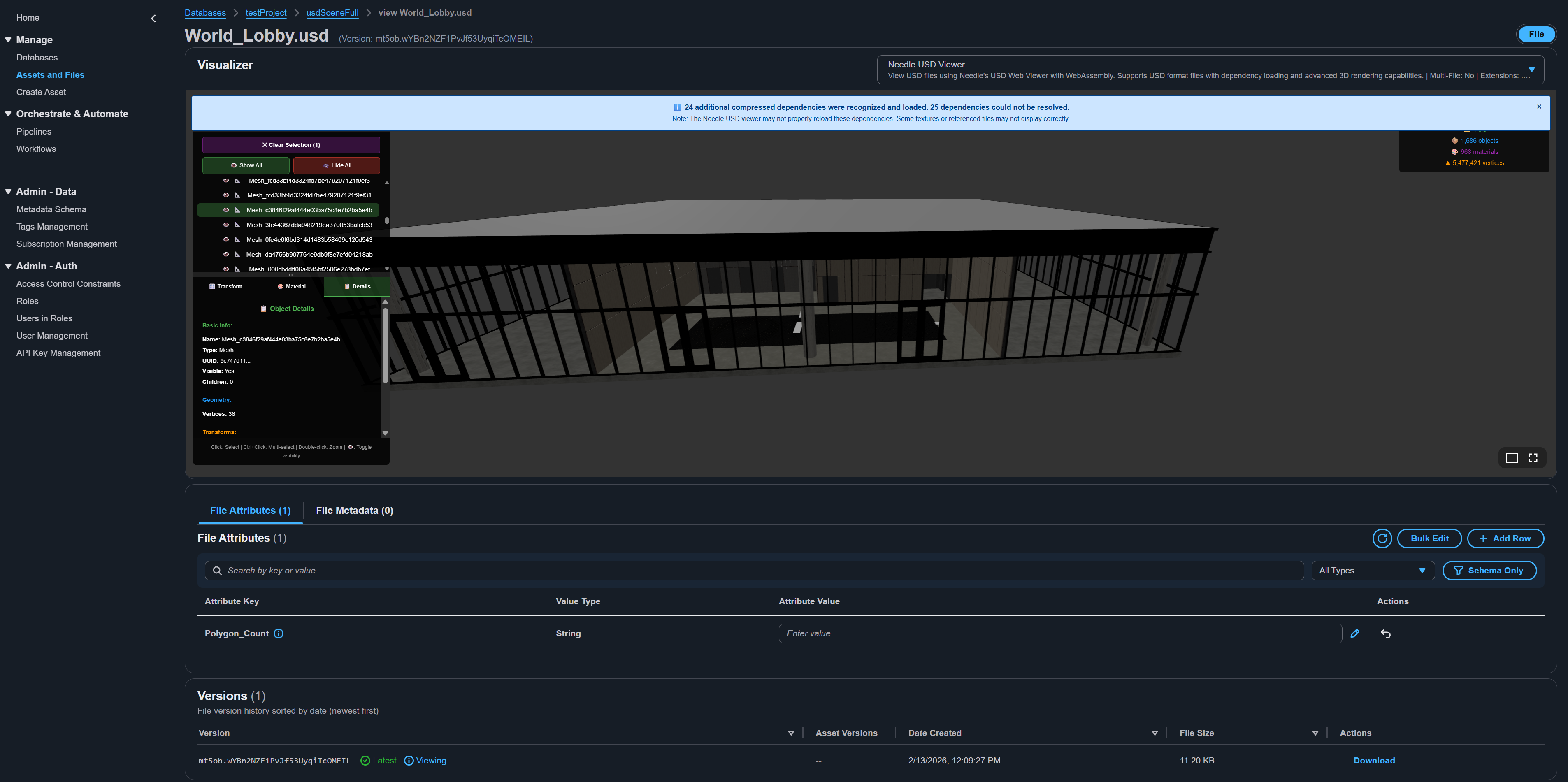
When you select a file in the file manager and choose to view it, VAMS opens a dedicated file viewer page. If only one viewer plugin supports the file extension, the page opens the file in it; if several do, you choose one from the viewer dropdown.
Supported Viewer Types
VAMS includes 20 built-in viewer plugins covering 3D models, point clouds, Gaussian splats, images, video, audio, documents, and tabular data. The viewer is selected automatically only when exactly one viewer supports the file extension. If multiple viewers support the same extension, you choose one from a dropdown and can switch between them.
For the complete list of supported file viewers and extensions, see File Viewers.
If a file's extension matches multiple viewers, the viewer dropdown lists them with the lowest priority number first, and the file opens once you choose one. If the file has a preview image, the file page also offers a Preview option that shows it in the Preview Viewer.
Upload Page
The Create Asset page uses a multi-step wizard to guide you through asset creation. For a detailed walkthrough, see Upload Your First Asset.
The wizard consists of five steps:
- Asset Details -- Enter the asset name, select a database, set distributable status, provide a description, and assign tags.
- Asset Metadata -- Add key-value metadata pairs. If the database has a metadata schema, required fields are enforced.
- Asset Relationships (optional) -- Define parent, child, or related relationships with existing assets.
- Select Files to Upload (optional) -- Choose files or folders to upload, with drag-and-drop support. Optionally provide an overall preview image.
- Review and Upload -- Review all details and submit.
Pipeline and Workflow Management Pages
Pipelines Page
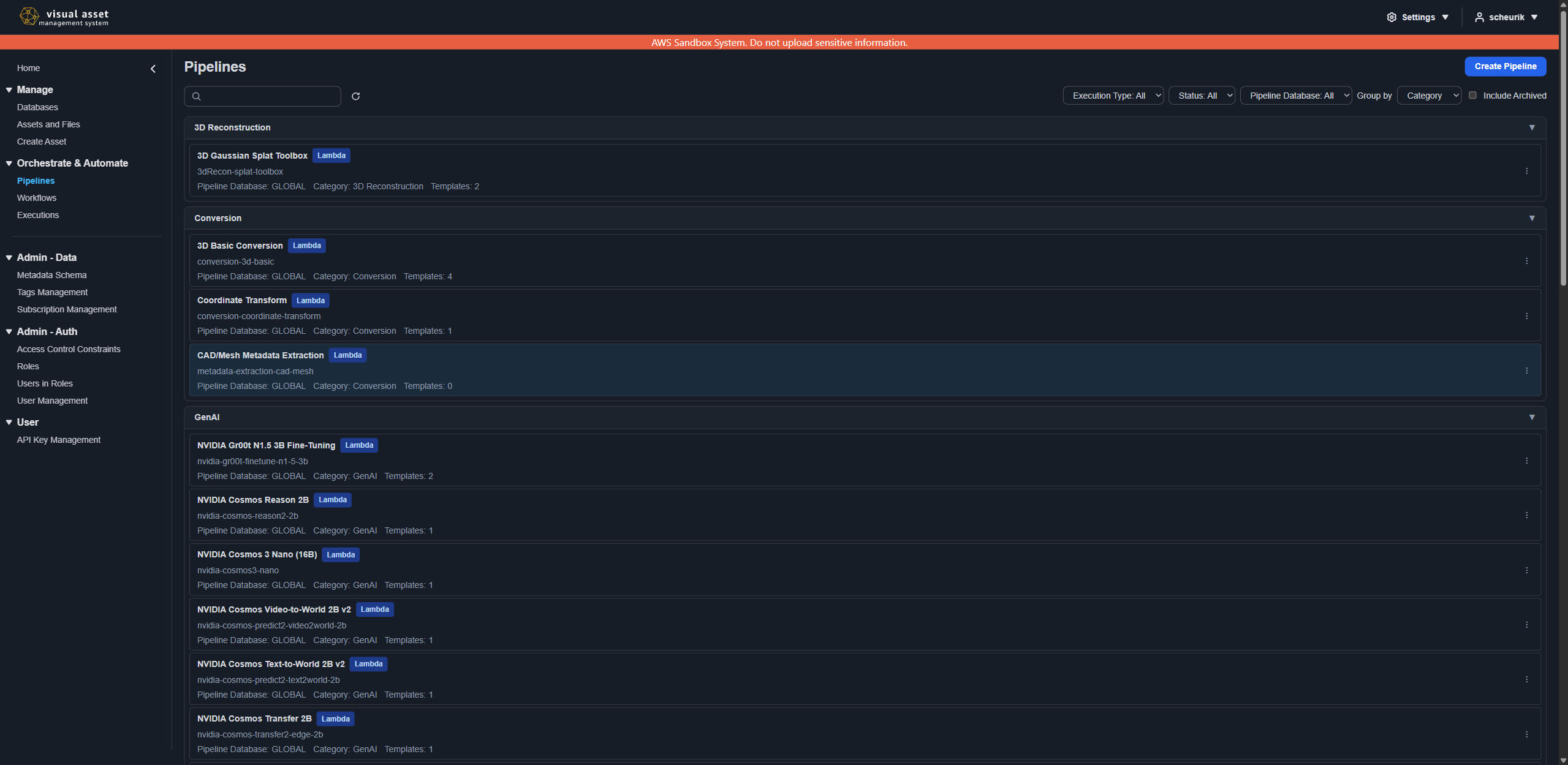
The Pipelines page lists all registered processing pipelines. Pipelines define individual processing steps such as 3D model conversion, point cloud processing, preview thumbnail generation, or AI-based labeling.
Each pipeline entry shows its name and id, its execution type, its owning database, its category, and how many configuration templates it carries, together with Disabled or Archived where either applies. Entries are grouped by category or by database, and the list can be filtered by execution type, status, and database.
Each entry's ⋮ actions menu holds Edit, Templates, and Archive, limited to the actions your permissions allow. Create Pipeline in the page header starts a new one. Deleting a template from the Templates list reports a warning, kept on the list, when an auto-triggered workflow's trigger had chosen it as this pipeline's default.
Workflows Page
The Workflows page lets you create and manage workflows that chain multiple pipelines into automated processing sequences. Workflows run automatically when one of their triggers matches an upload, or manually from the workflow's own Execute action or an asset's Automation menu.
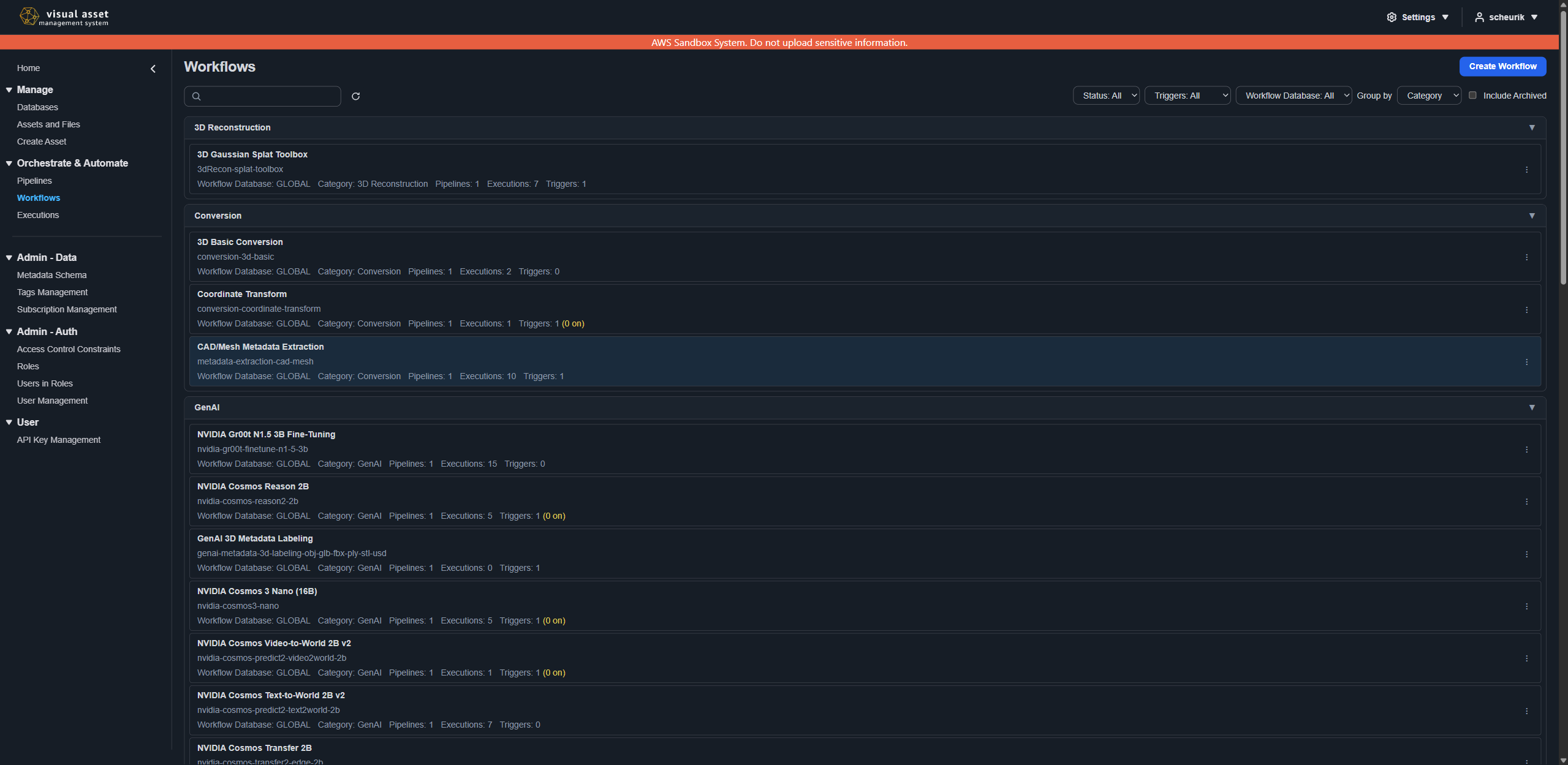
Each entry shows the workflow's name and id, its database and category, how many pipelines it runs, how many executions it has, and how many triggers it defines — with the number currently enabled called out when some are off. Filters narrow the list by status, by whether the workflow has an enabled trigger, and by database.
Each entry's ⋮ actions menu holds Edit, Execute, View Executions, and Archive, limited to the actions your permissions allow.
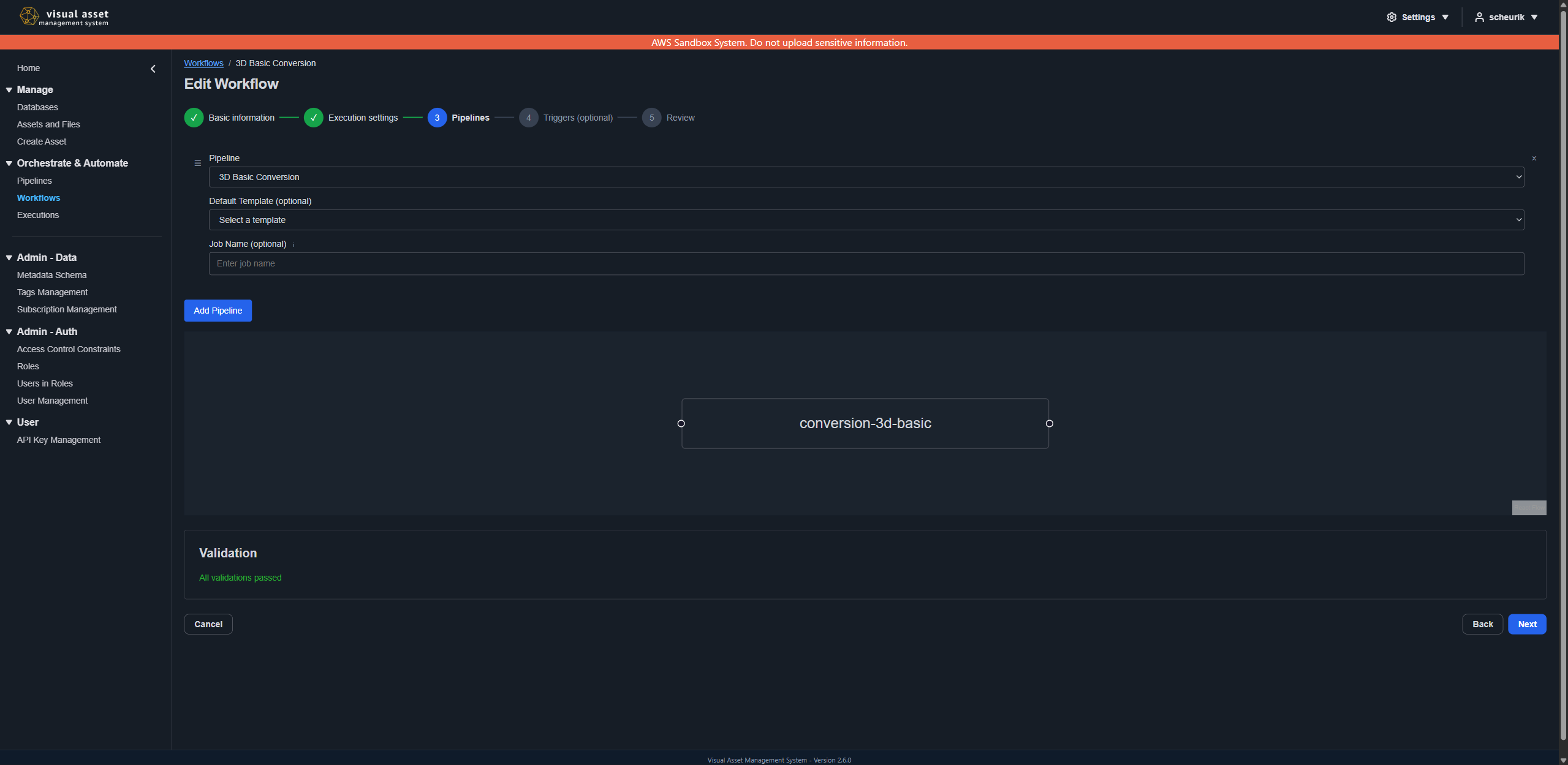
Creating or editing a workflow opens a step-by-step wizard, whose Pipelines step lists the steps in order alongside a graph of the resulting sequence.
Executions Page
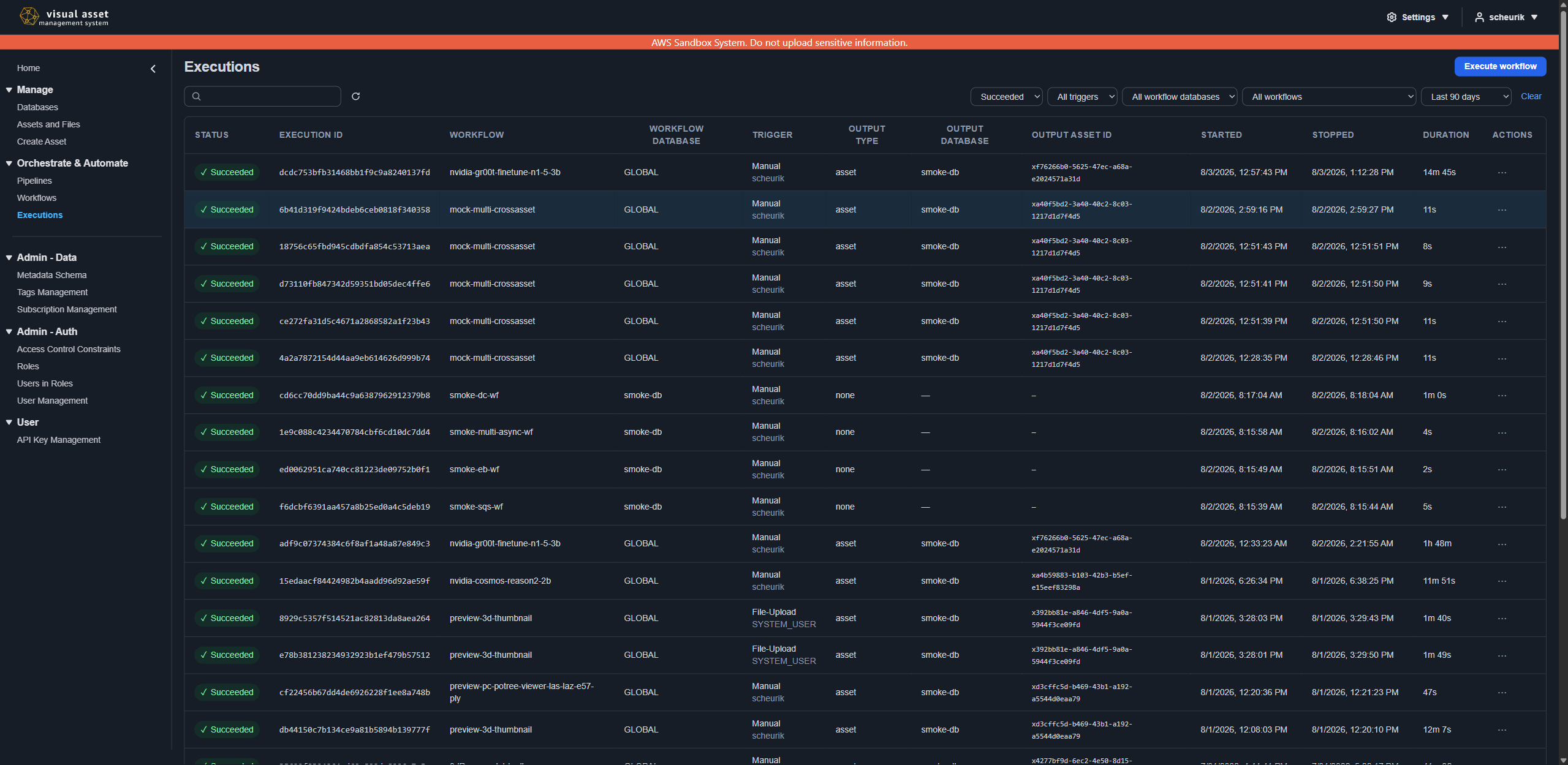
The Executions page lists workflow executions across every workflow and database you may see. Filters narrow the list by status, trigger, workflow, workflow database, and time window; the output columns identify the asset each run wrote to. Selecting a run opens its detail view, with tabs for its inputs, pipelines, outputs, settings, and logs.
Settings and Theme Toggle
The Settings dropdown in the top navigation bar provides access to theme preferences. VAMS offers two themes:
| Theme | Description |
|---|---|
| Dark Theme | Default theme with a dark background. Reduces eye strain in low-light conditions. |
| Light Theme | Light background theme for bright environments. |
Select a theme from the dropdown to switch immediately. The active theme is marked with a checkmark. Your preference persists across browser sessions.
Hash-Based URLs and Deep Linking
VAMS uses hash-based routing (URLs contain #/), which ensures compatibility across all deployment modes including Amazon CloudFront and Application Load Balancer distributions. You can construct direct links to any page in VAMS using these URL patterns.
URL Patterns
| Target | URL Pattern |
|---|---|
| Database list | https://<VAMS_WEBSITE>/#/databases/ |
| Specific database | https://<VAMS_WEBSITE>/#/databases/<databaseId> |
| Asset detail | https://<VAMS_WEBSITE>/#/databases/<databaseId>/assets/<assetId> |
| File viewer | https://<VAMS_WEBSITE>/#/databases/<databaseId>/assets/<assetId>/file/<encodedFilePath> |
| File at version | https://<VAMS_WEBSITE>/#/databases/<databaseId>/assets/<assetId>/file/<encodedFilePath>?version=<fileVersionId> |
| File at asset version | https://<VAMS_WEBSITE>/#/databases/<databaseId>/assets/<assetId>/file/<encodedFilePath>?assetVersion=<assetVersionId> |
| Upload page | https://<VAMS_WEBSITE>/#/upload/ |
File Path Encoding
File paths in URLs must be encoded using standard URL encoding (encodeURIComponent in JavaScript). Forward slashes in the file path become %2F.
Examples:
# File at asset root
https://vams.example.com/#/databases/building/assets/x7150abc/file/photo.jpg

# File in a subdirectory
https://vams.example.com/#/databases/building/assets/x7150abc/file/images%2Ffloor-plan.png

# File with specific version
https://vams.example.com/#/databases/building/assets/x7150abc/file/scan.e57?version=v2
When sharing links or creating bookmarks, always include the #/ portion of the URL. These deep links work without any server-side routing configuration and can be used in external tools, documentation, emails, or ticketing systems to link directly to specific VAMS content.
When both version and assetVersion query parameters are provided, assetVersion takes priority. The assetVersion parameter shows the file as it existed at that specific asset version snapshot.