User Management
VAMS provides built-in user management for deployments that use Amazon Cognito as the authentication provider. Administrators can create, update, and delete users directly from the VAMS web interface without accessing the Amazon Cognito console.
The User Management page is available only when Amazon Cognito authentication is enabled. If your deployment uses an external OAuth identity provider (IdP), user management is handled externally through your IdP's administration interface, and this page is not displayed in the navigation.
Overview
The User Management feature allows administrators to perform the following operations:
- List all users in the Amazon Cognito user pool
- Create new users with email-based credentials
- Update user attributes (email, phone number)
- Reset user passwords
- Delete users from the user pool
Relationship to VAMS roles
Creating a user in Amazon Cognito establishes authentication credentials only. The user cannot access VAMS resources until they are also assigned one or more VAMS roles through the Users in Roles page. Both steps are required:
- Create the user (this page)
- Assign roles to the user (see Permissions)
Navigating to User Management
- In the left sidebar, expand the Admin - Auth section.
- Choose User Management.
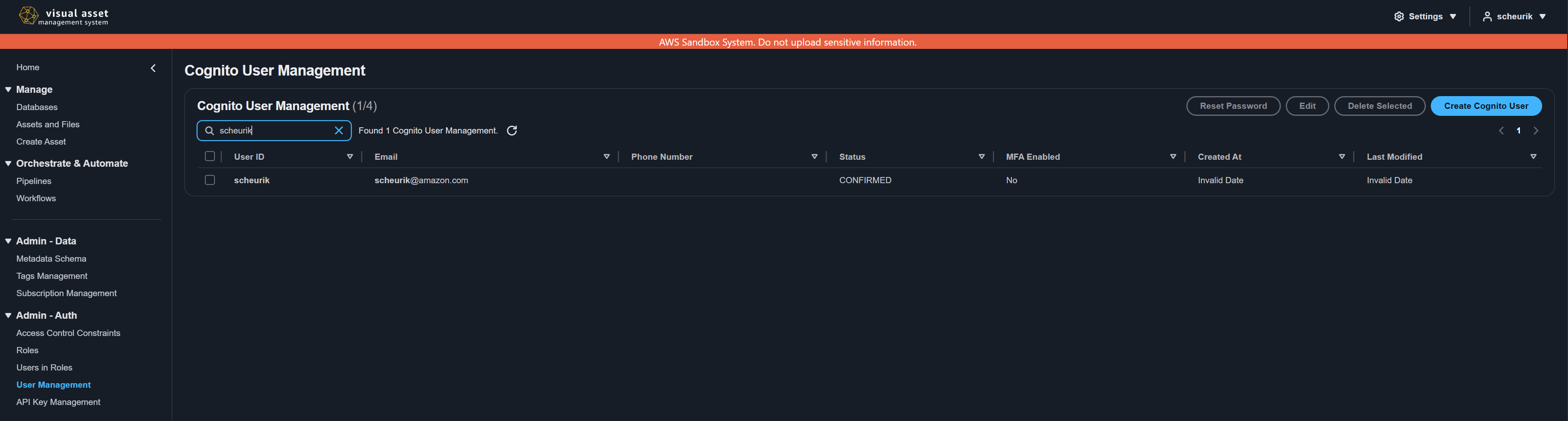
The User Management link appears only when Amazon Cognito is the configured authentication provider. If you do not see this link, your deployment likely uses an external identity provider.
Listing users
The User Management page displays all users in the Amazon Cognito user pool. The table includes the following columns:
| Column | Description |
|---|---|
| User ID | The unique username for the user in Amazon Cognito. |
| The user's email address. | |
| Phone Number | The user's phone number in E.164 format (optional). |
| Status | The current Amazon Cognito user status (for example, CONFIRMED, FORCE_CHANGE_PASSWORD). |
| MFA Enabled | Whether multi-factor authentication is enabled for the user. |
| Created At | The date and time the user was created. |
| Last Modified | The date and time the user was last modified. |
Use the filter fields at the top of the table to search by User ID, Email, or Phone Number.
Creating a new user
When you create a new user, Amazon Cognito generates a temporary password and sends it to the user's email address. The user must change their password on first login.
- On the User Management page, choose Create Cognito User.
- Complete the form fields:
| Field | Description | Required |
|---|---|---|
| User ID | A unique identifier for the user. Must be 3--256 characters. Supports alphanumeric characters and the special characters . + - @. | Yes |
| The user's email address. Must be a valid email format. Used for delivering the temporary password. | Yes | |
| Phone Number | The user's phone number in E.164 format (for example, +12345678900). | No |
- Choose Create Cognito User.
After creation, the user receives a welcome email from Amazon Cognito containing their User ID and a temporary password. The user must sign in and set a new password before they can access VAMS. Ensure the user's email address is correct and that your Amazon Cognito configuration allows email delivery.
User statuses
After creation, the user will be in one of the following Amazon Cognito statuses:
| Status | Description |
|---|---|
FORCE_CHANGE_PASSWORD | The user has been created but has not yet signed in and changed their temporary password. |
CONFIRMED | The user has signed in and set a permanent password. |
Updating a user
You can update a user's email address and phone number. The User ID cannot be changed after creation.
- On the User Management page, select the user to update.
- Choose Edit.
- Modify the Email or Phone Number fields.
- Choose Update Cognito User.
When you update a user's email or phone number through the VAMS interface, the new values are automatically marked as verified in Amazon Cognito.
Resetting a user password
Password reset in VAMS recreates the user account in Amazon Cognito with the same email and phone number attributes, generating a new temporary password that is sent to the user's email.
- On the User Management page, select the user whose password you want to reset.
- Choose Reset Password.
- Review the user details displayed in the confirmation dialog.
- Choose Reset Password to confirm.
Resetting a password has the following effects:
- A new temporary password is generated and sent to the user's email address.
- The user's current password immediately stops working.
- The user must sign in with the temporary password and set a new permanent password.
- The user's VAMS role assignments are preserved (roles are stored separately from the Amazon Cognito user record).
Deleting a user
Deleting a user removes them from the Amazon Cognito user pool. This action is permanent and cannot be undone.
- On the User Management page, select the user to delete.
- Choose Delete.
- Confirm the deletion.
Deleting a user from Amazon Cognito does not automatically remove their VAMS role assignments. To fully remove a user's access, also remove their entries from the Users in Roles page. See Permissions for details.
External identity provider deployments
When VAMS is configured to use an external OAuth identity provider instead of Amazon Cognito, user management is performed through your IdP's own administration tools. In this configuration:
- The User Management page is not displayed in the VAMS navigation.
- Users are created and managed in the external IdP (for example, Okta, Azure AD, or a SAML-based provider).
- VAMS still requires role assignments for each user. After a user authenticates through the external IdP, an administrator must add the user to appropriate roles on the Users in Roles page.
For more information on configuring external authentication, see the Configuration Guide.
Common workflows
Onboarding a new user
The complete workflow for adding a new user to VAMS involves two steps:
- Create the user account -- Use the User Management page (or your external IdP) to create the user's authentication credentials.
- Assign VAMS roles -- Navigate to Admin - Auth > Users in Roles and assign one or more roles to the new user. The user's access level is determined by the permissions defined in the assigned roles.
Offboarding a user
To fully revoke a user's access:
- Remove role assignments -- Navigate to Admin - Auth > Users in Roles and remove the user from all roles.
- Delete or disable the user -- Delete the user from the User Management page (Cognito deployments) or disable the user in your external IdP.
- Revoke API keys -- If the user had any API keys, navigate to API Key Management and deactivate or delete them. See API Keys for details.
User and API key operations can also be performed via the command line. See CLI Users and Keys Commands.