Tags
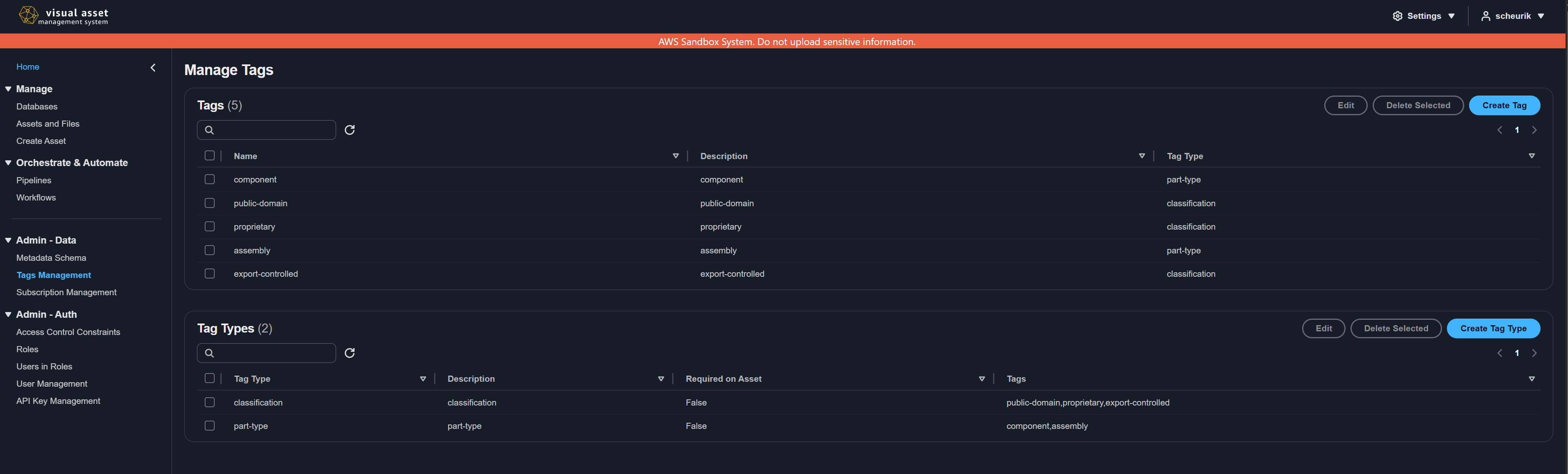
Tags are labels that you assign to assets to classify and organize them. Every tag belongs to a tag type, which acts as a named category. For example, a tag type called Region might contain tags such as us-east, eu-west, and ap-southeast.
Tag types
A tag type defines a named category for grouping related tags. Tag types have the following properties:
| Property | Description | Required |
|---|---|---|
| Name | A unique identifier for the tag type. Must be 3--64 characters, alphanumeric with - and _ allowed. | Yes |
| Description | A human-readable description of the tag type's purpose. Must be 4--256 characters. | Yes |
| Required | When enabled, assets must have at least one tag of this type assigned during creation or modification. | No |
When a tag type is marked as Required, it appears with an [R] indicator in the Tags list. Users are expected to assign at least one tag from each required tag type when creating or modifying assets.
Creating a tag type
- Navigate to Admin - Data > Tags Management in the left sidebar.
- In the Tag Types section at the bottom of the page, choose Create Tag Type.
- Complete the form fields:
- Name -- Enter a unique name for the tag type (3--64 characters, alphanumeric with
-and_). - Description -- Provide a description (4--256 characters).
- Require tag of this tag type on asset modification -- Select the checkbox if assets must include a tag of this type.
- Name -- Enter a unique name for the tag type (3--64 characters, alphanumeric with
- Choose Create Tag Type.
Editing a tag type
- In the Tag Types section, select the tag type you want to edit.
- Choose Edit.
- Update the Description or Required setting. The tag type name cannot be changed after creation.
- Choose Update Tag Type.
Deleting a tag type
A tag type can only be deleted if no tags are currently assigned to it. Remove all associated tags before deleting the tag type.
- In the Tag Types section, select the tag type you want to delete.
- Choose Delete.
- Confirm the deletion.
You cannot delete a tag type that has tags associated with it. Delete or reassign all tags under the tag type first.
Tags
Tags are individual labels that belong to a tag type. Each tag has the following properties:
| Property | Description | Required |
|---|---|---|
| Name | A unique identifier across all tag types. Must be 3--64 characters, alphanumeric with - and _. | Yes |
| Description | A human-readable description of the tag. Must be 4--256 characters. | Yes |
| Tag Type | The tag type category this tag belongs to. | Yes |
Tag names must be unique across all tag types. You cannot create two tags with the same name, even if they belong to different tag types.
Creating a tag
- Navigate to Admin - Data > Tags Management in the left sidebar.
- In the Manage Tags section at the top of the page, choose Create Tag.
- Complete the form fields:
- Name -- Enter a unique tag name (3--64 characters).
- Description -- Provide a description (4--256 characters).
- Tag Type -- Select the tag type this tag belongs to from the dropdown. The dropdown is populated from existing tag types.
- Choose Create Tag.
Editing a tag
- In the Manage Tags section, select the tag you want to edit.
- Choose Edit.
- Update the Description or Tag Type assignment. The tag name cannot be changed after creation.
- Choose Update Tag.
Deleting a tag
- In the Manage Tags section, select the tag to delete.
- Choose Delete.
- Confirm the deletion.
Assigning tags to assets
Tags can be assigned to assets during the upload process or by editing an existing asset. When a tag type is marked as required, the system expects at least one tag from that tag type to be present on the asset.
For details on uploading assets with tags, see Upload Your First Asset. For editing asset metadata including tags, see Asset Management.
Using tags for access control
Tags integrate with the VAMS permission system. Administrators can create access control constraints that restrict users to assets with specific tags. For example, a constraint can allow a user role to access only assets tagged with confidential under the Classification tag type.
For more information on configuring tag-based permissions, see Permissions.
Filtering by tags
The Tags list supports filtering by tag name. Enter a search term in the filter field at the top of the table to narrow the displayed tags. Tag-based filtering is also available in the Search and Discovery interface.
Tag and tag type operations can also be performed via the command line. See CLI Tag Commands.