Pipelines and Workflows
Pipelines and workflows automate asset processing in VAMS. A pipeline defines a single processing step (such as converting a file format, extracting metadata, or generating preview thumbnails), while a workflow chains one or more pipelines together in sequence and can be triggered automatically on file upload.
Concepts
Pipelines
A pipeline represents a discrete processing operation. Pipelines can be built-in (deployed with VAMS) or user-created. Each pipeline has an execution type that determines how it processes data:
| Execution type | Description |
|---|---|
| Lambda | Invokes an AWS Lambda function directly. Supports both synchronous execution and callback mode. |
| SQS | Sends a message to an Amazon SQS queue. The downstream consumer processes the message asynchronously. |
| EventBridge | Publishes an event to an Amazon EventBridge event bus. The downstream consumer processes the event asynchronously. |
| DeadlineCloud | Submits a job to an AWS Deadline Cloud queue for render-farm and batch processing. Asynchronous, and always reports completion through a callback. |
DeadlineCloud is selectable only when the deployment enables that execution type.
SQS and EventBridge pipelines without callback mode enabled operate as fire-and-forget integrations. They push data to the downstream service but do not return output files, preview images, or metadata back to VAMS.
Workflows
A workflow runs one or more pipeline steps in sequence. When a workflow executes, it runs each pipeline step in order, passing the output of one step on to the next.
Workflows can be:
- Database-specific -- Scoped to a particular database, using pipelines from that database.
- GLOBAL -- Available across all databases, using GLOBAL pipelines.
Viewing available pipelines
- Navigate to Pipelines from the left navigation menu.
- Select a database from the database selector, or view all pipelines across databases.
- The pipeline list displays all pipelines you have permission to access, showing the pipeline name and id, its owning database, execution type, status, and template count. The list can be grouped by category or by database, filtered by execution type, status and database, and archived pipelines can be included.
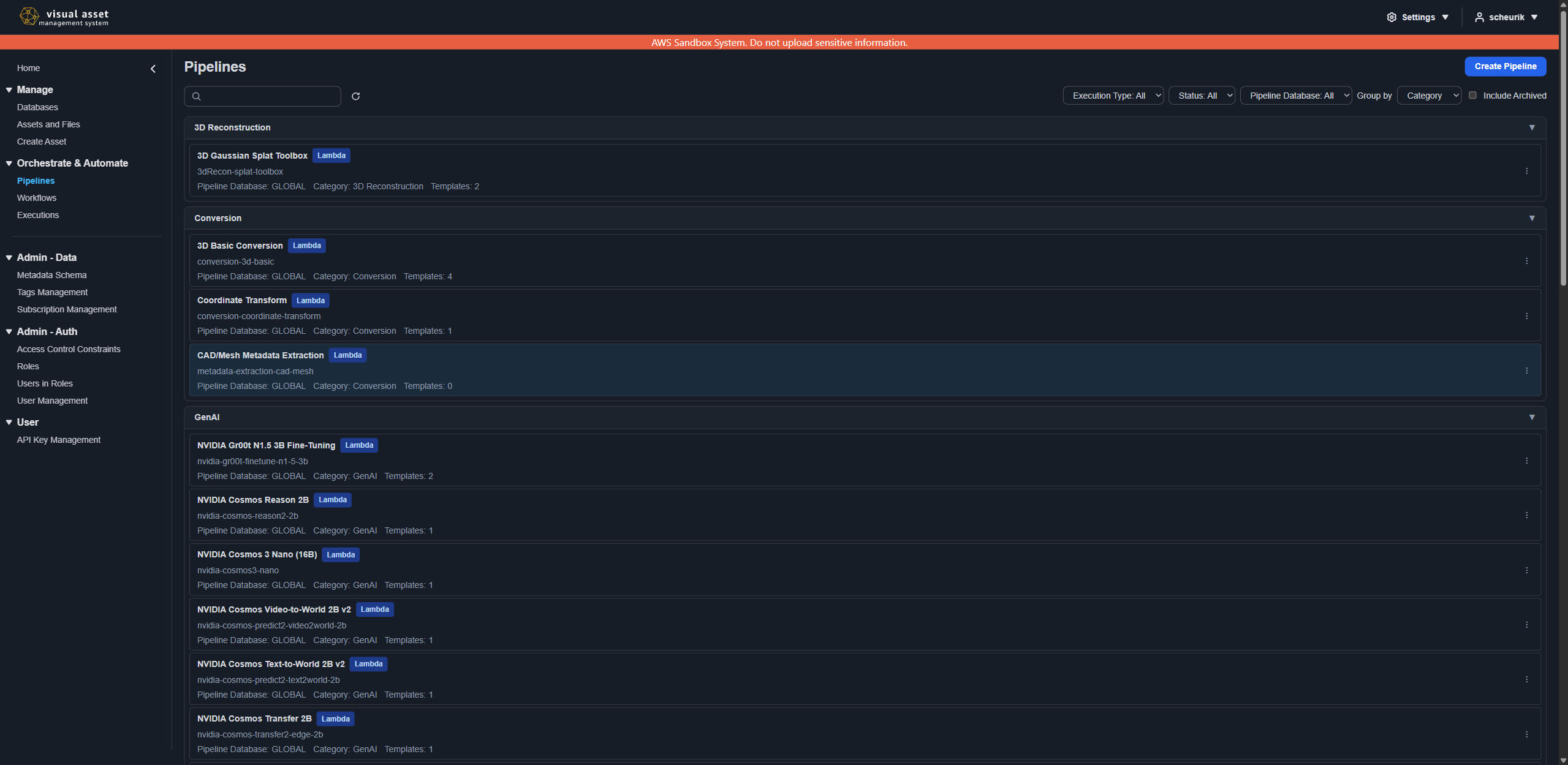
Each entry's ⋮ actions menu holds what you can do with that pipeline: Edit opens its form, where its execution settings and the admin settings that govern how it may be run are shown; Templates opens its configuration templates as a separate list; Archive withdraws it from use. Only the actions your permissions allow appear in the menu, so a read-only user sees Templates alone.
Deleting a template from that list is permanent and is never blocked. When an auto-triggered workflow's trigger had chosen the template as this pipeline's default, the delete succeeds and reports a warning naming those workflows, which stays on the template list after the notification clears. Triggered executions of the named workflows fail until each trigger picks a different default template for the pipeline.
Creating a custom pipeline
Navigate to Pipelines and choose Create Pipeline. The form is a three-step wizard — Basic, Execution, then Settings — and the pipeline is created when you finish the last step.
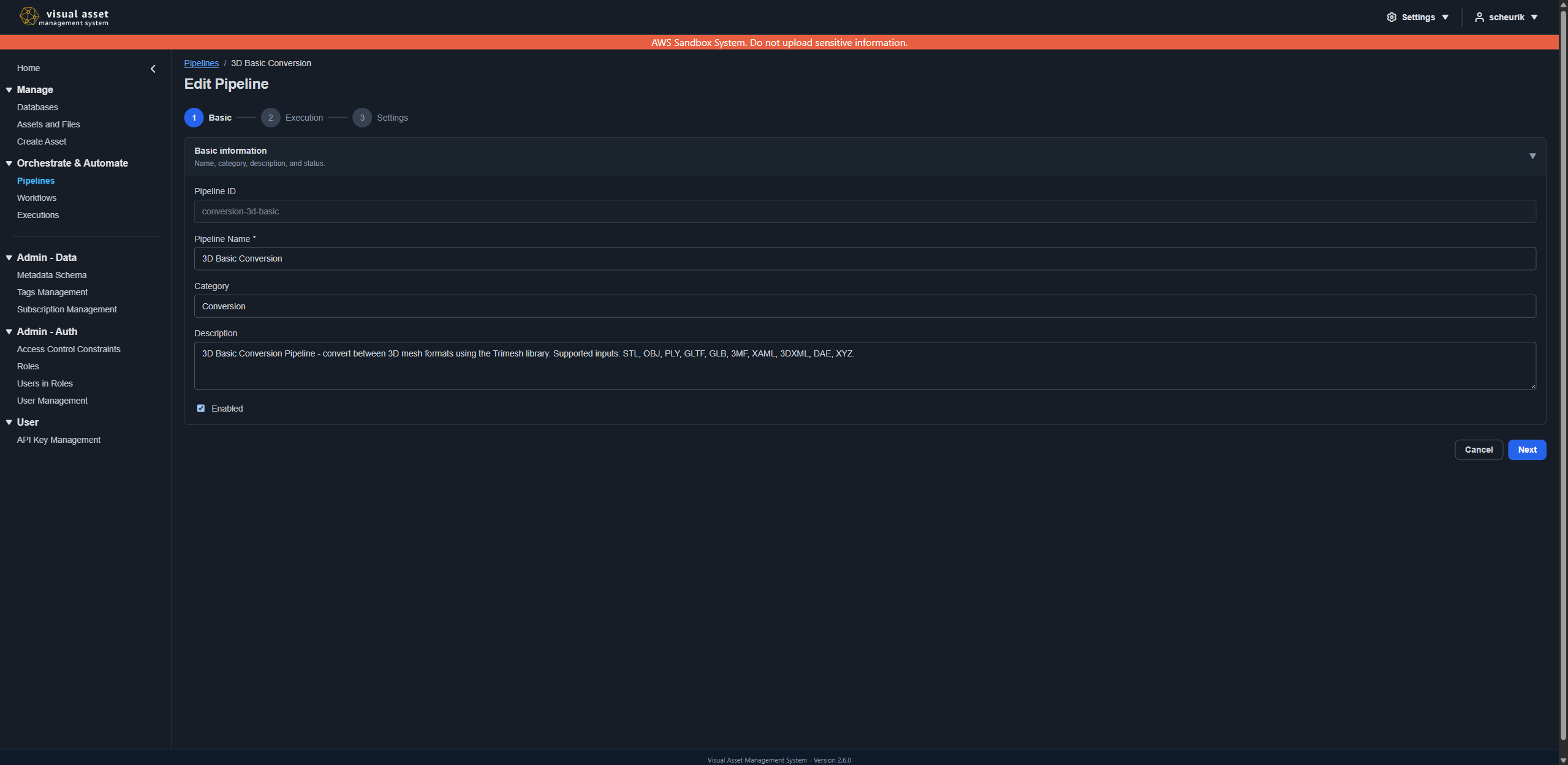
Basic
| Field | Required | Description |
|---|---|---|
| Pipeline ID | -- | Shown when editing an existing pipeline; it is generated on creation and cannot be changed. |
| Pipeline Name | Yes | Display name for the pipeline, up to 256 characters. |
| Category | No | Free-text grouping used to organize and filter the pipeline lists (for example, Conversion, 3D Reconstruction). |
| Description | No | What the pipeline does. |
The owning database is the one you are creating within — pipelines created from a database's page belong to that database, and those created as GLOBAL are available to workflows in any database. See GLOBAL vs. database-specific.
Execution
Execution Type selects how VAMS hands work to the pipeline, and determines which fields follow:
| Execution type | Fields |
|---|---|
| Lambda | Lambda Resource ID — the function VAMS invokes, by ARN or name. Leave it blank to have VAMS create a new function for the pipeline. |
| SQS | Queue URL — the full Amazon SQS queue URL. Required. |
| EventBridge | Event Bus ARN, Source, and Detail Type — all three required. |
| DeadlineCloud | Farm ID and Queue ID (required), Job Template (required), plus Storage Profile ID, Priority, Max Retries Per Task, Max Failed Tasks Count, and Template Type (JSON or YAML). |
DeadlineCloud is available only when the deployment enables it; the fields are shown but disabled otherwise.
The remaining execution fields apply to any type:
| Field | Required | Description |
|---|---|---|
| Wait For Callback | Yes | When enabled, VAMS waits for the pipeline to report completion instead of treating the invocation itself as the result. Locked on for DeadlineCloud; SQS and EventBridge are asynchronous, so without it the step is fire-and-forget. |
| Task Timeout (seconds) | No | With callback enabled, how long the step may run before it is failed, from 1 to 604,800 seconds (one week). Leave it blank to accept the 24-hour default. |
| Task Heartbeat Timeout (seconds) | No | With callback enabled, the interval within which the pipeline must report a heartbeat, in the same range. Leave it blank for a pipeline that reports no heartbeat. Set it below the task timeout — a larger value never takes effect, because the task times out first. |
Settings
These are the admin controls that govern how the pipeline may be run — the contract the execute form and the file-upload triggers are checked against:
| Setting | Description |
|---|---|
| Input file count | None (a results-only or generate-from-nothing pipeline), One file, or Multiple files. |
| Asset selection rules | Asset span — whether an execution's input files may come from more than one asset — plus whether a whole asset or a folder may be selected. |
| Input file filters — allow/exclude | The file patterns the pipeline accepts, as extensions (*.glb), file names, paths, or wildcards. An empty allow list means any file; the exclude list is applied last and may not match everything. Hidden for a pipeline that takes no input files. |
| Metadata provided to the pipeline | Which metadata the pipeline is given: database metadata, asset metadata, per-file metadata, and file attributes. See Metadata inputs. |
| Require template | When on, every execution of this pipeline must use one of its configuration templates. |
| Allow custom template override | When on, whoever runs the pipeline may supply a one-off configuration body in place of a saved template. |
| Aux Preview Pipeline Suffix | A viewer-specific subfolder (for example -preview, /PotreeViewer) appended to the pipeline's auxiliary preview path, so a pipeline producing viewer data writes it where the matching viewer reads it. Leave empty unless the pipeline produces viewer-specific auxiliary output. |
When one pipeline supports several modes that consume different inputs, set the input file count to the lowest value any of its templates needs and let each template raise it. The execute form then asks for a file only when the chosen template actually consumes one. See Building custom pipelines.
Archiving a pipeline
Archive in a pipeline's actions menu withdraws it from use: it is disabled, it stops appearing in the
lists unless Include Archived is selected, and it cannot be chosen for a new workflow step. The pipeline
record is kept, so archiving is reversible. Restoring one is a command-line operation — the web interface
has no restore action — using vamscli pipeline unarchive.
Archiving succeeds even while workflows still reference the pipeline, and those workflows keep their definitions. Their next execution is then rejected, because one of their steps points at a disabled, archived pipeline. Remove the pipeline from every workflow that uses it first.
Updating a pipeline
Editing a pipeline updates the pipeline itself. The workflows that reference it keep running against the execution configuration they were last saved with, so after changing where a pipeline sends its work — its execution type, its target function, queue, event bus or farm, or its callback and timeout settings — open each workflow that uses it and save it again to bring it up to date. Saving such a change reports a warning naming the workflows that reference the pipeline, so you know which ones to revisit.
Configuration templates
Templates in a pipeline's actions menu lists its configuration templates; Create Template, or Edit on a template, opens the template form. The form is a four-step wizard — Basic, Pipeline overrides, Tags and Config Body, then Review — and a step you have completed can be reopened from the progress strip.
Basic
| Field | Required | Description |
|---|---|---|
| Template Name | Yes | Display name shown in template pickers. |
| Description | No | What the template configures. |
| Input Instructions | No | Guidance shown to whoever runs an execution with this template. Line breaks and indentation are preserved, and a preview shows how the execute screen renders the text — long instructions fold behind a control there rather than inline. |
| Set as the pipeline's default template | No | Pre-selects this template on the execute form and lets a require-template pipeline run without one being chosen. A pipeline has one default, so saving this clears the flag on any other template. |
| Allow editing the config body at execution time | No | Lets the person running an execution edit the configuration body inline before launch, as a one-off change for that run. |
Pipeline overrides
Optional. Each of the pipeline's input-handling settings — input file count, asset selection rules, metadata inputs, and input file filters — can be overridden for executions that use this template. A setting left un-toggled inherits the pipeline's value. This step does not touch the configuration body.
Tags and Config Body
The tag schema and the configuration body are authored side by side, so the body can be written against the tags it references.
- Tag Schema (left): one entry per tag — its key, type (
String,Number,Decimal,Boolean,String Multi-line, orListwith its allowed values), label, description, default value, and whether it is required. Each tag becomes a field on the execute form. Keys are letters, digits and underscores only, so the{{tagKey}}placeholder can be substituted. - Config Format and Config Body (right): the format (
json,yaml,openjd,xml, orraw) and the body editor, which stays in view while the tags are edited. - This template's tags: a chip per declared tag under the editor. Clicking a chip inserts the tag's
{{tagKey}}placeholder at the cursor. In ajsonbody aStringorListtag is inserted in quotes, because its value renders as text inside the string it fills, and aNumber,Decimal,Boolean, orString Multi-linetag is inserted bare, because its value renders as a JSON value of that type; every other format inserts the bare placeholder. - A declared tag that the body never references is flagged — its value would be collected on the execute
form and then ignored — and a
jsonbody is checked as you type against the same rule the save applies, so a quoted typed tag or a text tag outside its quotes is reported before Save. - System template tags: the collapsed catalog beneath the editor lists this template's own tags and then every system placeholder the body may use.
- Execute-form preview: how the tag fields appear on the execute form when this template is chosen.
Review
The name, format, options, and overrides, a table of the declared tags, and a read-only preview of the body. The body check and the unreferenced-tag notice are advisory — saving is what decides. A body the save refuses reports the reason next to Save, and Tags and Config Body reopens from the progress strip to correct it. See Configuration templates and per-run options for the tag schema fields and the quoting rule in detail.
Viewing available workflows
- Navigate to Workflows from the left navigation menu.
- Select a database or view all workflows across databases.
- The workflow list displays each workflow's name and id, its database, category, and how many pipelines, executions and triggers it has — with the number of enabled triggers called out when some are switched off. The list can be filtered by status, by whether the workflow has an enabled trigger, and by database.
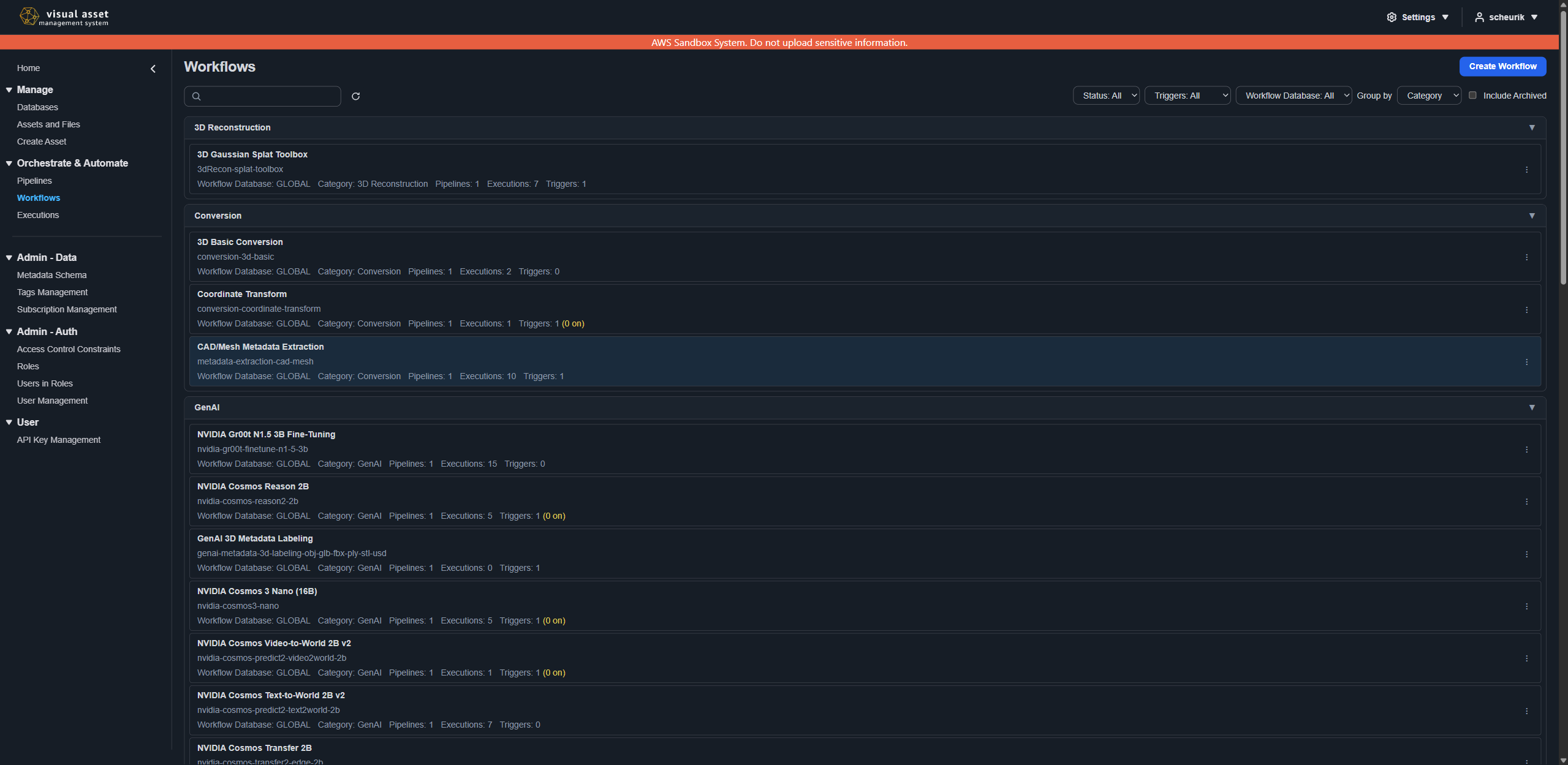
Each entry's ⋮ actions menu holds Edit, Execute, View Executions, and Archive, limited to the actions your permissions allow.
Creating a workflow
Navigate to Workflows and choose Create Workflow. If you are not already viewing a specific database, select the database for this workflow, or GLOBAL for a cross-database workflow.
The editor is a step-by-step wizard: Basic information, Execution settings, Pipelines, Triggers (optional), then Review. Triggers can be drafted while creating a workflow and are written once the workflow itself has been created; when editing, each change to a trigger is saved on its own.
Basic information
| Field | Required | Description |
|---|---|---|
| Workflow Name | Yes | Display name for the workflow. |
| Category | No | Free-text grouping used to organize and filter the workflow lists. |
| Description | No | What the workflow does. |
Execution settings
The workflow's own gate. Every execution is checked against these before any pipeline is considered:
| Setting | Description |
|---|---|
| Input file count | None, One file, or Multiple files. |
| Asset selection rules | The asset span, and whether a whole asset or a folder may be selected. |
| Input file filters — allow/exclude | The file patterns the workflow admits. Hidden when the workflow takes no input files. |
| Metadata provided to pipelines | Database metadata, asset metadata, file metadata, and file attributes. |
| Output destination | Write to an asset, or Results only for a workflow that records results text and logs and writes no asset output. |
| Allow choosing the output asset | Whether whoever runs the workflow may send output to a different asset and set an output path prefix. Offered for an asset destination. |
| Default output path prefix | The prefix an execution is pre-filled with. It supports tags resolved per run, so /{{executionId}}/ gives every run its own folder. Leave it blank to add no prefix. |
| Allow workflow trigger chaining | Whether a file written by another workflow may fire this workflow's triggers. A file recorded as written by this workflow does not re-fire it — see the warning below. |
| Concurrency restriction | None, One per asset, or One per input file — whether a new execution waits while a conflicting one is still running. |
These are authored, not inherited from the workflow's pipelines. Set the input file count to the highest value any pipeline and template combination in the workflow can require — a lower value rejects a selection a template would have accepted. The input file filters are applied before the pipelines' own, so a filter here that excludes a type one of its pipelines needs makes that pipeline unsatisfiable; the Validation panel warns when that happens.
Two workflows that each write a file the other accepts trigger each other indefinitely. VAMS applies no depth limit and looks for no cycles: a file is compared only against the workflow recorded as writing it, never against the chain of runs that led to it. That check also depends on what the file records — a workflow-written file that does not name the workflow that produced it counts as another workflow's output, so a workflow with chaining on can fire on a file it wrote itself. Check the input file filters of every workflow in the chain before turning chaining on.
Triggers (optional)
A file upload trigger runs the workflow automatically when a matching file is uploaded to an asset in its database. Triggers are managed separately from the workflow's own details, and each trigger has its own allow and exclude filters rather than a single extension list:
- Allow filters name the file patterns that fire the trigger. Leaving the list empty means any uploaded file fires it.
- Exclude filters are applied after the allow list and remove matches from it. Because exclude runs last, a pattern that matches everything is rejected — it would suppress every upload.
- Default template IDs (per pipeline) pick the template each pipeline step uses on an automatic run, since no one is present to choose one.
None (choose at run time)leaves it to the pipeline's own default.
A workflow can carry more than one trigger of the same kind, so the same workflow can react differently to different uploads — for example converting .e57 uploads with one template and .las uploads with another. Each trigger has its own filters and its own default templates, and an upload runs the workflow once for every trigger whose filters match it.
The Trigger name field is what separates them. Leave it empty for the workflow's first trigger of a kind; give a name (letters, numbers, hyphens and underscores) to add another. A name cannot be changed once the trigger is saved, because it identifies the trigger. Two conditions are refused:
- A workflow whose concurrency restriction is per-asset supports only one trigger of a kind, since several would compete for the same asset.
- Two triggers of a kind cannot use the same default templates. The templates are what distinguish them, so the same set twice describes the same trigger — including two that both choose no template.
When a workflow is created with triggers, the workflow is written first and each trigger after it, in the order they were drafted. A trigger the server refuses does not undo the workflow: the editor reopens on the new workflow's Triggers (optional) step with that trigger in the form and the reason beside it, and any other trigger that was not written is listed as Not saved with a Retry action. Setting a trigger needs permission for the trigger endpoint as well as permission to create the workflow; when your role has only the latter, the step says so and the workflow can still be created — a workflow administrator can add triggers later.
Triggers are how processing chains together. A workflow that generates preview thumbnails or extracts metadata can be set to fire on .e57 point cloud uploads, so the work happens on ingest with no one starting it.
For a trigger to fire on files that another workflow produced, that workflow must also permit trigger chaining. A file recorded as written by this workflow does not re-fire it, which is narrower than a loop guard — see Chained triggering can run in a loop.
Pipelines
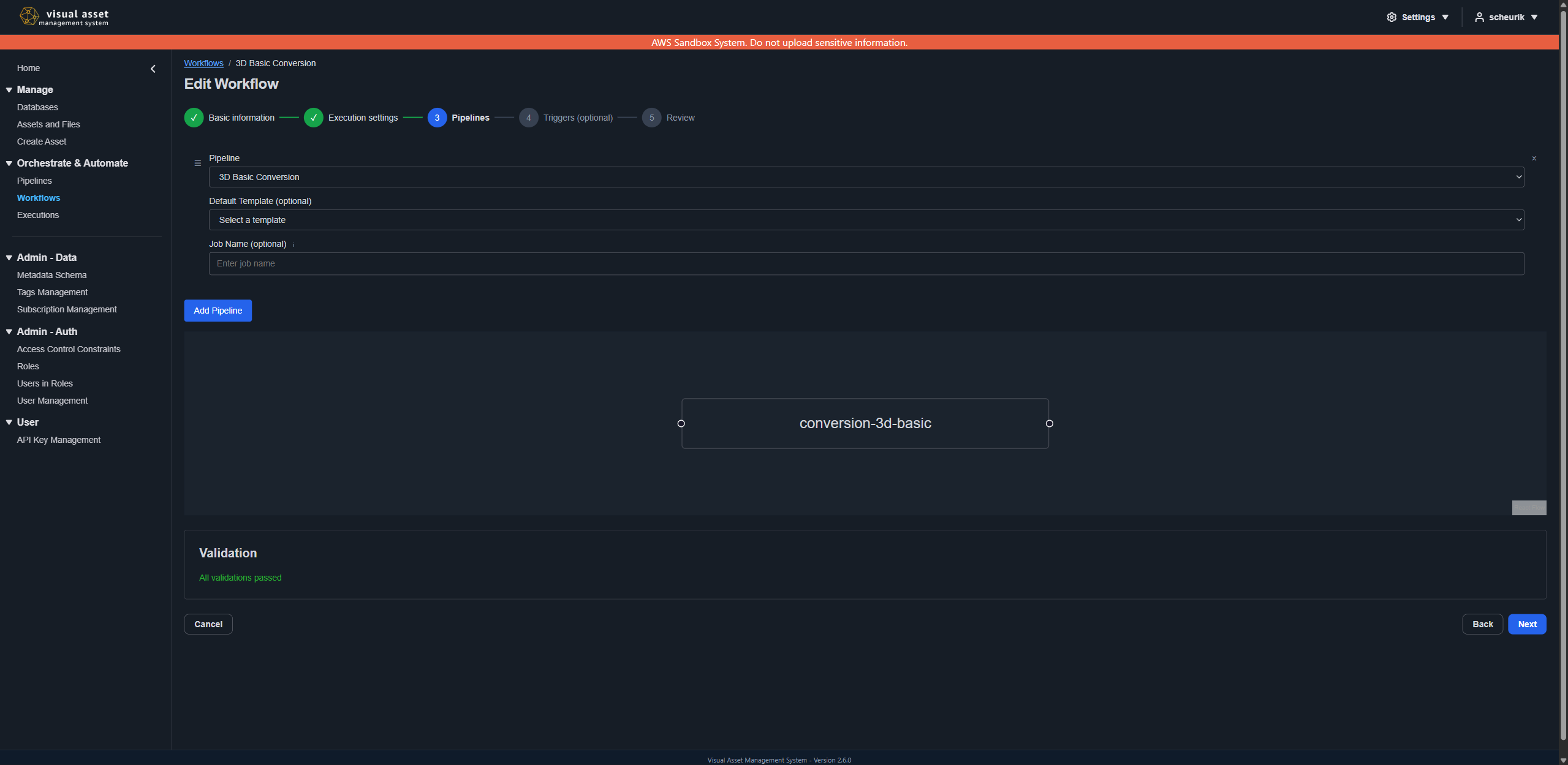
Choose Add Pipeline to add a step, then choose its pipeline. The available pipelines are those in the workflow's own database plus all GLOBAL pipelines.
The steps form an ordered list and execute top to bottom. Drag a step by its handle to reorder it, or use Remove to drop it. Each step may also set:
- A Default Template, used when an execution does not name one for that step — which is what an automatic trigger run relies on.
- A Job Name, a label of 3–63 letters, numbers, hyphens and underscores. Leave it blank unless the pipeline's own id would not identify the step. See Job names.
Once at least one step is present, a diagram of the resulting workflow appears below the list. It is a preview of the order you have built, not an editor.
A workflow cannot use the same pipeline for two steps — the second reference overwrites the first step's configuration and both run identically. A pipeline another step already uses is offered as (already in this workflow) and cannot be chosen again. When one model needs two modes in a workflow, use two pipelines. See Specified pipelines.
Two steps that carry the same job name are named identically in the run's step list and logs, leaving no way to tell them apart. The form reports a repeated name beside the field.
Saving the workflow
The final Review step summarizes the workflow before it is written. Confirm from there — Save — and the workflow is stored and made runnable.
A Validation panel reports what it found before and after saving, split by consequence:
-
Errors block the save — for example, a workflow with no pipeline steps.
-
Warnings do not block it. They flag a workflow that is saveable but may not be able to run as intended, most often because the workflow's own settings starve one of its pipelines:
Warning Cause A pipeline's accepted file types do not overlap what the workflow allows The workflow's allow list admits nothing the pipeline can process, so no selection can ever satisfy it. The workflow excludes a type the pipeline accepts The allow lists may overlap perfectly and the exclude list still removes the file afterwards, because exclude is applied second. The warning names what is left, if anything. A pipeline uses metadata the workflow has turned off The pipeline will run without that metadata rather than fail. Warnings are worth resolving before anyone tries to run the workflow: a mismatch here becomes a rejected execution later, when the reason is less obvious.
Executing workflows
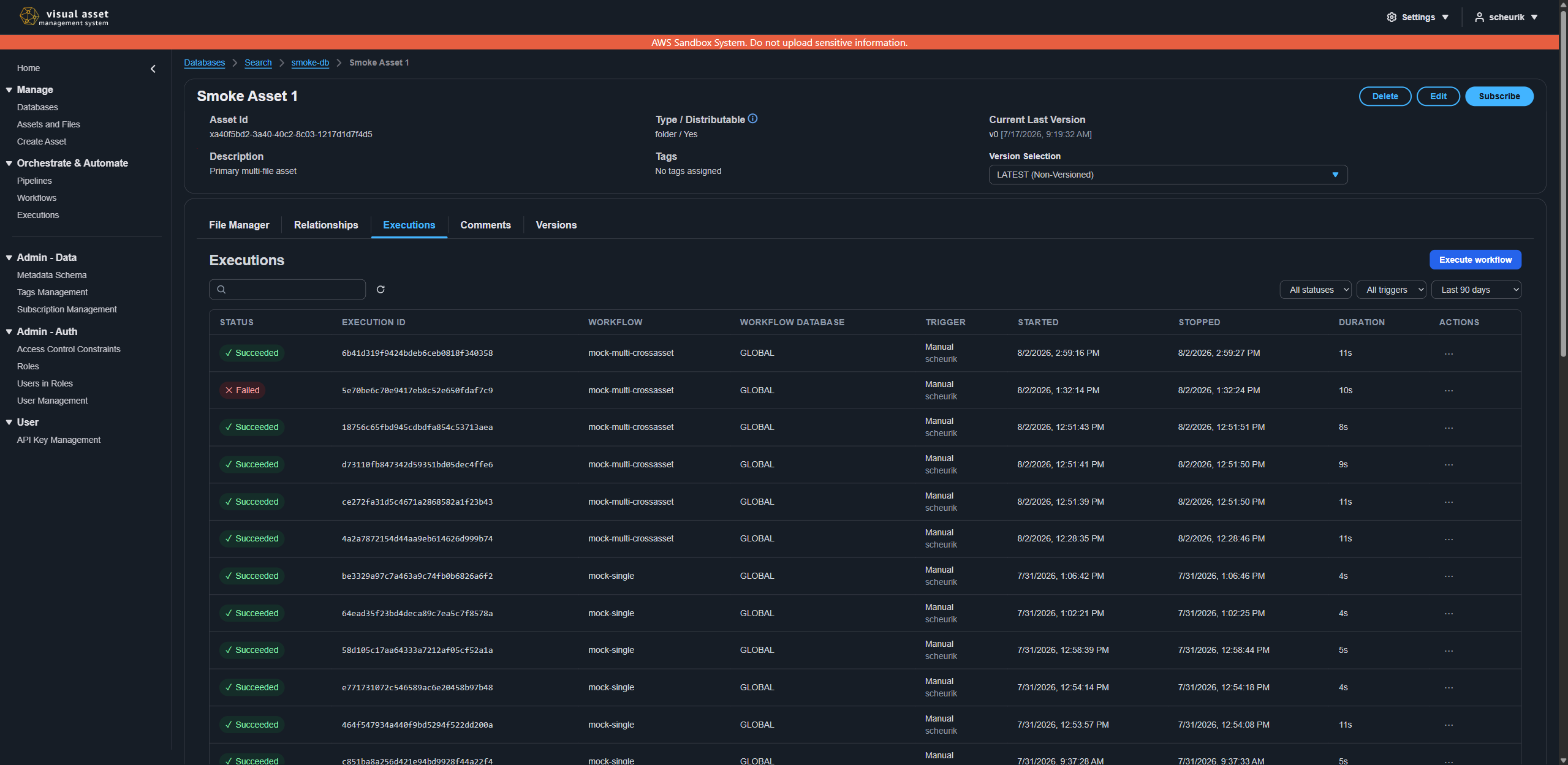
Workflows can be executed in two ways:
Manual execution
Start an execution from Execute workflow on the Executions board, from an asset's Automation menu (in the file manager toolbar, beside Export), or from the Execute action on a workflow. Each opens the same dialog. A step rail on its left lists every step: Workflow (when the workflow still has to be chosen — the workflow card's action skips it), Inputs, one step for each pipeline in the workflow, then Review. A completed step in the rail can be clicked to go back.
Workflow
A searchable list of the workflows you can run. Each row shows the categories of the workflow's pipelines (Conversion, Preview, GenAI, …) as chips — three at most, the rest folded into a +N chip — and states what the workflow accepts — how many files, which file types, and whether it writes to an asset. The search box matches those categories as well as names and descriptions. When you started from a file selection, each row also says whether it is Compatible with that selection; choosing one that is not lists the reasons, and Continue stays disabled.
Inputs
Choose the files to process, and the output target when the workflow allows it to be overridden. The step is a stack of full-width sections: the input files first, then Output Target — output database, output asset and path prefix on one row — and, for a workflow that takes no files, Metadata Sources below it.
Files are chosen through a cascading picker — Database → Asset → File — that searches as you type, so an asset holding thousands of files does not have to be listed to find one. Launching from an asset pre-fills that asset, and you can still switch to a different one.
Only files the workflow accepts are offered. When its filters hide some of an asset's files, the picker says how many were hidden, so a file that is missing from the list reads as "this workflow does not take that type" rather than "it is not there". A requirements strip under the dialog title shows how many files the workflow takes, the file types it accepts and where output goes, so what is being asked for is visible while you select. Anything still needed is listed under To continue once you start selecting or try to move on.
What you can select depends on the workflow's configuration:
| Workflow accepts | The Inputs step offers |
|---|---|
| One file | A single picker. Whole asset (all files) appears as an option only when the workflow permits a whole-asset input. |
| Multiple files | A list of the selected files — grouped by asset, each with a compatibility badge, Edit and Remove — fed by Add files… (many files of one asset at once) and Add Input File (one file through a Database → Asset → File picker). Entries carry their own database and asset, so one execution can combine files from several assets — or several files from one asset. |
| No files | No file picker. The run takes its identity from the output target instead, and a Metadata Sources section appears when its pipelines read asset or database metadata. |
Selecting many files
A multi-file workflow can take up to 1,000 input files in one execution, and the Inputs step is built for selections of that size. The selected files appear as one compact list headed by its count — N files across M assets · max 1000 — grouped by asset, with each row naming the asset, the asset-relative key, whether the workflow accepts that file (Compatible / Not compatible, with the reason on hover), and any pinned version. Only the rows on screen are drawn, so a selection of hundreds of files scrolls like a short one. A filter box narrows the list by key or asset, Clear all empties it after a confirmation, and Remove drops one entry.
Add files… opens the bulk picker. Choose the database and asset, and the asset's files are listed with
a checkbox each, in listing order, page by page — Load more continues the listing. A Folder prefix
(for example /scans/) restricts the listing to that folder on the server, and the filter box narrows the
loaded files by name. Select all shown checks every listed file that matches; Select all matching
walks the remaining pages first, stopping when the run would reach its 1,000-file limit. Files the workflow
does not accept are shown with their badge but cannot be checked, and a file already in the selection is
marked Already selected rather than offered twice. Add N files appends the checked files to the
list. When the workflow permits them, the picker also offers Add whole asset and Add folder for the
prefix you typed.
For a set of keys you already hold, switch the picker to Paste keys: one asset-relative key per line
(/scans/001.e57), for the asset chosen above. A key ending in / is a folder and a bare / is the whole
asset. The count under the box says how many keys are compatible, already selected, or rejected, and
Add N keys appends the compatible ones. A key that names no existing file is caught when the run is
launched.
Add Input File opens one picker row — Database → Asset → File, with Whole asset (all files) and the asset's folders offered when the workflow permits them. The row stays open after the file is picked so its version can be pinned, then Done folds it into the list; Edit on a listed row opens it the same way. The picker never adds a file twice: an entry is identified by its database, asset and key, and one already in the list is marked rather than offered again.
The selection is counted against the 1,000-file limit as you build it. Over the limit, the list header says so, the Inputs step reads Incomplete in the rail, Review lists the excess under Blockers, and Launch stays disabled until enough entries are removed.
Each selected file may optionally pin a file version. The list holds that file's own stored versions, newest first; the default, Latest, reads whichever version is current when the execution starts rather than the one that was current while you filled in the form. Pin a version to reproduce an earlier run against exactly the input it used. A whole-asset or folder selection spans many files, so it has no single version to pin and the option does not appear.
Running a workflow with no input files
A workflow that takes no files — one whose pipelines generate their output rather than transform an input, for example a text-to-3D or text-to-video pipeline — has nothing to choose in a file picker. What it can still be given is metadata, and that is what the Metadata Sources card of the Inputs step is for. It appears only when the workflow and its pipelines actually read asset or database metadata, and offers:
- Metadata source database (optional) — the one database whose own metadata is read and handed to the steps. One database at a time; an all-databases selection has no metadata to read, so only a specific database can be named.
- Metadata source asset (optional) — an asset whose asset-level metadata is read. Choose it through a Database → Asset picker that searches as you type. Add Metadata Source Asset adds another when the workflow permits input from more than one asset; a single-asset workflow offers one slot.
Everything in this section is optional, and the workflow runs whether or not you select any of it. A metadata source is not an input file: nothing is read from the asset's files, no file version is involved, and the selection does not decide where output is written.
Because there is no input file to infer a destination from, a workflow of this kind that writes to an asset needs its Output Target named explicitly — choose the output database and asset in the same step. Such a workflow therefore has to permit choosing the output asset. A results-only workflow writes no asset output, so it asks for neither.
Name one when a pipeline is meant to work from a particular asset's or database's stored metadata — a prompt, a model setting, or a description held there. When nothing is named, the launch reports a warning for each pipeline that reads metadata it was given no source for, and that pipeline runs without it.
Pipeline steps
One step per pipeline in the workflow. The step's header says what it reads — how many files and which
types — so the Inputs step does not have to be revisited to remember. Choose the configuration template
for the step and fill in the values it asks for; long template instructions are folded under Show
all. The rendered configuration is collapsed by default — expand it to review or, where the pipeline
Each template input shows the {{tag}} placeholder it fills in the configuration body, and the small tag icon beside the configuration lists, on hover or click, every placeholder the body can use: the template's own tags first, then the system tags. Where the pipeline or template
allows it, tick Customize configuration before running to edit the exact configuration that will be
sent.
Review
A card for each part of the run — the input files and pinned versions (as a count per asset with the first rows listed and Show all for the rest), any metadata sources, the output target and path prefix, and each step's template, values and whether its configuration was overridden — each with an Edit link back to its step. Anything that still prevents launching is listed once under Blockers, also linked to the step that clears it. Launch starts the execution.
The workflow then runs asynchronously, processing the selected files through each pipeline step in sequence.
Metadata inputs
Besides the files it processes, an execution collects the stored metadata its pipelines asked for and hands it to each step. Four kinds are collected independently, each switched on or off by the workflow's and the pipeline's Metadata provided settings: each database's own metadata, each asset's own metadata, each input file's metadata, and each input file's attributes. A kind reaches a pipeline only when the workflow and that pipeline both have it on.
Which entities a run collects from follows from what it processes: every asset the selected files belong to, every asset named as a metadata source, and every database those assets live in. A run that takes no input files has nothing to derive from, so it collects the one database and the assets named as its metadata sources — see Running a workflow with no input files.
Naming a metadata source is always optional. Nothing requires a source to be chosen, and a run launches without one. A pipeline that genuinely needs particular metadata checks for it and reports the failure on its own step, so a missing source shows up as that step failing rather than as a rejected launch.
Database metadata is read-only: it is given to a pipeline as input, and no pipeline writes metadata back to a database. Pipeline metadata write-back applies to assets and files.
The metadata collected for each entity is capped on its own rather than against a shared total: at most 1,000 metadata entries and 300 KB for each database, each asset, each file's metadata, and each file's attributes. A run over three databases holding five assets and ten files therefore collects up to 1,000 entries for each of the three databases, up to 1,000 for each of the five assets, and up to 1,000 for each of the ten files. Entries are kept in key order, so the same entity yields the same set each time it is read. Nothing is dropped silently — when an entity is capped, the launch reports a warning naming it, and the same happens when a source database's metadata cannot be read. A single run reads at most 1,000 input files and 1,000 metadata-source assets.
Automatic execution
A workflow runs automatically when one of its triggers matches. A file upload trigger fires when a file matching its allow filters — and not removed by its exclude filters — is uploaded to an asset in the workflow's database, and the uploaded file becomes the workflow's input. A workflow may carry several triggers, and an upload runs the workflow once for every trigger it matches.
Triggers are set in the workflow editor's Triggers (optional) step, when creating the workflow or when editing it later. Each trigger carries its own filters and its own default template per pipeline step, since no one is present to choose a template on an automatic run. See Triggers (optional).
Monitoring execution
Execution progress can be monitored from the Executions page or from the asset detail page. Each execution shows:
- The workflow and pipeline step being executed
- Current status (running, succeeded, failed)
- Start and end timestamps
- Error details for failed executions
The Executions page lists every execution you may see, across all workflows and databases. A run is listed when you can view its workflow, every asset it read — each selected file's asset plus each asset named as a metadata source — and the asset it wrote to. A run that wrote its output into an asset you cannot open is therefore not listed, even when you can open every asset it read; ask an administrator for read access to the destination asset if you expect to see such a run. A run that produced results only, writing no files, has no destination asset, so being able to view its workflow is enough. The status, trigger, workflow, workflow database, and time-window filters narrow the list, and the output columns identify the asset each run wrote to.
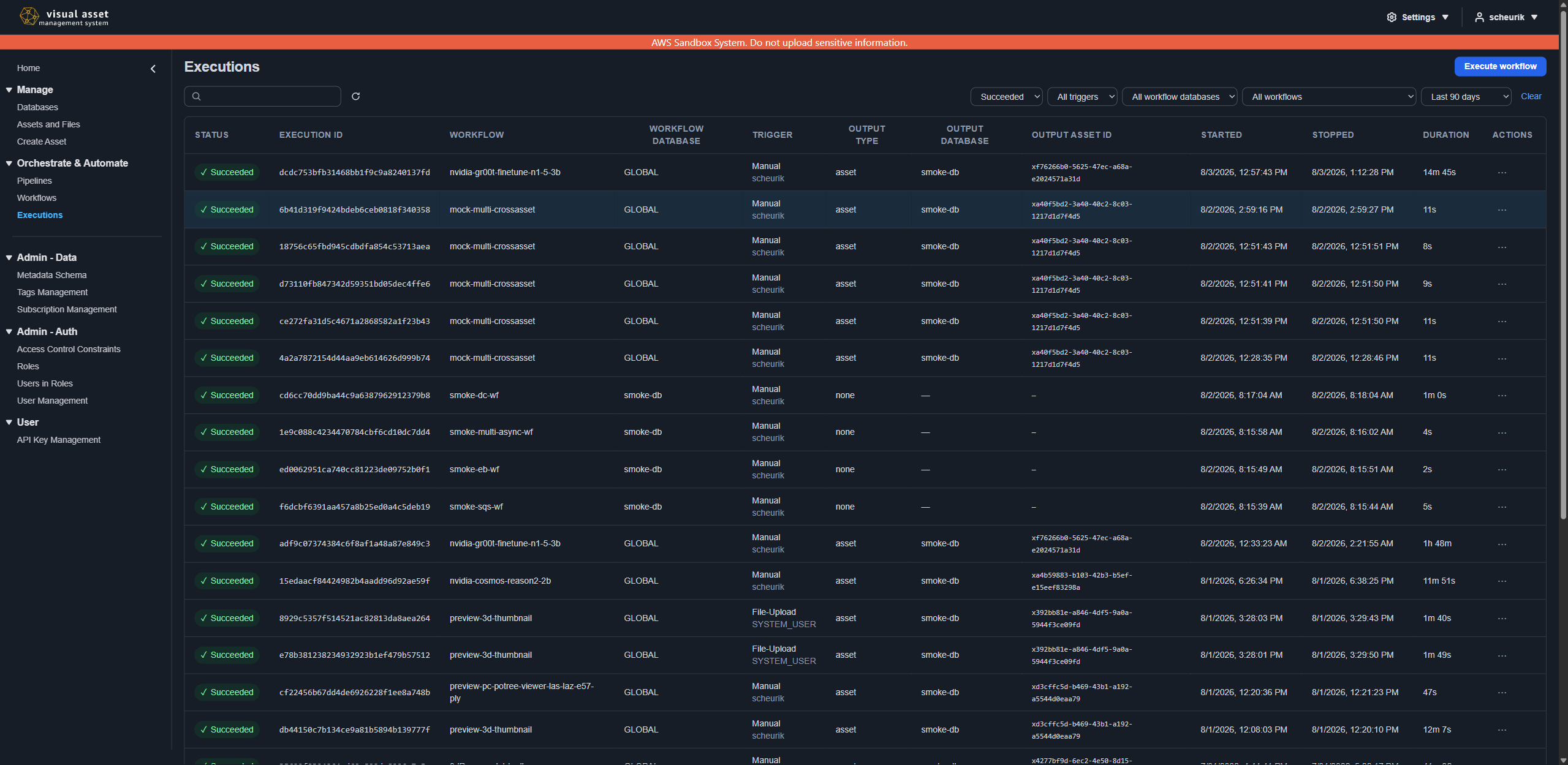
Aborting a run from an execution's ⋮ actions menu signals it to stop and records it as Aborted. Some steps submit work that VAMS stops separately from the workflow itself — a container job, or a Deadline Cloud farm job. When one of those could not be stopped, the abort still succeeds and reports a warning naming the job, which stays on the page after the notification clears; that work may still be running and billing until it is stopped where it runs.
Workflow execution is asynchronous. Results (output files, previews, metadata) appear on the asset after all pipeline steps complete. Changes may take a few minutes to propagate through the system, including search results.
Execution details
Selecting an execution opens its detail view. The header states the run's identity and outcome — status, workflow, trigger, start and stop times and duration — together with where it wrote: the Output Type (an asset, or Results only for a run that writes no files), the destination database and asset, and the Output Path Prefix the run wrote beneath. Knowing the prefix is what lets you find a particular run's output in the asset when several runs have written to the same place.
The tabs below it break the run down:
| Tab | What it shows |
|---|---|
| Inputs | Each selected input file with the exact file version the run read, then the metadata gathered and passed to the pipelines in two blocks — each involved database's own metadata, then the asset and file metadata |
| Pipelines | One entry per pipeline step: its status and timings, the template it used, the tag values supplied, the final configuration actually delivered to it, and — for a step that runs its own nested state machine or container job — a Sub-processes section listing each stage of that work with its status, timing, and error |
| Outputs | Where the run wrote, then everything it produced: output files with their version and size, preview files, metadata written back to the asset, and any results text returned |
| Settings | The settings the run was governed by — the workflow's own settings, and per step the settings that step ran under |
| Logs | The execution log, selectable per step and, within a step, per log source. Available to users whose permissions allow reading logs |
A pipeline may also write working files and certain viewer data — point-cloud viewer tiles, some preview files — to a scratch location rather than onto the asset. Those files are not asset outputs, so they do not appear on this tab even though the run produced them. A pipeline that wrote only there shows no outputs here despite having succeeded.
The Logs tab can be scoped to the whole execution or to a single pipeline step. Beyond the log the step's own process wrote, a step's logs include the log of the resource VAMS invoked for it. That is usually where the reason for a launch that failed before the pipeline started is recorded. Steps invoked through a queue or an event bus have no such log, so nothing extra is shown for them. A Deadline Cloud step has no invocation log either, but it shows its farm job's status under Sub-processes and offers the job's session log as a log source. If a log could not be read, the tab says which one rather than silently returning less.
When the tab is scoped to a step, a Log source selector lists every log known for that step — the log
of the resource VAMS invoked, each location the pipeline registered for itself (a container job's log, for
example), and the log of a nested state machine — labelled with the stage it belongs to. All sources
merges them; choosing one reads only that log. After a live read, a Sources row reports what each
source returned: how many lines were read, or that it was denied, not found, failed for another reason
(error — a throttle or a location that could not be read; the tab names the cause), empty, skipped, or
read without the run-specific filter because the exact container log stream could not be resolved yet.
A step's Sub-processes section on the Pipelines tab shows the same work from the status side: each stage of the step's nested state machine or container job with its status and timing, a failure the step caught and reported marked as such, and a note when the list was cut short. Stage status is worked out from the sub-process's own execution history when the page is displayed, so it appears as soon as the step has registered its sub-process and stays accurate for a run that is still in progress.
Stored logs are captured as a run finishes, which can be before the logging service has finished ingesting the run's events, so a stored log is often empty even for a run that succeeded. Switching Source to Live reads the events directly, and is the setting to use when a stored log looks empty.
A run is recorded as a snapshot, not as a set of pointers. Templates, tag schemas and pipeline settings can all be edited or archived after a run finishes, so the execution stores the template version, the tag values, the rendered configuration and the settings in force at the time. An execution from months ago therefore still explains itself even if the definitions behind it have since changed.
The Settings tab is where that matters most. A pipeline's own settings can be adjusted by the template chosen for a particular run — a template may change how many input files are accepted, which files are eligible, what metadata is provided, or which asset selections are allowed. The tab shows the resulting settings for each step and, where a template changed something, which values it overrode. That is how to answer "why did this run accept these inputs?" after the fact.
The workflow-level settings shown are read live from the workflow, so they reflect the workflow as it stands now. The per-step settings are the recorded snapshot from the run itself. Where a workflow has been edited since, the two can legitimately differ — the tab labels which is which.
GLOBAL vs. database-specific
| Scope | Pipelines | Workflows |
|---|---|---|
| Database-specific | Available only within the database they belong to | Can use pipelines from their database and GLOBAL pipelines |
| GLOBAL | Available to workflows in any database | Can only use GLOBAL pipelines |
GLOBAL pipelines are typically built-in processing pipelines deployed with VAMS (such as 3D conversion, preview generation, and metadata extraction). Database-specific pipelines are user-created for domain-specific processing needs.
Built-in pipelines
VAMS may include built-in pipelines depending on your deployment configuration. These are created during deployment and registered as GLOBAL pipelines. Common built-in pipelines include:
- 3D Conversion -- Converts 3D mesh file formats (for example, OBJ to glTF).
- Preview Generation -- Creates thumbnail preview images for assets and files.
- Point Cloud Processing -- Processes point cloud data (for example, E57, LAS) for web visualization.
- Metadata Extraction -- Extracts metadata from file headers and content.
- GenAI Labeling -- Uses generative AI to automatically generate labels and descriptions.
- Gaussian Splatting -- Generates 3D Gaussian splats from image and video media files.
- Physical AI Inference and Fine-Tuning -- GPU-accelerated pipelines for NVIDIA world foundation models, vision language models (VLMs), and vision-language-action models (VLAs) including inference, simulation training, and model fine-tuning.
For detailed pipeline documentation, see the Pipelines overview, deployment configuration reference, and custom pipelines guide.
Permissions
Access to pipelines and workflows is controlled by the VAMS permission system. Users need appropriate constraints on the pipeline and workflow object types to view, create, edit, or delete pipelines and workflows. For details, see Permissions.
Workflow operations can also be performed via the command line. See CLI Workflow Commands.