Create Virtual Desktops (Windows/Linux)
EDH lets you deploy Windows and/or Linux desktops using Amazon DCV technology.
Create your Windows/Linux desktop
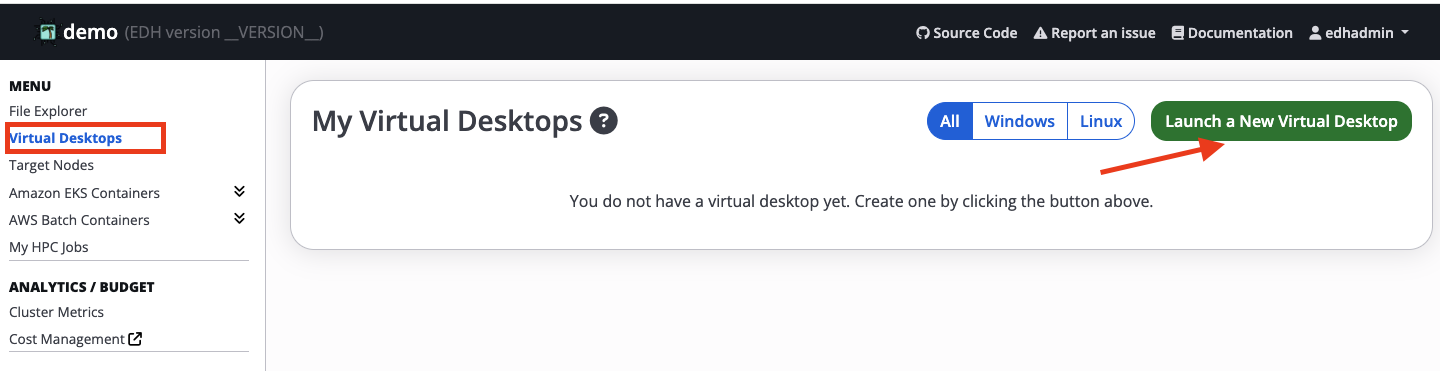
Click Virtual Desktops section Launch a New Virtual Desktop button to open the launch wizard:
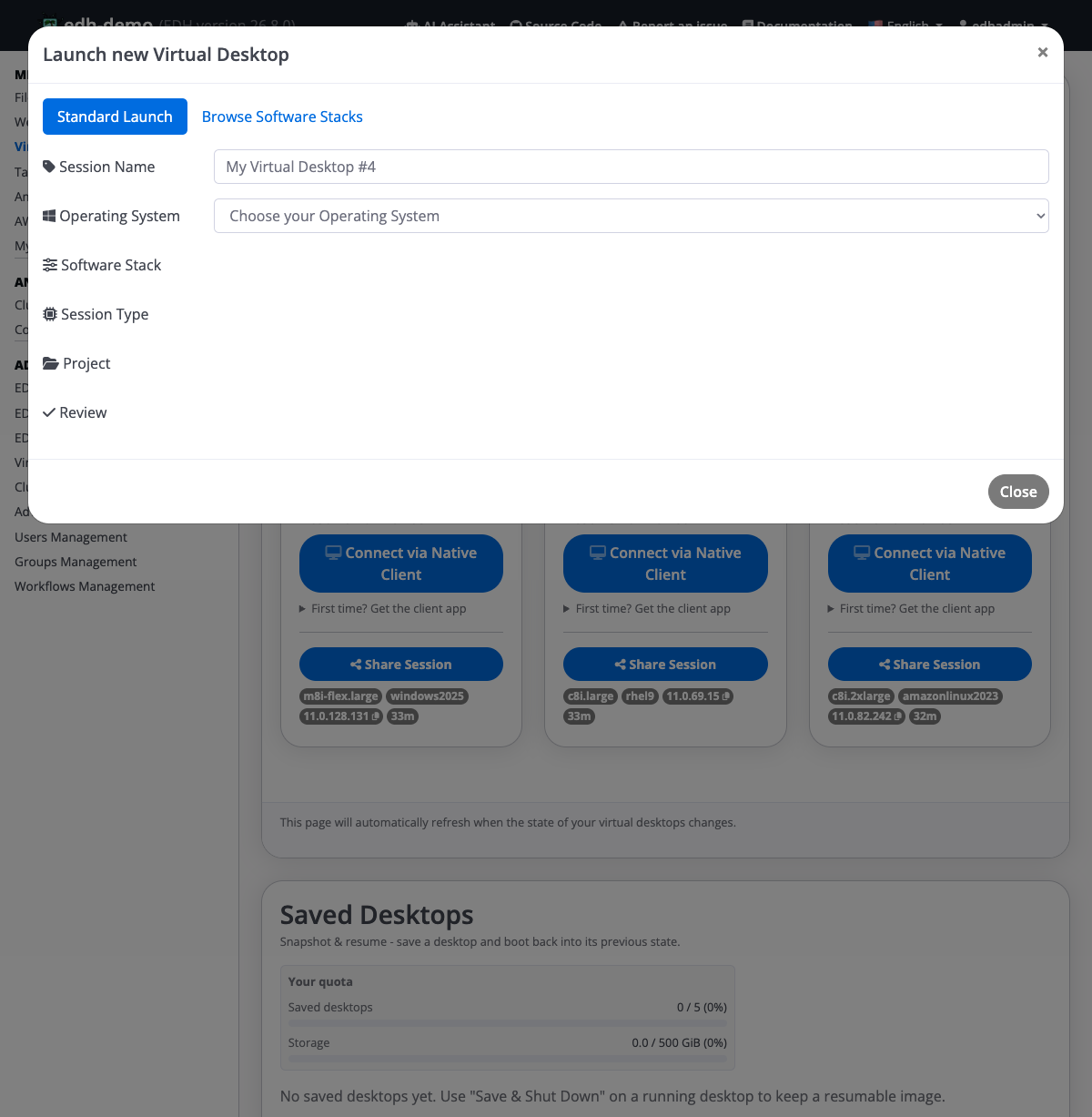
Standard Launch
The Standard Launch guides you through the process step by step: pick a session name, choose the operating system, select a Software Stack and session type, optionally assign a project, then review and launch.
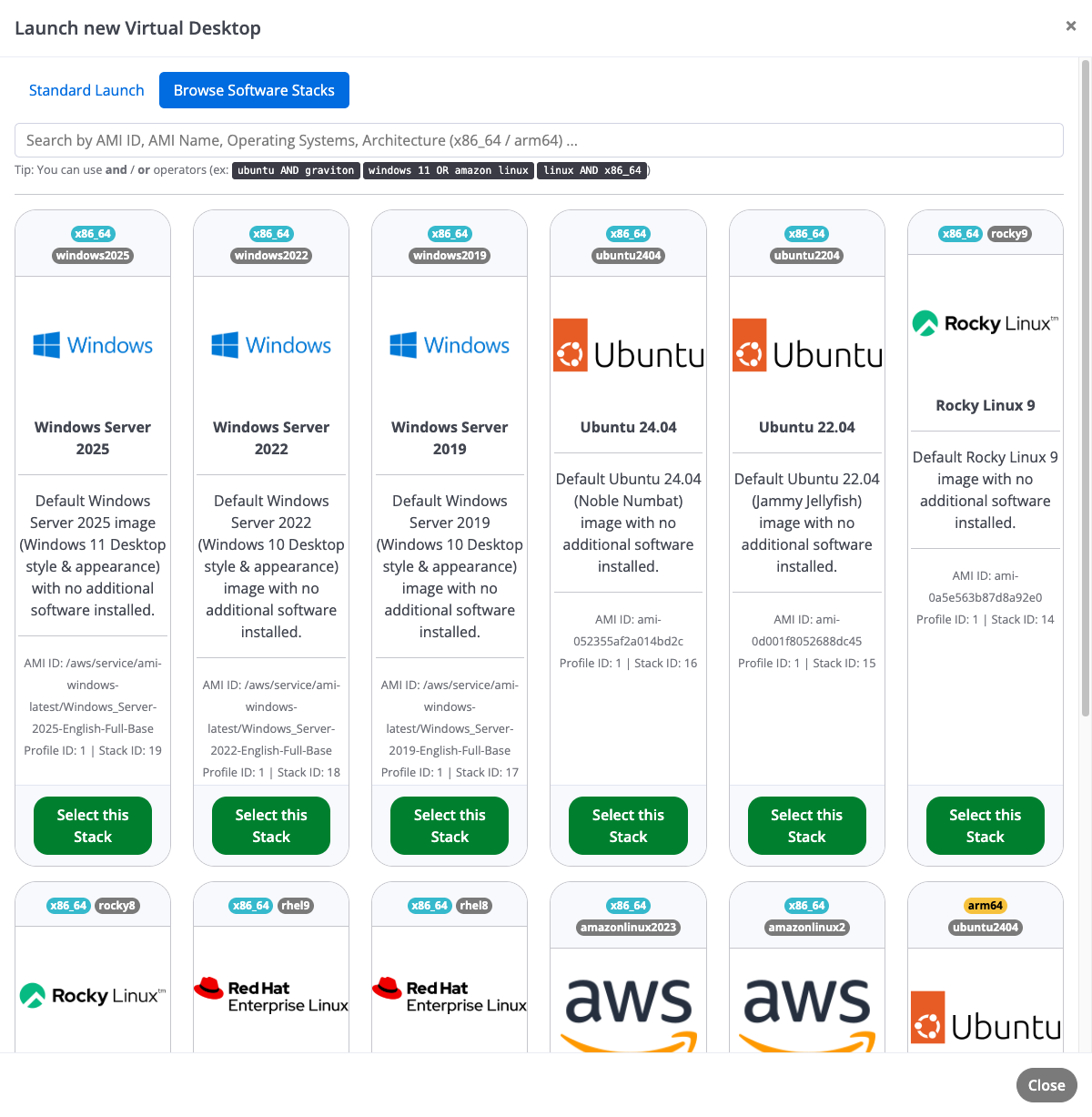
Browse Software Stack
You can also use a library view of every Virtual Desktop Software Stack available in your environment and pick the one you want to deploy. Each card shows the operating system, architecture (x86_64 or arm64), a short description, and the AMI, Profile, and Stack IDs. Use the search box with and / or operators (for example ubuntu AND graviton) to filter the catalog.
Need help?
Hover your mouse on the parameter name to display help section.
Once you are ready, click "Launch My Desktop" button. Your session interface will be changed to pending state.
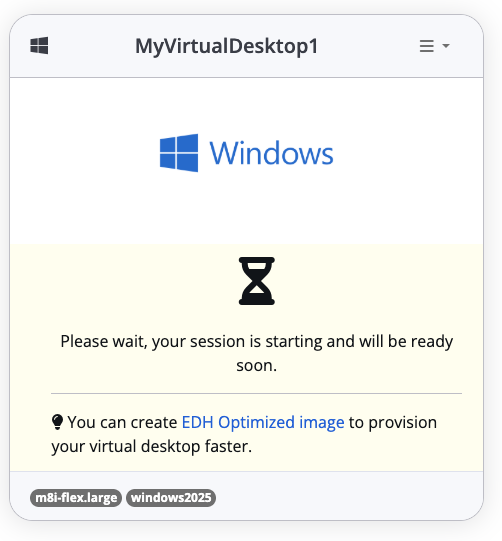
Your virtual desktop will be ready within 10-15 minutes. Startup time is based on the image selected, the operating system as well as the instance type. Create EDH Optimized AMI to reduce the provisioning time.
Once your virtual desktop is active, your session interface will display two ways to connect to it:
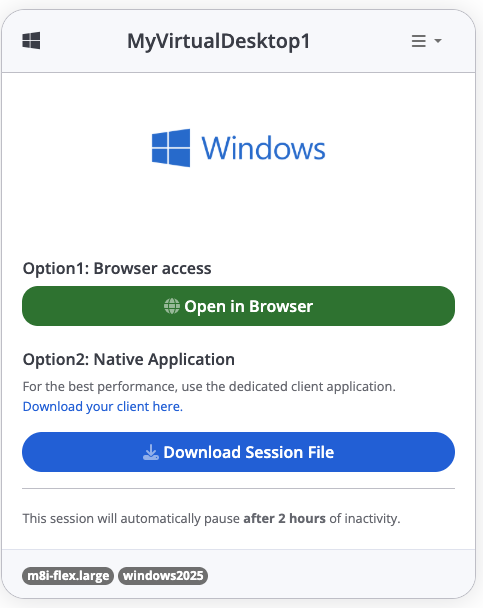
You can either access your desktop directly via your browser (Option1) or use the Amazon DCV native application (Option2). A link to download the application is provided on the website. For better performance, we recommend using the Option 2.
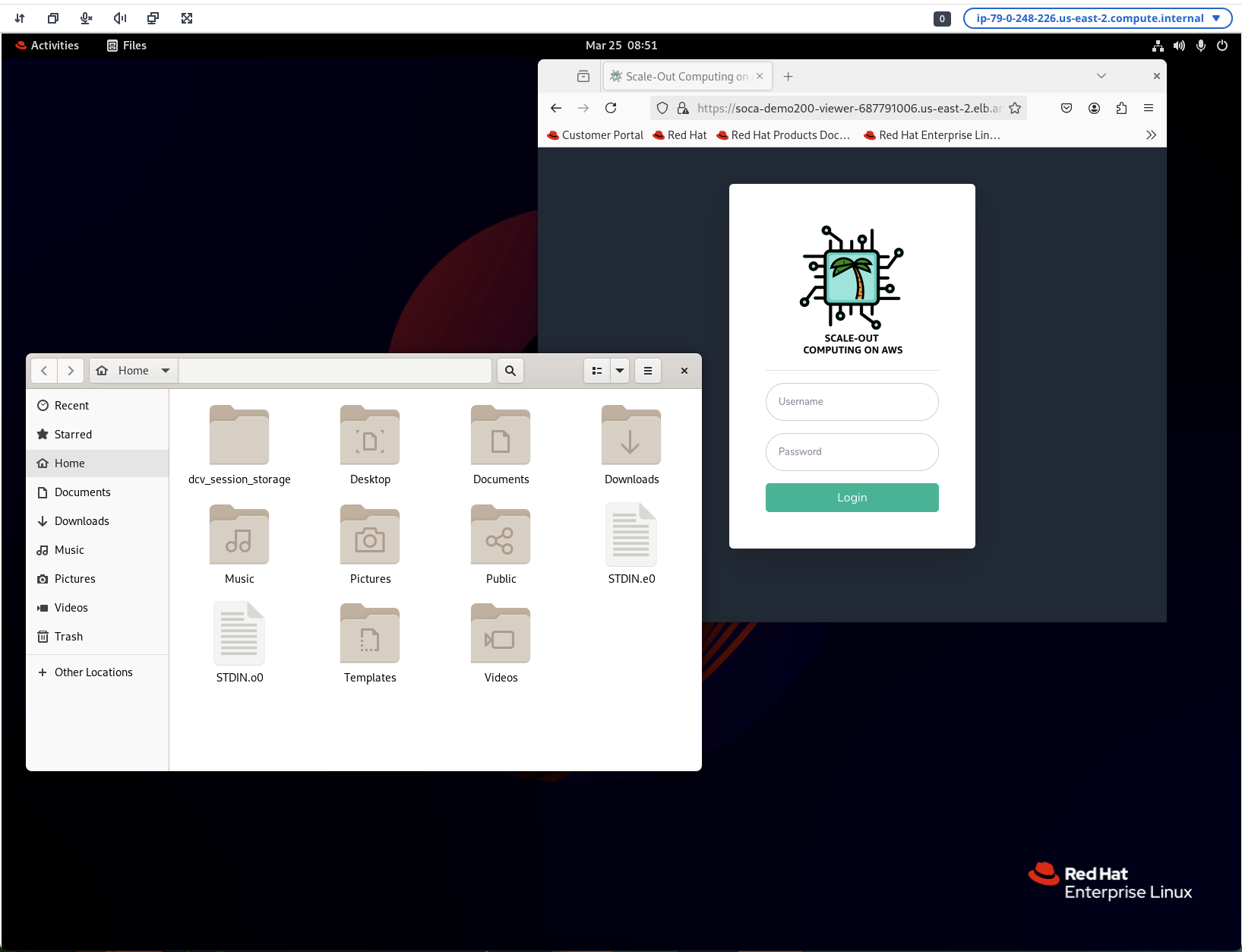
Example of Linux desktop
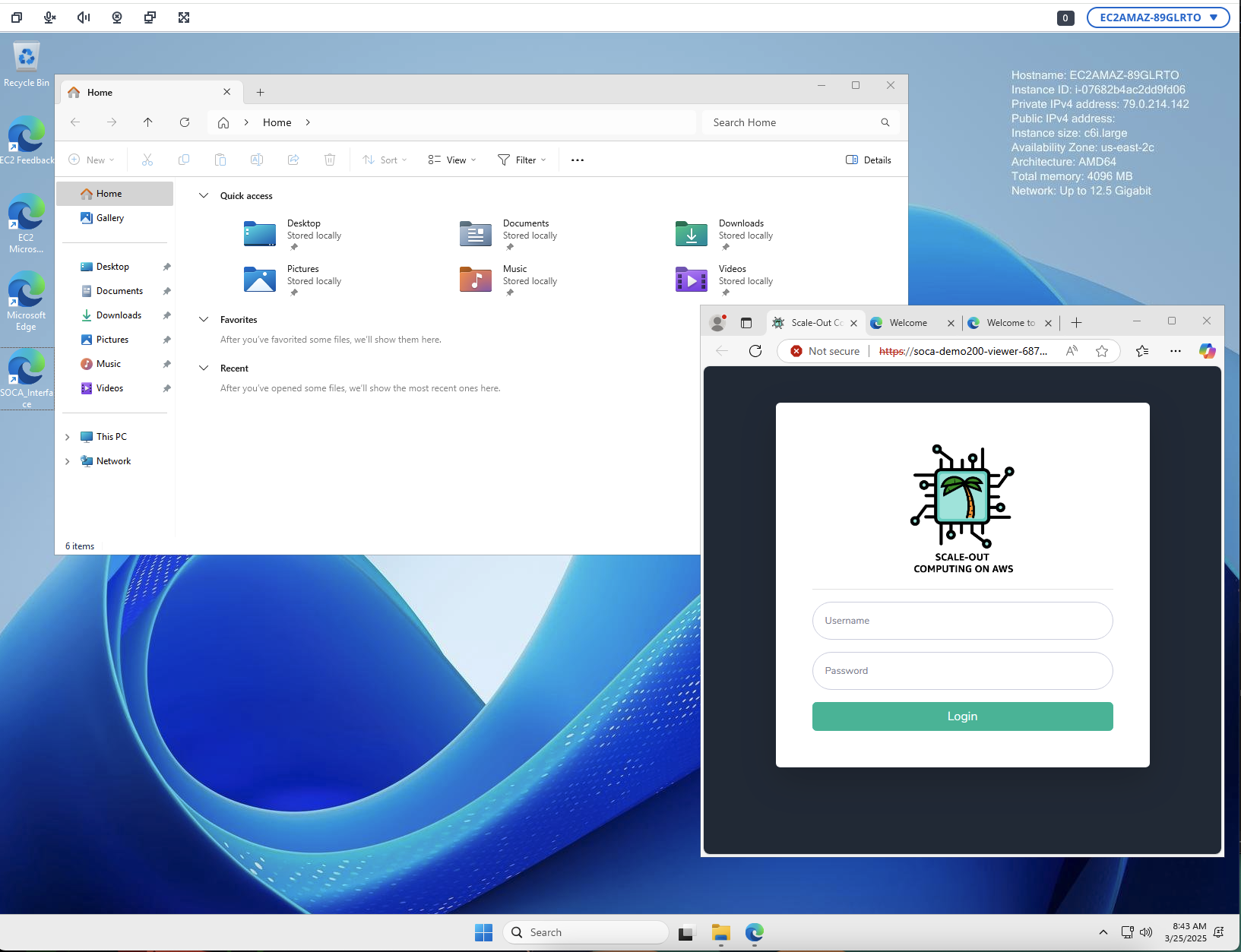
Example of Windows desktop
Important
Unlike Linux desktops, Windows desktops are not connected to the scheduler and you cannot submit jobs directly from your Windows system.
To submit a job via Windows, you first need to access the web ui then submit a job via HTTP endpoint or via the HTTP REST API
Pause/Hibernate your desktop
What does hibernate means?
When you hibernate an instance, your desktop state is saved in memory. When you restart it, all your applications will automatically resume. On the other hand, stopping a virtual desktop is the same as powering off your laptop. Note not all EC2 instances support hibernation.
To pause/hibernate your session, click the Pause button in the dropdown menu:
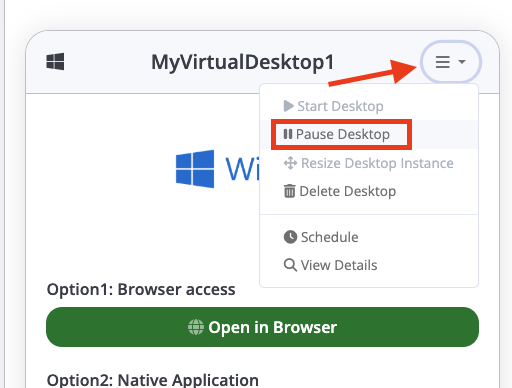
A popup will appear, asking you to confirm your action. Click Pause my Desktop button to temporarily turn off your virtual desktop.
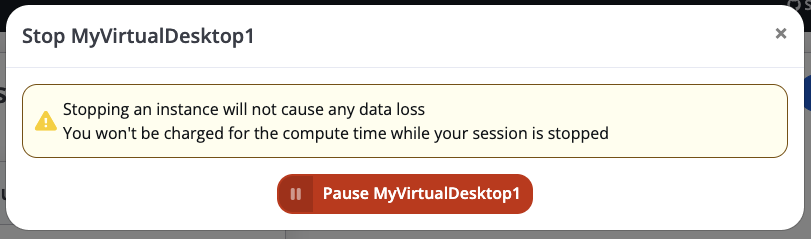
Your desktop is now stopped (you are not charged for compute price while your instance is stopped).
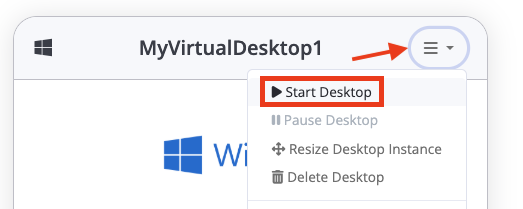
To restart your session click the Start button in the dropdown menu:
Configure your desktop auto start/stop time
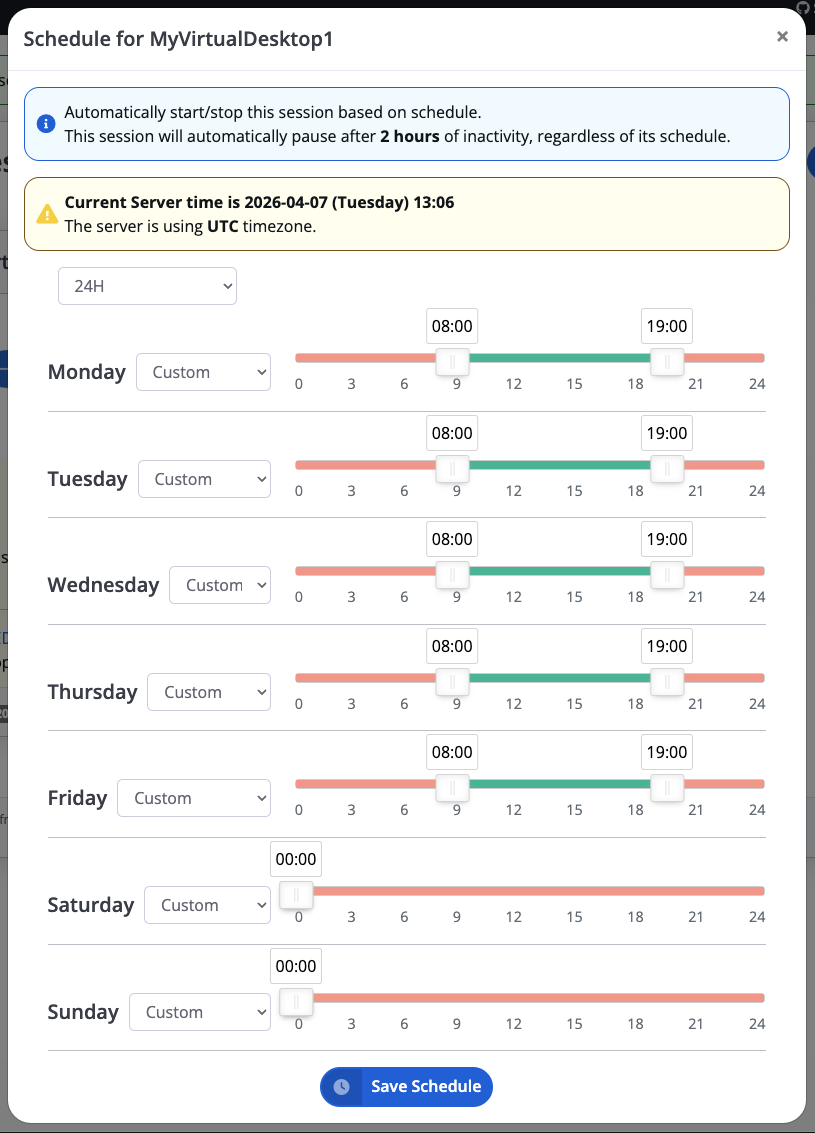
To change the schedule of your desktop, click the Schedule button in the dropdown menu:
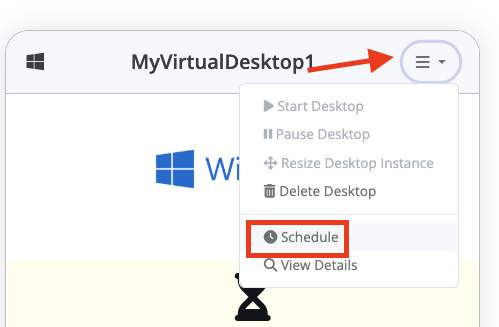
EDH will honor your session schedule and automatically start/stop your desktop based on your own schedule. Desktop will be stopped outside of scheduled hours only if they are idle. You can configure three type of schedule for your desktop:
- Run all day (EDH will ensures your desktop is up and running from 12 AM to 12 PM)
- Stopped all day (EDH will ensures your desktop is stopped from 12 AM to 12 PM)
- Custom schedule (EDH will honors your own schedule)
Info
If you manually start your desktop during off hours, your session will be up and running until it becomes idle. Idle time can be customized by cluster admins.
Schedule and Timezone
By default, EDH is configured to use UTC timezone and this may be a problem if you are currently using a different timezone. To fix that, you can adjust your local timezone on config.py (then restart the web ui)
Resize your Virtual Desktop
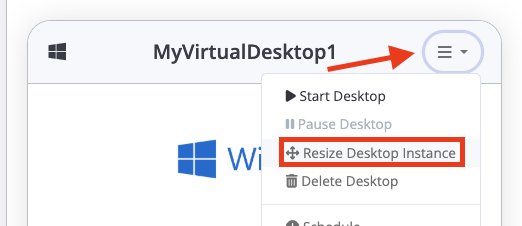
You can upgrade/downgrade the hardware of your desktop only when your session is stopped and if you have disabled hibernation. To do so, click the Resize Desktop Instance button in the dropdown menu:
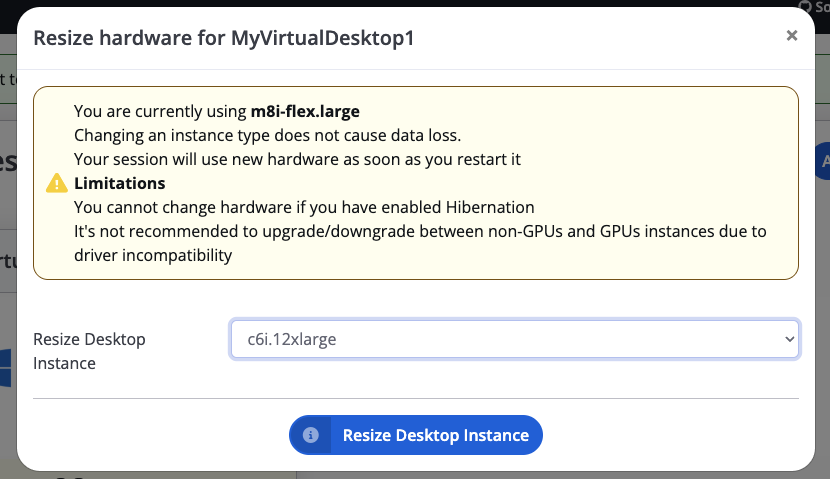
Choose the new type of instance you want to resize your desktop to then click Resize Desktop Instance.
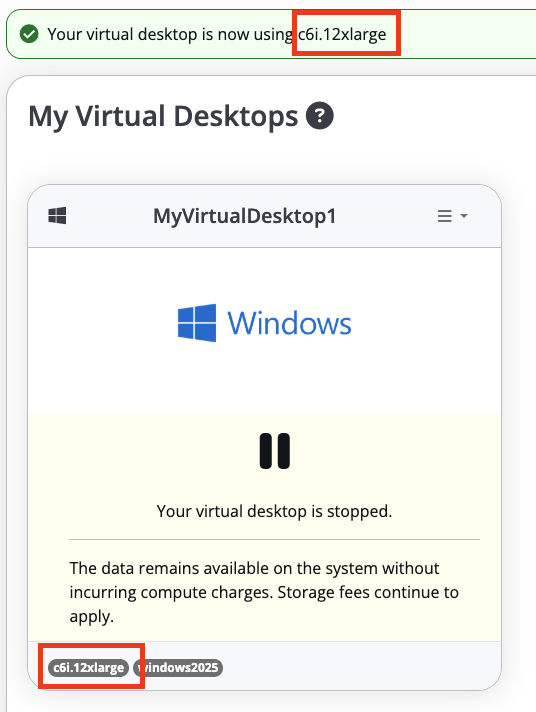
Hardware upgrade/downgrade are instant. Your desktop will use the updated config as soon as you restart it.
Terminate your desktop
To terminate your desktop, click the Delete Desktop button in the dropdown menu:
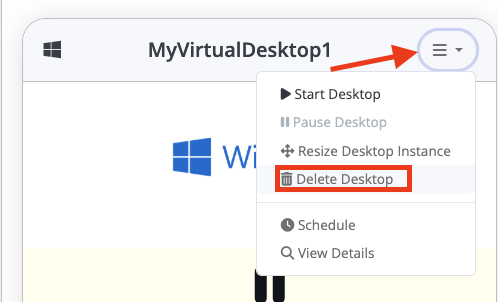
You will be prompted for a confirmation message. Terminate a session may cause data loss if you are using ephemeral storage, so make sure to have uploaded all your data back to EDH filesystem first.
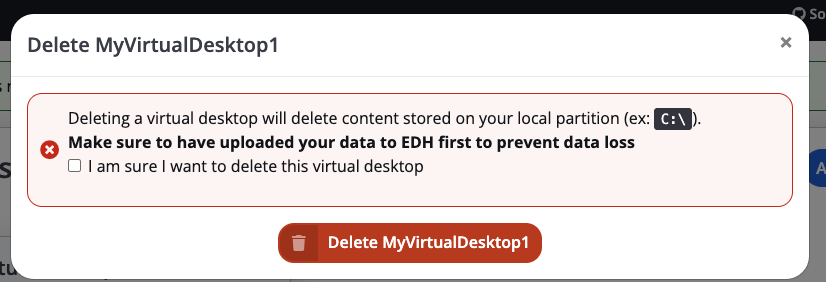
Create custom Windows/Linux images
EDH images are Windows or Linux desktops with pre-installed applications. Refer to this page to learn more about images management
How idle time is calculated?
When you have enabled DCV_LINUX_HIBERNATE_IDLE_SESSION, DCV_LINUX_STOP_IDLE_SESSION, DCV_WINDOWS_HIBERNATE_IDLE_SESSION or DCV_WINDOWS_STOP_IDLE_SESSION configured, EDH will automatically try to hibernate/stop your idle instance if they are outside of regular schedule hours.
Idle time is calculated based on:
- Last time the user accessed the virtual desktop
- Current CPUs usage.
Session will only be stopped/hibernated if current CPUs is below a threshold configured via DCV_IDLE_CPU_THRESHOLD (default to 15%). This setting avoid desktop being stopped/hibernated while compute intensive tasks are still running on, even if the user did not access the desktop for a while.