Faster Desktops with Pools (VDI Pooling)
Launching a brand new virtual desktop normally takes around 10 to 15 minutes while EDH provisions and configures a fresh instance (although you can reduce this via EDH Optimized AMI). With VDI Pooling, your administrator can keep a set of desktops ready in advance for a given Software Stack, so you get a desktop much faster, sometimes instantly.
You do not have to do anything special to benefit from pooling. When a pool is available for the Software Stack and size you pick, EDH simply hands you a desktop from it.
Info
VDI Pooling is configured by administrators, per Software Stack. If you always wait the full launch time, no pool is configured for the stack and size you chose.
What you see when you launch a desktop
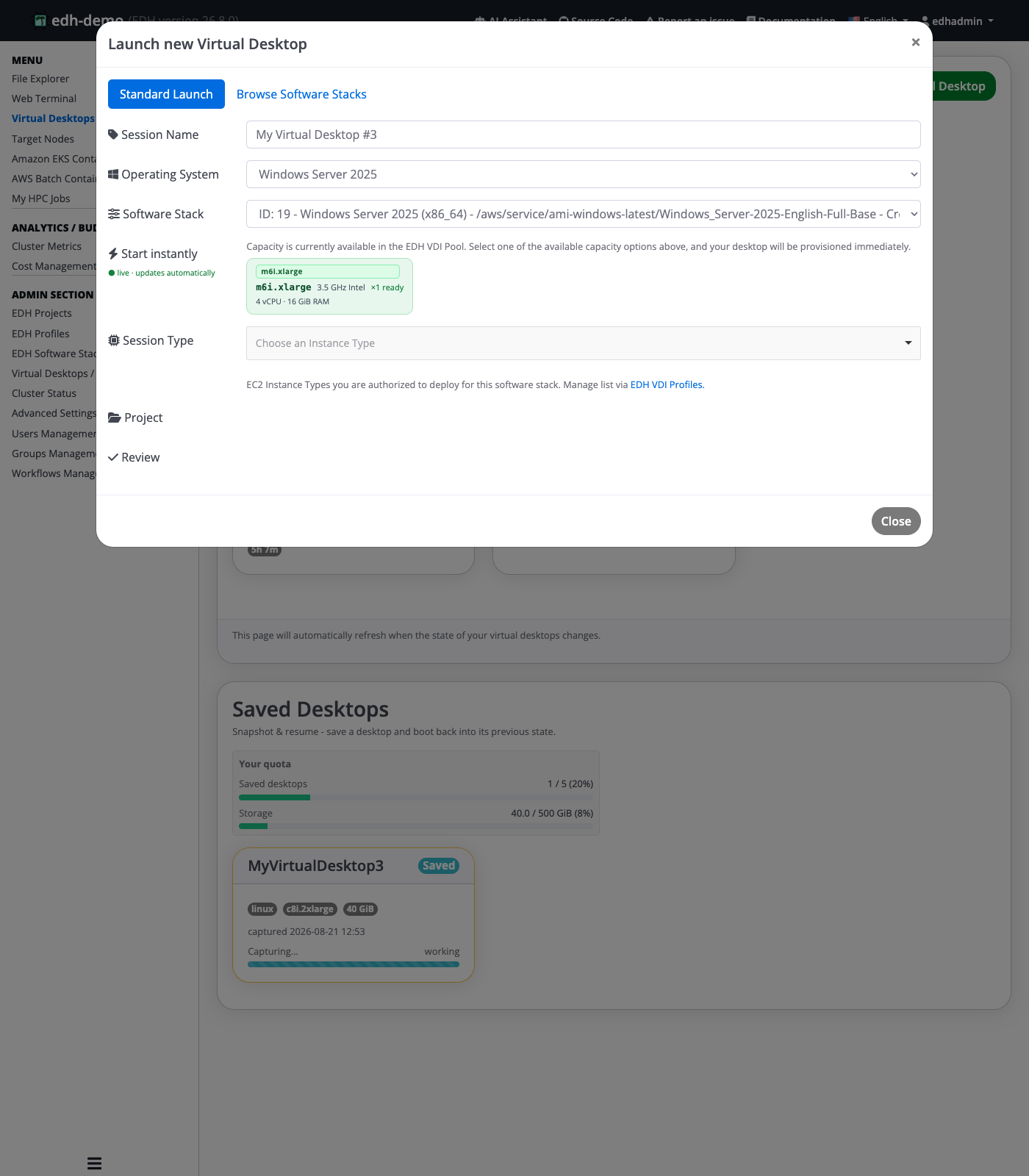
When you launch a desktop and pick a Software Stack and an instance size, EDH shows you how quickly a desktop will be ready:
| Badge | What it means |
|---|---|
| Now | A ready desktop is waiting for you. You connect almost immediately. |
| ~30 seconds | A desktop is warmed up and only needs to start before you can connect. |
| ~10 minutes | No pre-provisioned desktop is available for this choice, so EDH launches a new one for you (the standard wait). |
If your administrator offers it, you may also choose between Standard and Interruptible (lower-cost) capacity. Interruptible desktops cost less but can occasionally be reclaimed by AWS, so pair them with Saved Desktops to protect your work if that happens.
Why pools exist
A pool trades a little cost for a lot of speed. Keeping desktops ready in advance means paying for some capacity before anyone uses it, in exchange for a desktop that is available instantly or in seconds instead of minutes. Your administrator decides how much of that tradeoff to make for each Software Stack.
For administrators
You enable pooling per virtual desktop Software Stack, so each stack can have its own pool sized to how it is used.
For each instance type in a pool you set two numbers:
- Hot desktops: fully running and instantly available. These are the fastest for users but are paid for while they sit idle.
- Warm desktops: prepared and stopped, so they start in seconds. They are cheaper than hot desktops because only their storage is paid for while idle.
Configure a pool
- Open Virtual Desktops / DCV in the admin menu and go to Software Stacks.
- Select the Manage Software Stacks tab, choose the stack you want from the list, and click Edit Software Stack.
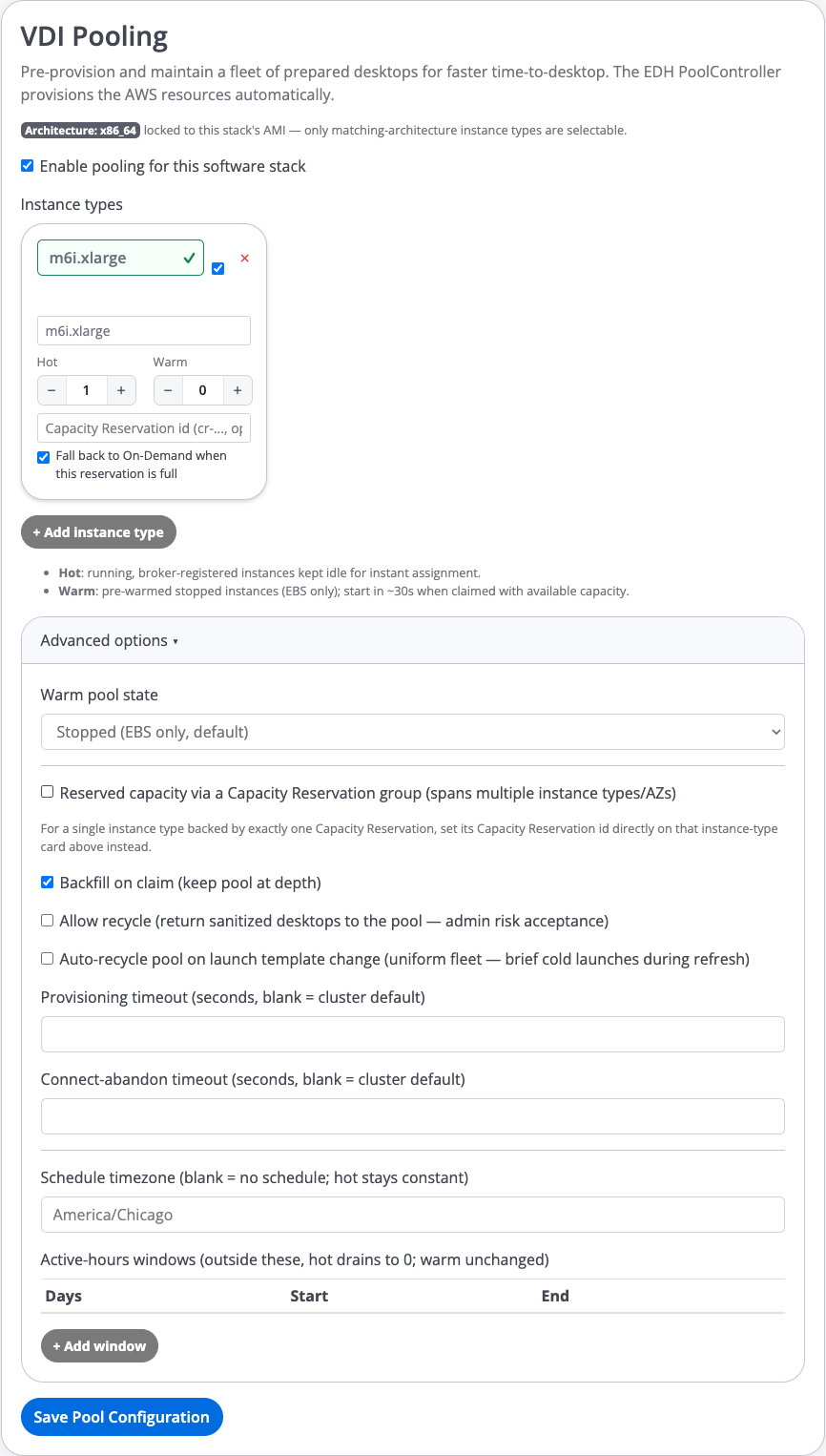
- Open the Pooling tab and turn on Enable pooling for this software stack.
- Click + Add instance type, pick an instance type, and set its Hot and Warm counts. Only instance types that match the stack's architecture can be selected. Add more instance types if you want the pool to cover several sizes.
- When you are done, click Save Pool Configuration.
How users access the pool
There is nothing new for users to learn. They launch a desktop the normal way: open Virtual Desktops, click Launch a New Virtual Desktop, and choose the operating system and Software Stack. Once they pick a stack that has a pool, EDH shows the pool's ready capacity right in the launch window, so they can start instantly instead of waiting for a fresh desktop.
Advanced options
Expand Advanced options to fine-tune cost and behavior:
- Warm pool state: keep warm desktops stopped (lowest storage cost) or hibernated (faster to resume, larger storage).
- Backfill on claim: automatically replace a desktop as soon as one is handed to a user, so the pool stays at the depth you set.
- Allow recycle: return a cleaned-up desktop to the pool for reuse after someone is done with it.
- Provisioning and connect-abandon timeouts, to control how long EDH waits before giving up on a desktop or reclaiming one a user never connected to.
- An active-hours schedule (with a timezone and one or more day-and-time windows). Outside those windows, hot desktops drain to zero to save cost, while warm desktops stay in place.
Track how your pools are doing
A Pool Status page gives you an overview across your Software Stacks: how many desktops are ready compared with how many you configured, the hit rate (how often users actually got an instant or fast desktop), and cost signals. Use the hit rate to right-size each pool, if it is low, you are paying for readiness that users are not using.
Pools are safe to share
Pooling applies only to virtual desktop Software Stacks. A pooled desktop only receives your identity when it is handed to you, and access is still controlled by who can use the Software Stack and by your home directory permissions, so a shared pool does not expose one user's work to another.