API Scoped Tokens
Scoped tokens let you call the EDH APIs from scripts, automation, or CI/CD pipelines without sharing your password. Each token is a long, secret string that stands in for you when a request is made. What makes a token scoped is that you decide exactly what it is allowed to do: which API endpoints it can reach, which HTTP methods it can use, and how long it stays valid. If a token is ever leaked, you can revoke it on its own without touching your password or your other tokens.
You manage your tokens from the My API Tokens page. Click My API Tokens in the left sidebar, or navigate to /my_api_tokens.
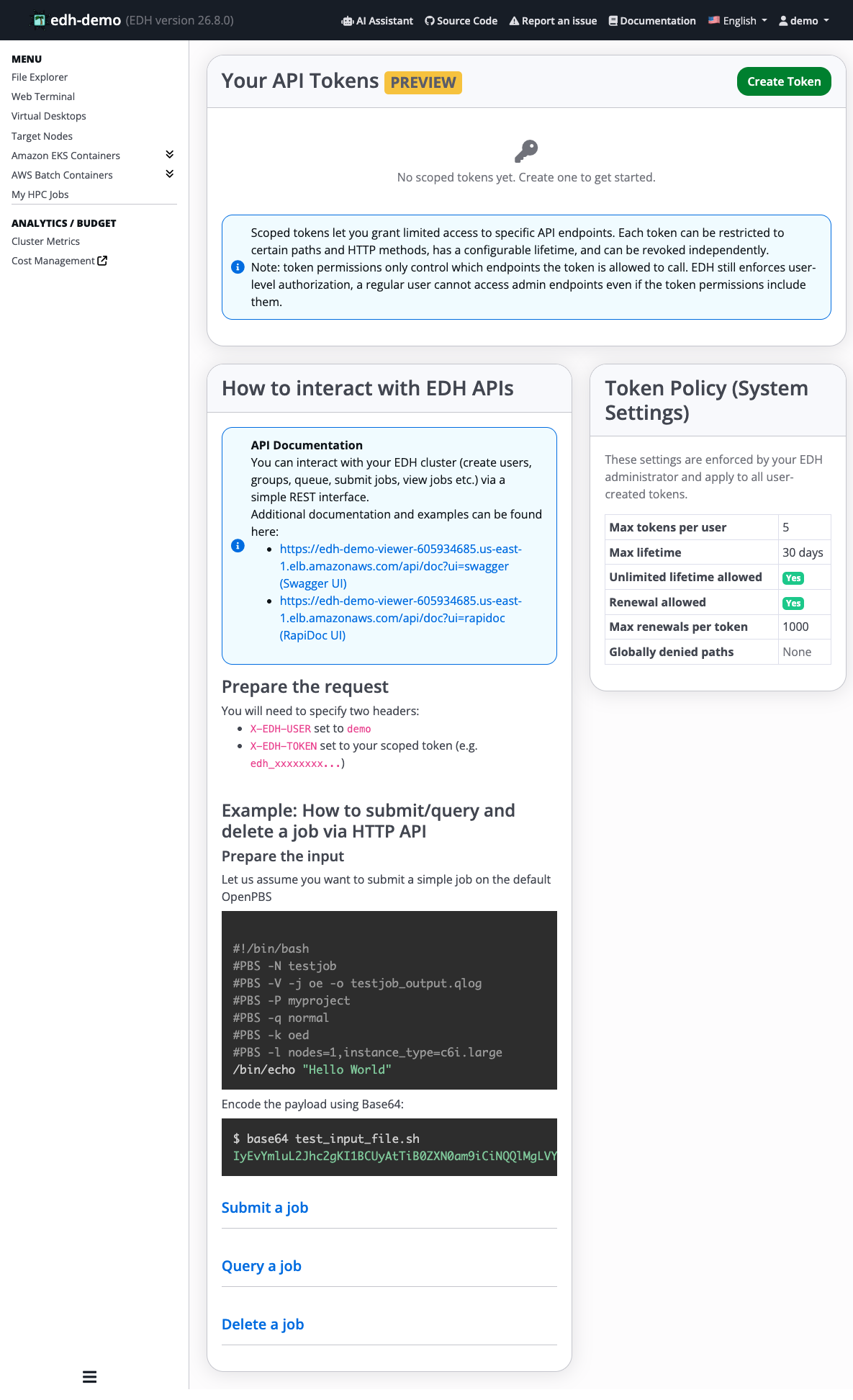
The page has three parts:
- Your API Tokens: the list of tokens you have created, with a Create Token button. If you have not created any yet, you will see "No scoped tokens yet."
- How to interact with EDH APIs: links to the API documentation and a worked example of submitting, querying, and deleting a job.
- Token Policy (System Settings): the limits your administrator has set for all tokens (see Token limits below).
Permissions do not grant admin access
A token's permissions only control which endpoints the token is allowed to call. EDH still enforces your own account permissions on top of that, so a regular user cannot reach administrator-only endpoints even if a token lists them.
Create a token
Click Create Token. The Create Scoped Token dialog opens.
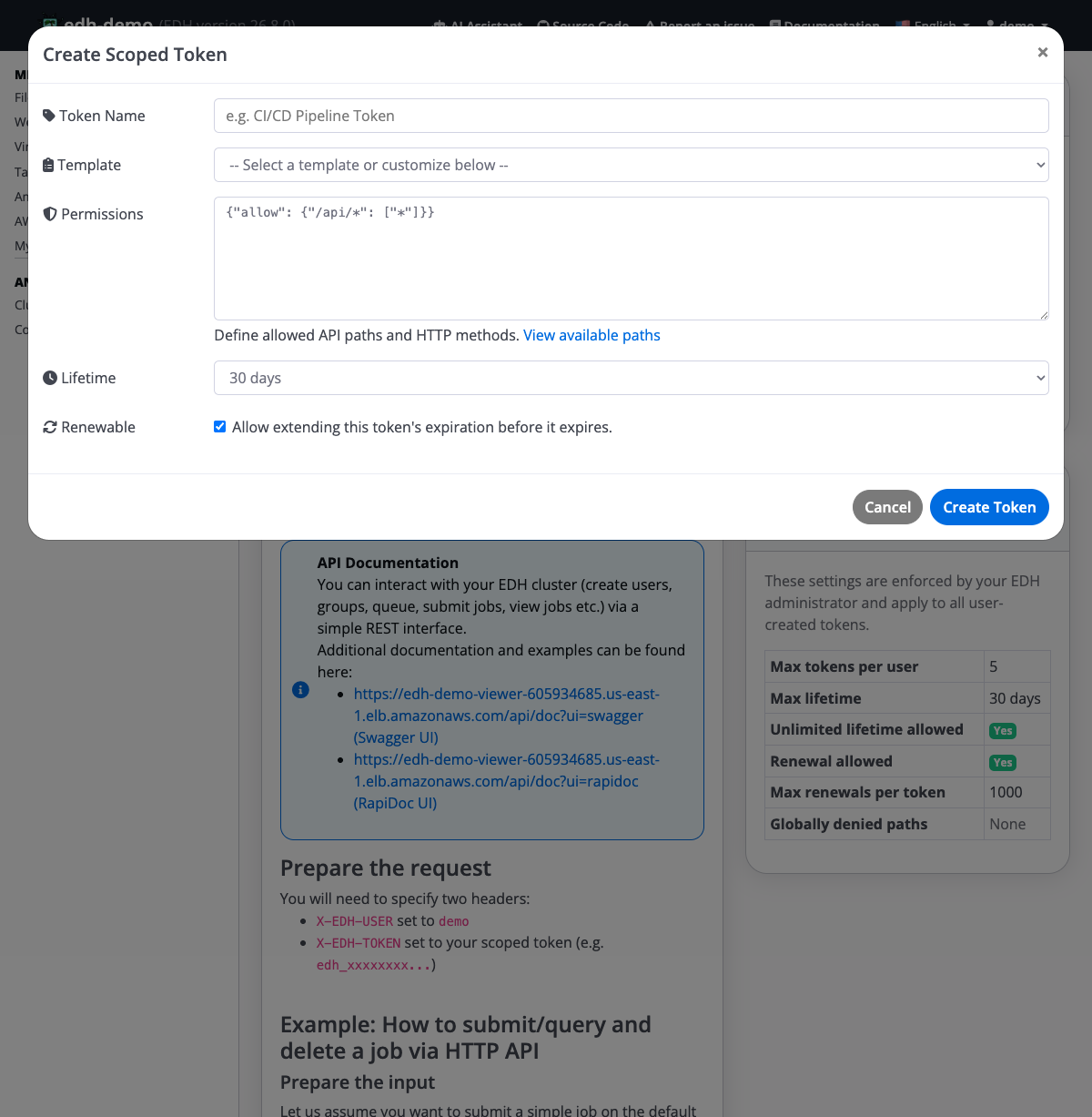
Fill in the fields:
- Token Name: a label to help you recognise the token later, for example
CI/CD Pipeline Token. - Template: pick a ready-made set of permissions, then adjust it if you need to. Templates cover common needs such as:
- Scheduler (read-only)
- Scheduler (submit, query, delete)
- Virtual Desktops (user)
- Virtual Desktops (read-only)
- File Manager
- Full API (read-only)
- Full API (all methods)
- Custom (edit the permissions directly)
- Permissions: the exact API paths and HTTP methods the token may use. Choosing a template fills this in for you. If you want to fine-tune it, click View available paths to see everything you can grant.
- Lifetime: how long the token stays valid: 1 hour, 8 hours, 24 hours, 7 days, 30 days, or Unlimited (no expiration). Your administrator may cap the maximum lifetime.
- Renewable: leave this checked if you want to be able to extend the token's expiration later, before it expires.
Click Create Token to finish.
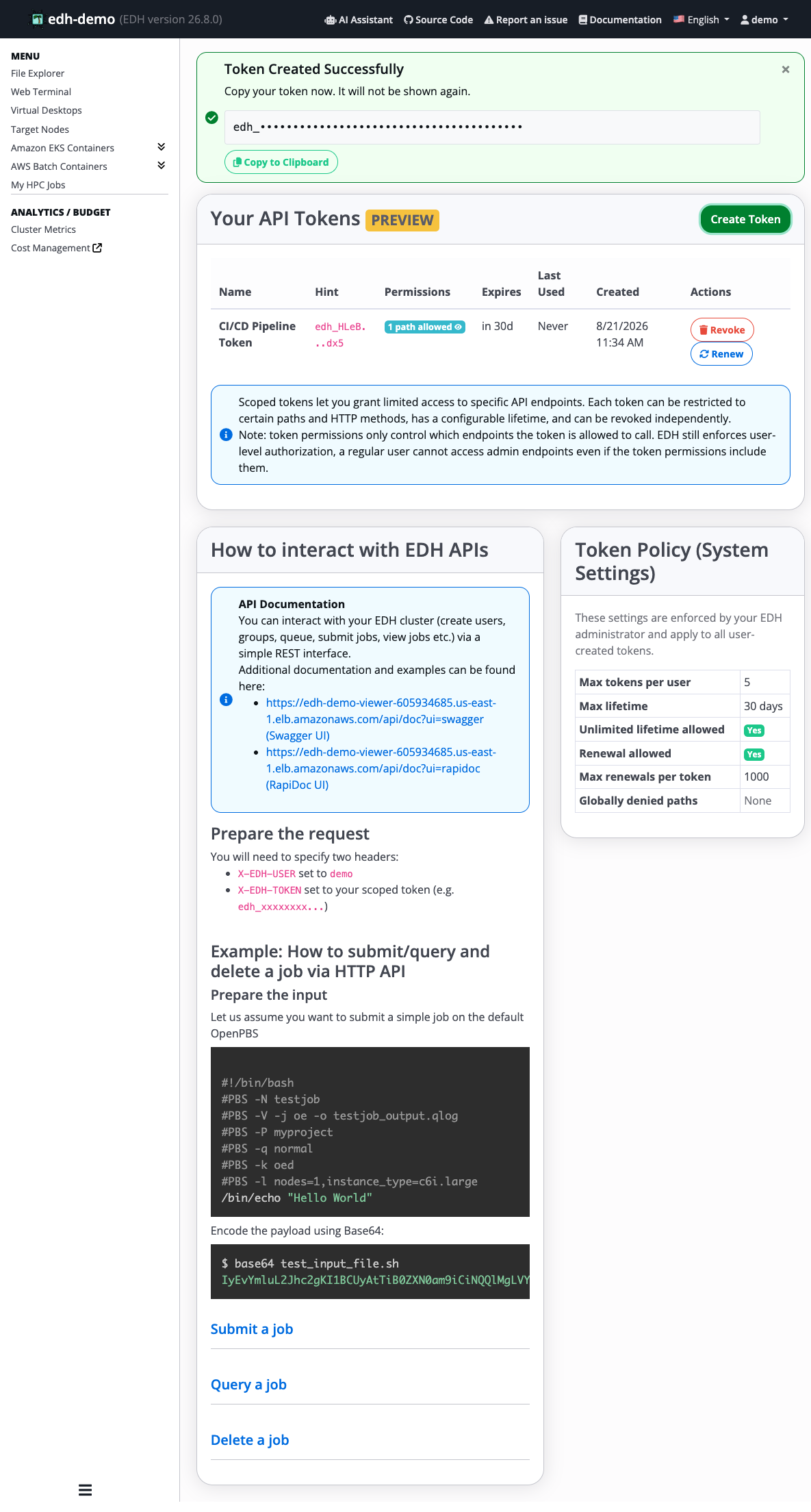
The new token appears at the top of the page, and the token itself is shown once so you can copy it. It then appears in your Your API Tokens list, where you can see its name, hint, permissions, expiration, last-used time, and creation date.
Copy your token right away
The full token is shown only once, immediately after you create it. Copy it and store it somewhere safe, such as your pipeline's secret store. If you lose it, you cannot see it again; you will need to create a new token. EDH only keeps a short hint (for example edh_HLeB...dx5) so you can tell your tokens apart in the list.
Use a token
To call an EDH API with your token, send two request headers:
X-EDH-USERset to your username (for exampledemo).X-EDH-TOKENset to your token (it starts withedh_).
The How to interact with EDH APIs panel on the page links to the full API documentation (Swagger UI and RapiDoc UI) and walks through a complete example of submitting, querying, and deleting a job over the HTTP API. See also Control HPC jobs with the HTTP REST API.
Renew or revoke a token
From the Your API Tokens list you can:
- Renew a token that was created as renewable, to push back its expiration before it runs out.
- Revoke (delete) a token at any time. Once revoked, any request using it stops working immediately. Revoking one token does not affect your other tokens or your password.
Revoke a token as soon as you no longer need it, or if you suspect it has been exposed.
Token limits
Your administrator sets cluster-wide limits that apply to every token you create. You can see the current values in the Token Policy (System Settings) panel, for example:
| Setting | Meaning |
|---|---|
| Max tokens per user | The most tokens you can have at once. |
| Max lifetime | The longest lifetime you can choose for a token. |
| Unlimited lifetime allowed | Whether you may create a token that never expires. |
| Renewal allowed | Whether tokens can be renewed to extend their expiration. |
| Max renewals per token | How many times a single token can be renewed. |
| Globally denied paths | Endpoints that are always blocked, regardless of a token's permissions. |
If you reach a limit (for example the maximum number of tokens), revoke a token you no longer use before creating a new one.
Token audit log (administrators)
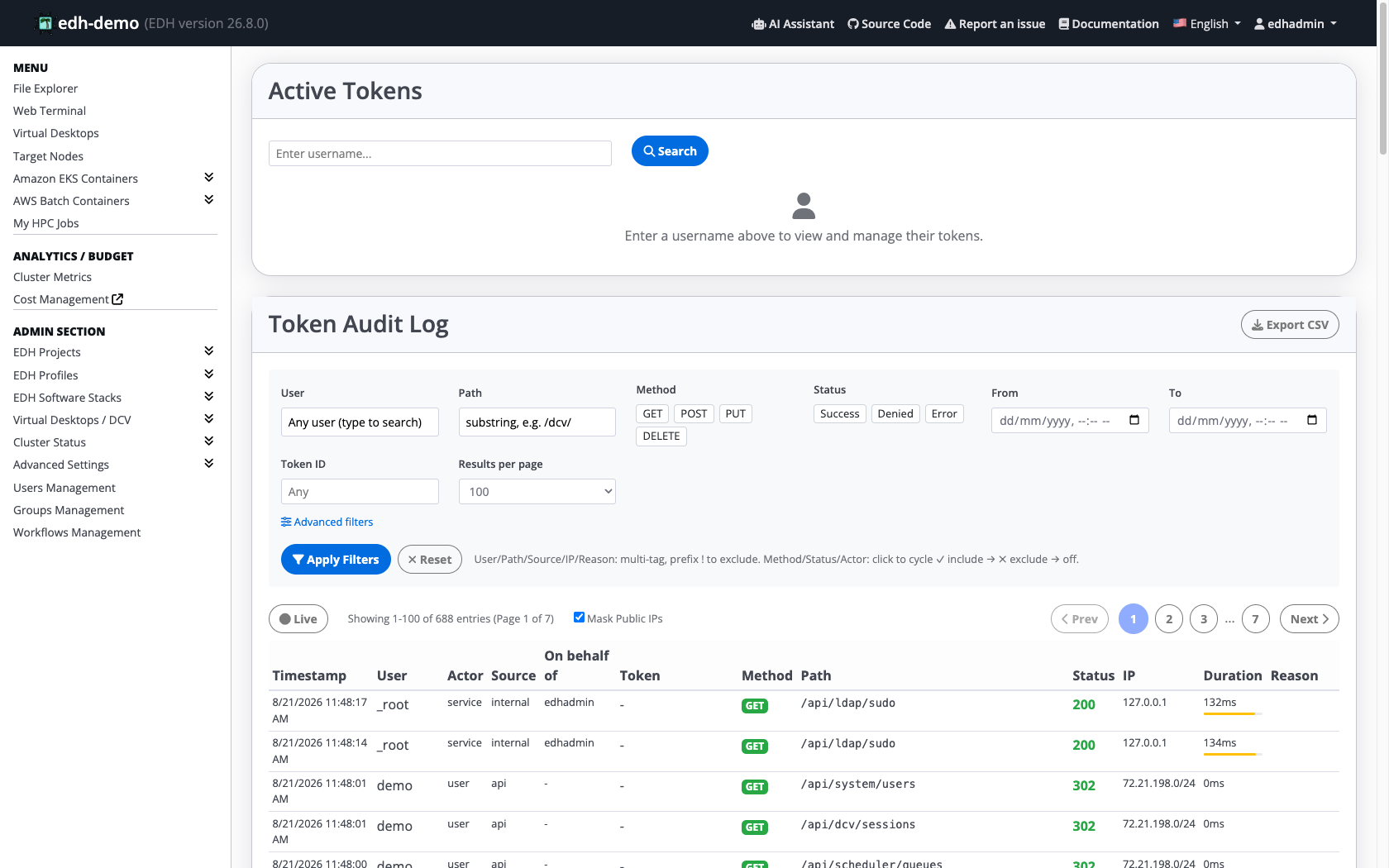
Administrators have a dedicated page to review token activity across all users and manage other users' tokens. Navigate to /admin/tokens/audit. This page is only available to administrators; regular users cannot open it.
The page has two parts:
- Active Tokens: type a username and click Search to see all of that user's tokens, so you can review or revoke a token on their behalf (for example when someone leaves a project or a token is exposed).
- Token Audit Log: a searchable record of the API calls made with scoped tokens, so you can see who called what and when.
Each row in the log shows the time of the call, the user and the token used, the request (method and path), whether it was allowed, the calling IP address, how long it took, and, for blocked calls, the reason.
Filter the audit log
Use the filters to narrow the log down to what you are investigating:
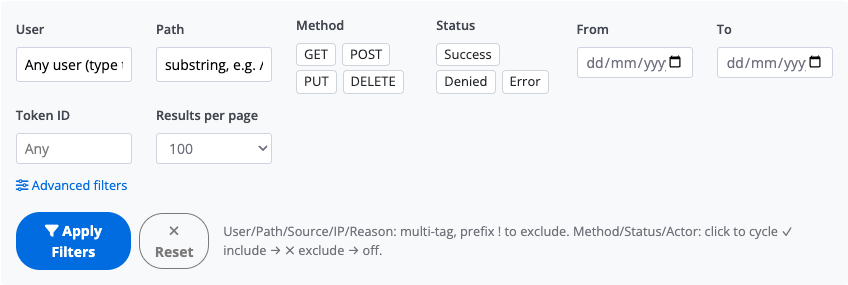
- User: limit results to one or more usernames.
- Path: match part of an API path, for example
/dcv/. - Method: include or exclude
GET,POST,PUT, orDELETE. - Status: show Success, Denied, or Error calls. Filtering on Denied is a quick way to spot a token being used for something it is not allowed to do.
- From / To: restrict results to a date range.
- Token ID: focus on a single token.
- Advanced filters: filter further by source, IP address, and reason.
Click Apply Filters to run the search, or Reset to clear everything.
Other controls
- Export CSV: download the current results for reporting or offline review.
- Live: keep the log updating in near real time so you can watch activity as it happens.
- Mask Public IPs: hide public IP addresses in the results, on by default.
Reviewing versus revoking
The audit log is a record of what happened. To stop a token, use the Active Tokens panel to revoke it, ask the token's owner to revoke it from their My API Tokens page, or follow your organisation's process for handling exposed credentials.