Share a Virtual Desktop (DCV Session Sharing)
DCV Session Sharing lets the owner of a running virtual desktop (or an administrator acting on their behalf) grant other cluster users time-boxed access to that live session. What a guest is allowed to do (view only, collaborate, full control) is decided by an admin-defined permission profile, access expires automatically, and every grant is recorded for audit.
This is ideal for pair debugging, design reviews, remote support, and training, without moving data off the desktop or handing out credentials.
Info
Session Sharing is available on EDH 26.8.0 and newer, and requires the DCV high-scale broker. If the Share Session button does not appear on your desktop tiles, the feature may be disabled for your cluster (see Cluster-level settings).
Key properties
- Permission-scoped. Each guest connects with exactly the permissions of the chosen profile (for example, no clipboard or file transfer under View Only).
- Supervised by default. A guest cannot connect unless you are present in the session, unless the share explicitly grants unsupervised access and the cluster policy allows it.
- Time-boxed. Every share carries an expiry. When it lapses, EDH revokes the guest automatically and drops their live connection.
- Per-guest. Multiple guests can be connected at the same time, each with their own permission set.
- Audited. Grants are never deleted. Revoked and expired shares remain visible as history for administrators.
The Virtual Desktops dashboard
Open Virtual Desktops in the left sidebar. Each running desktop is shown as a tile with a live thumbnail, quick-connect options, its instance details, and a Share Session button.
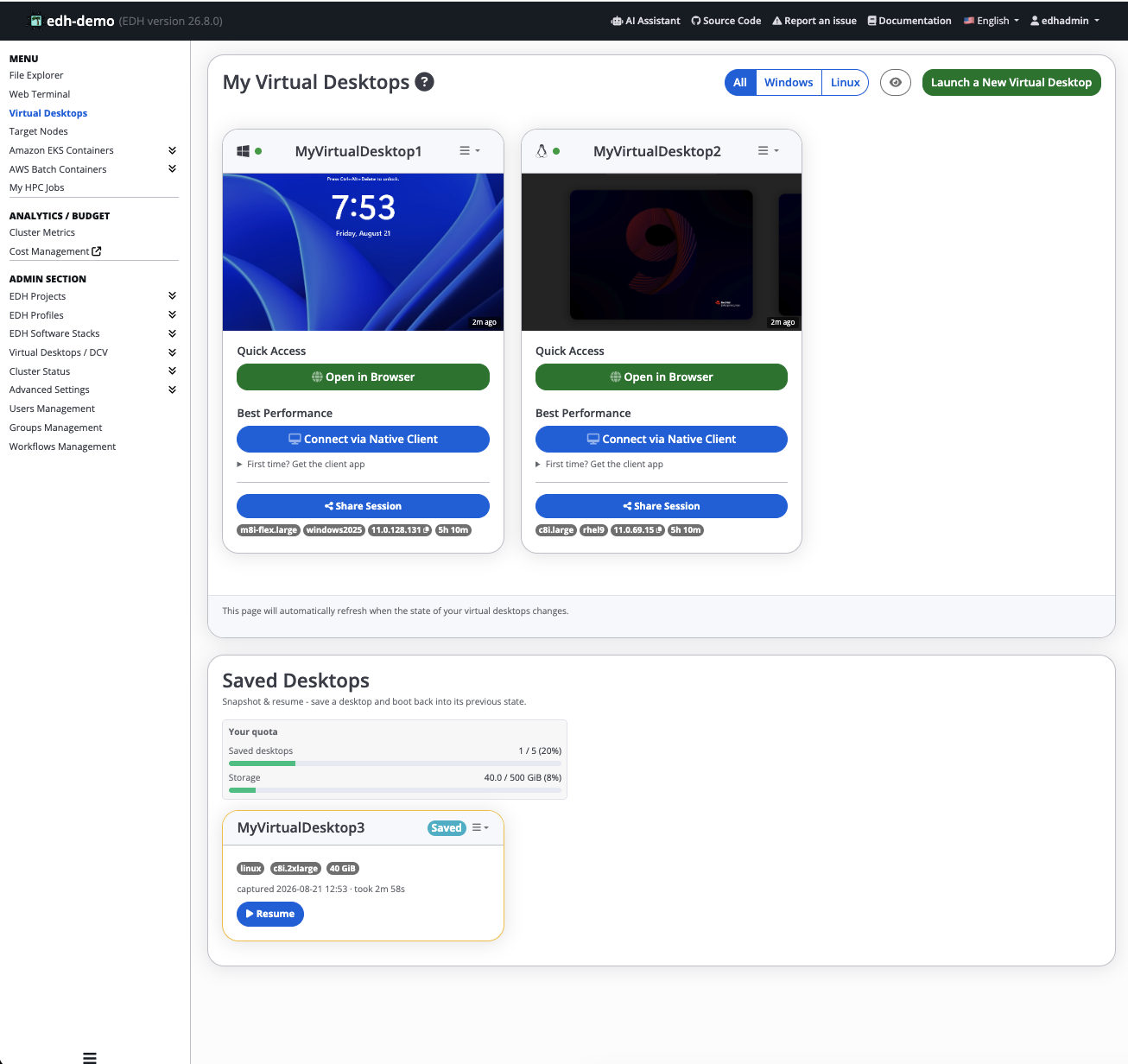
Share your desktop
Click Share Session on the desktop you want to share. The Share Session dialog opens.
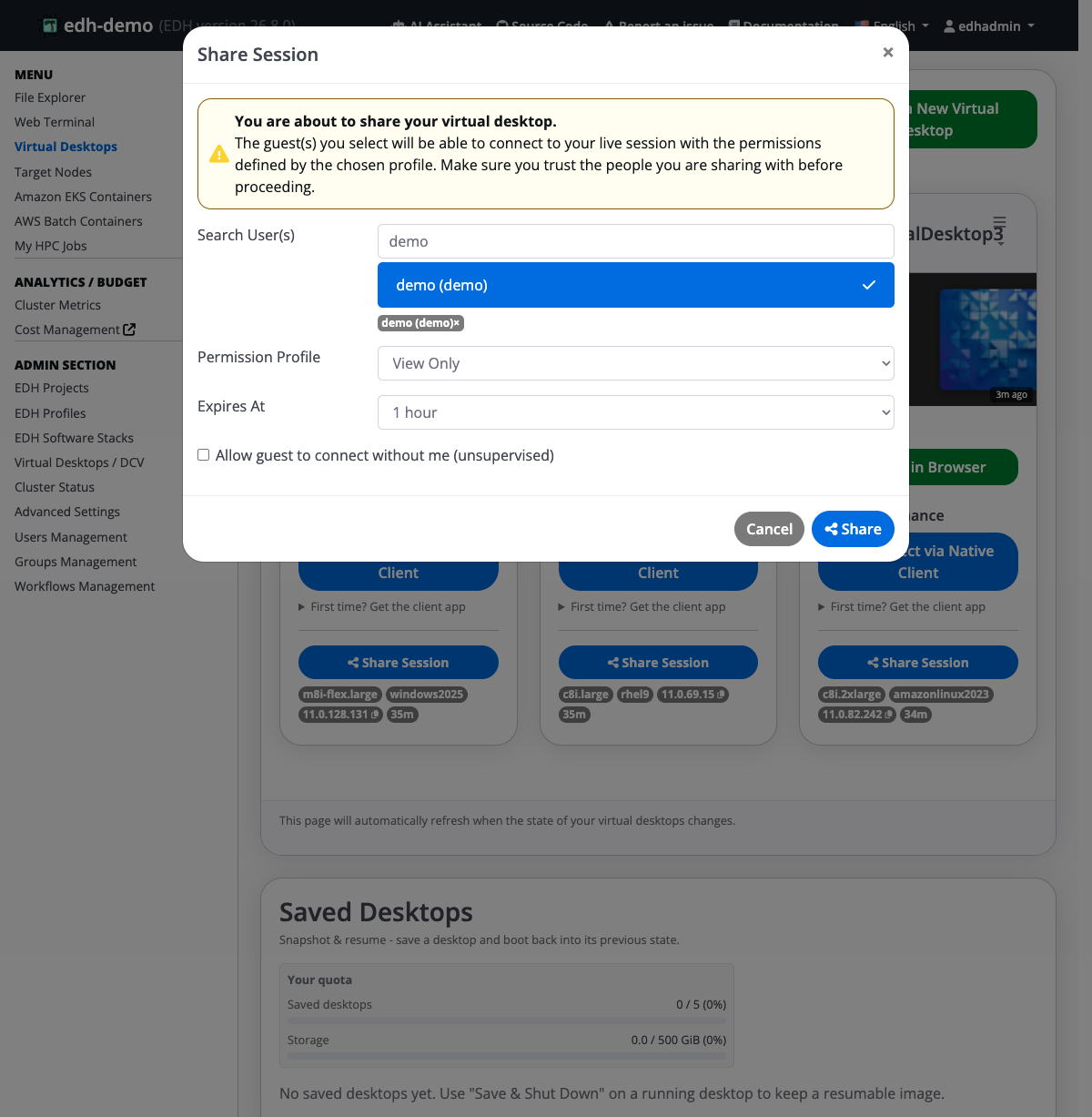
Fill in the share:
| Field | Description |
|---|---|
| Search User(s) | Start typing a username. Matching cluster users appear in the dropdown. You can select several users at once (each selected user shows as a chip); EDH creates one share per guest. |
| Permission Profile | The set of DCV permissions the guest(s) will receive. EDH ships with View Only, Collaborate, and Full Control (see Permission profiles). |
| Expires At | How long the share stays active (for example, 1 hour). After this time the guest is revoked automatically. |
| Allow guest to connect without me (unsupervised) | When checked, the guest may connect even when you are not in the session. Leave it unchecked to require your presence (supervised). This option is greyed out if the cluster policy forbids unsupervised access. |
Click Share. The guest is granted access immediately.
Manage who a desktop is shared with
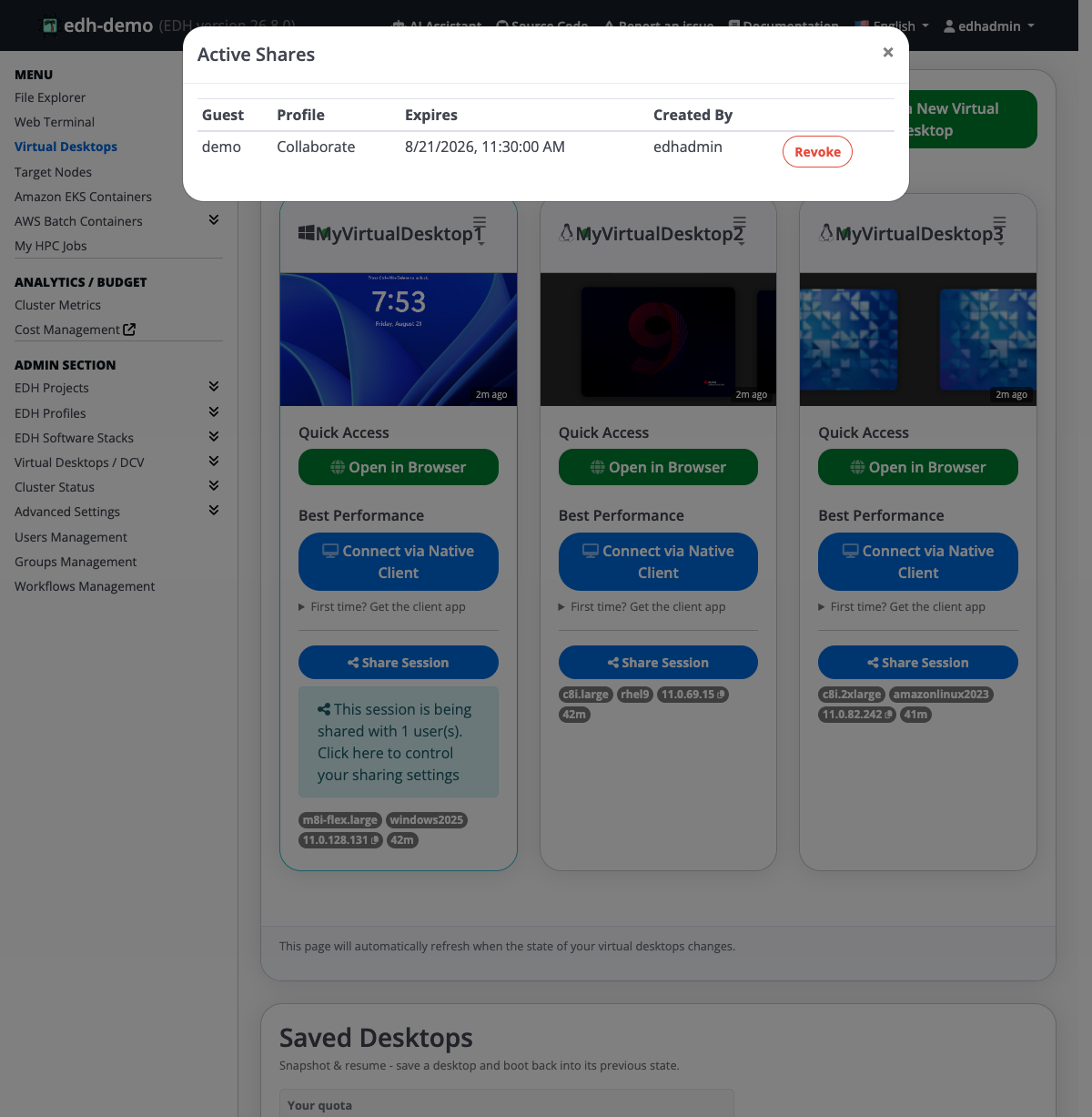
Once a desktop is shared, its tile shows a note that the session is being shared, with a link to control your sharing settings.
Click that link to review every active share on the desktop. From here you can Revoke any guest at once, which immediately removes their access and drops their live connection.
Connect as a guest
When a desktop is shared with you, open Virtual Desktops. The shared session appears under Virtual Desktops Shared With Me, below your own desktops.
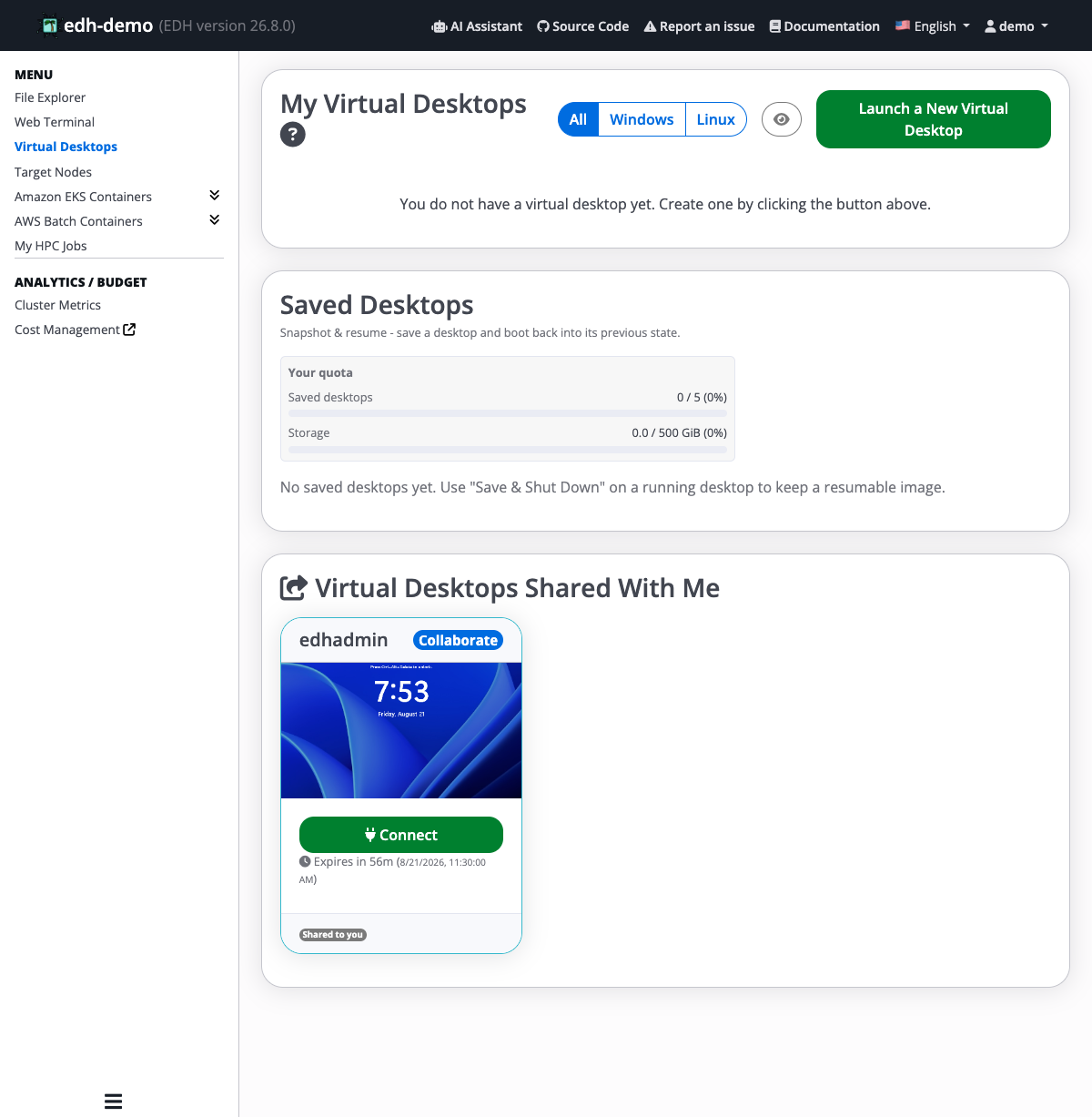
Each tile shows the owner, the permission profile you were granted (for example, Collaborate), a live thumbnail of the desktop, and when your access expires. Click Connect to open the shared desktop in your browser. Your access ends automatically when the share expires, or immediately if the owner or an administrator revokes it.
Supervised sessions
If your share is supervised (the default), you can only connect while the owner is present in the session, and you are disconnected when the owner leaves. An unsupervised share lets you connect at any time until it expires.
Permission profiles
Permission profiles define the DCV capabilities a guest receives. Administrators manage them under Admin Section > Virtual Desktops / DCV > Session Sharing, on the Permission Profiles tab.
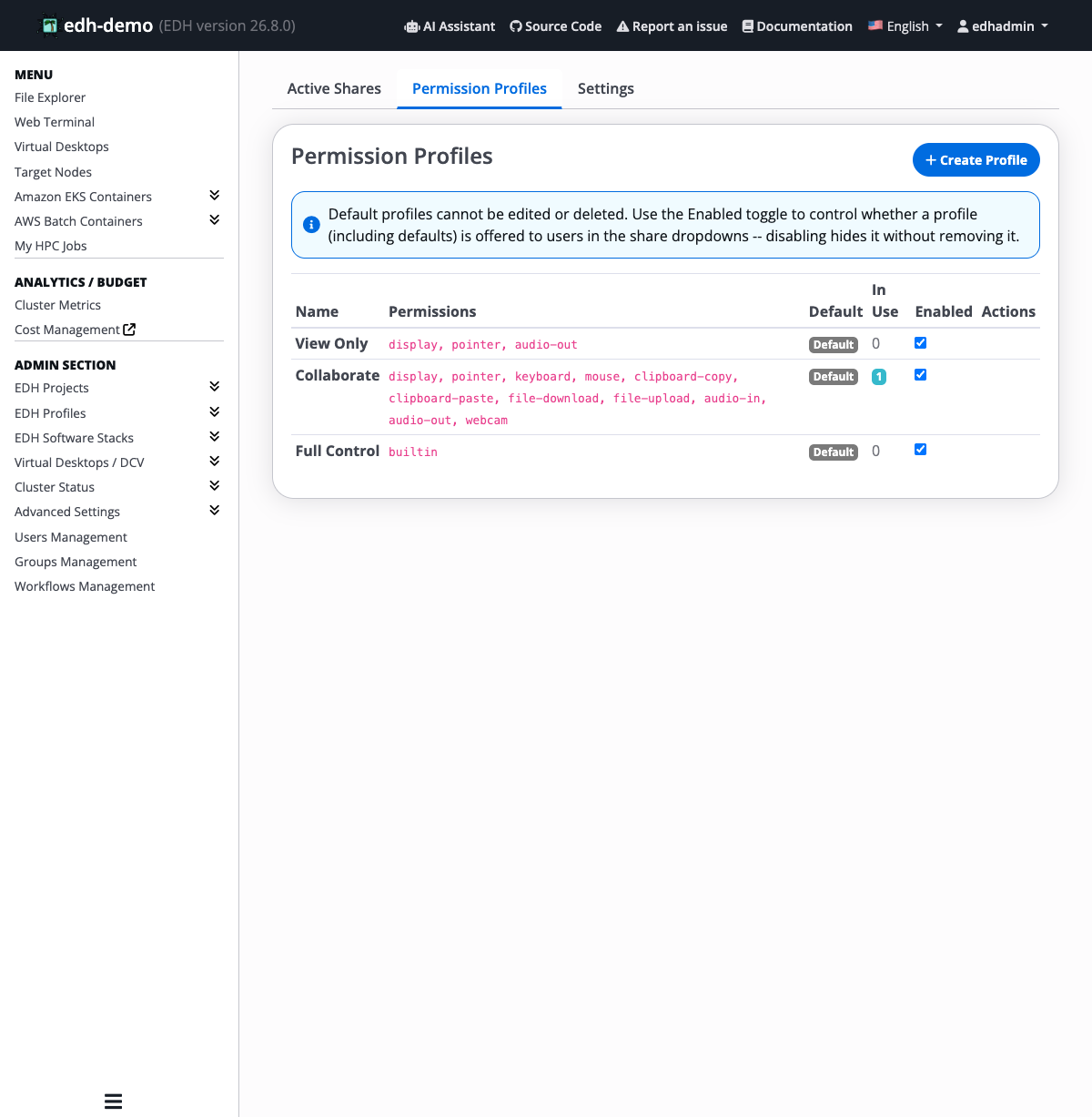
EDH ships with three default profiles:
| Profile | Permissions | Typical use |
|---|---|---|
| View Only | display, pointer, audio-out |
Let someone watch your screen without touching it. |
| Collaborate | display, pointer, keyboard, mouse, clipboard-copy, clipboard-paste, file-download, file-upload, audio-in, audio-out, webcam |
Hands-on pair work with clipboard and file transfer. |
| Full Control | builtin (all features, including connecting without the owner present) |
Full delegated control of the session. |
Default profiles cannot be edited or deleted. Use the Enabled toggle to control whether a profile (including the defaults) is offered in the share dropdowns; disabling one hides it without removing it. The In Use column shows how many active shares currently rely on each profile.
Create a custom profile
Click Create Profile to build your own from the full DCV permission catalog.
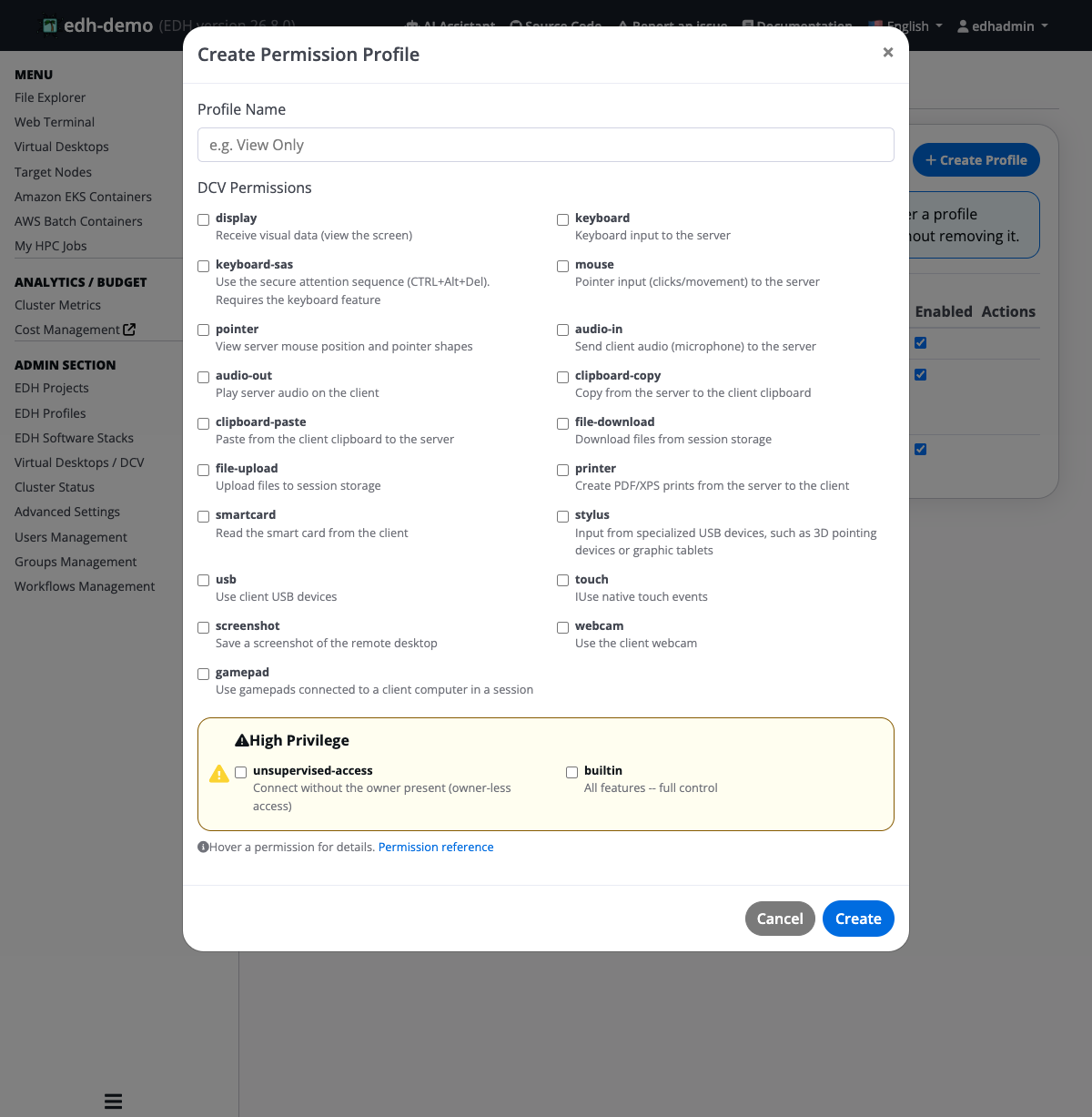
Give the profile a name, then check the permissions to grant. Each permission includes a short description (for example, clipboard-copy = copy from the server to the client clipboard, usb = use client USB devices, printer = create PDF/XPS prints).
Two permissions are flagged as High Privilege:
unsupervised-access: lets a guest connect without the owner present.builtin: all features, full control. Selectingbuiltinsupersedes the individual permissions.
Administrator: manage all shares
On the Active Shares tab, administrators see every share across the cluster, with the session owner, guest, profile, status, expiry, who created it, and when the guest last connected.
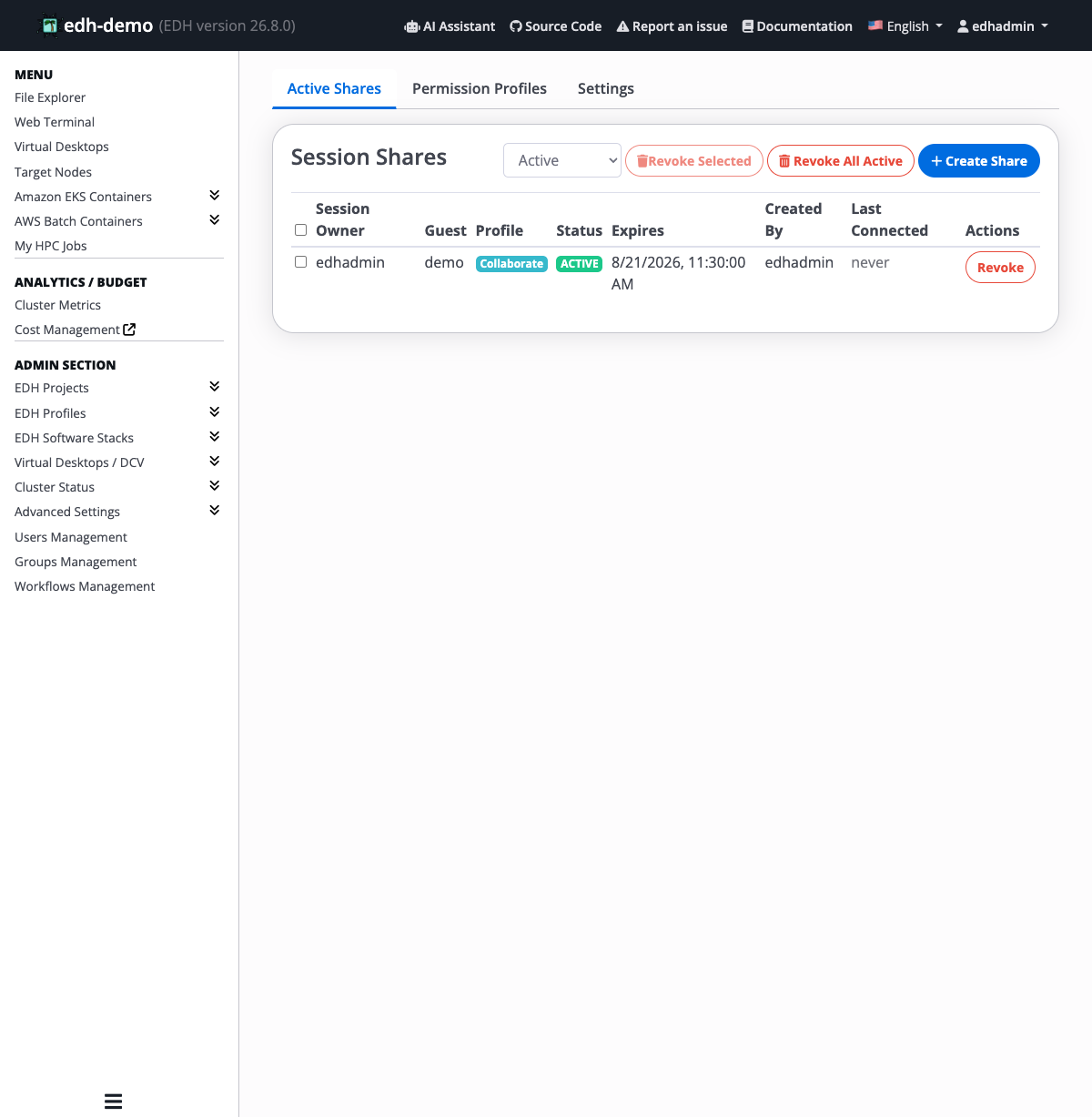
From here an administrator can:
- Filter by status (Active, All, Revoked, Expired) to review current shares or the full history.
- Revoke a single share, Revoke Selected for a multi-selection, or Revoke All Active to clear every share at once.
- Create Share on a user's behalf: pick any running desktop on the cluster, choose the guests and profile, and grant access. Shares created by an administrator are attributed to the admin and cannot be revoked by the desktop owner.
Cluster-level settings
The Settings tab controls the sharing policy for the whole cluster. Per-desktop and per-profile settings can never exceed these limits.
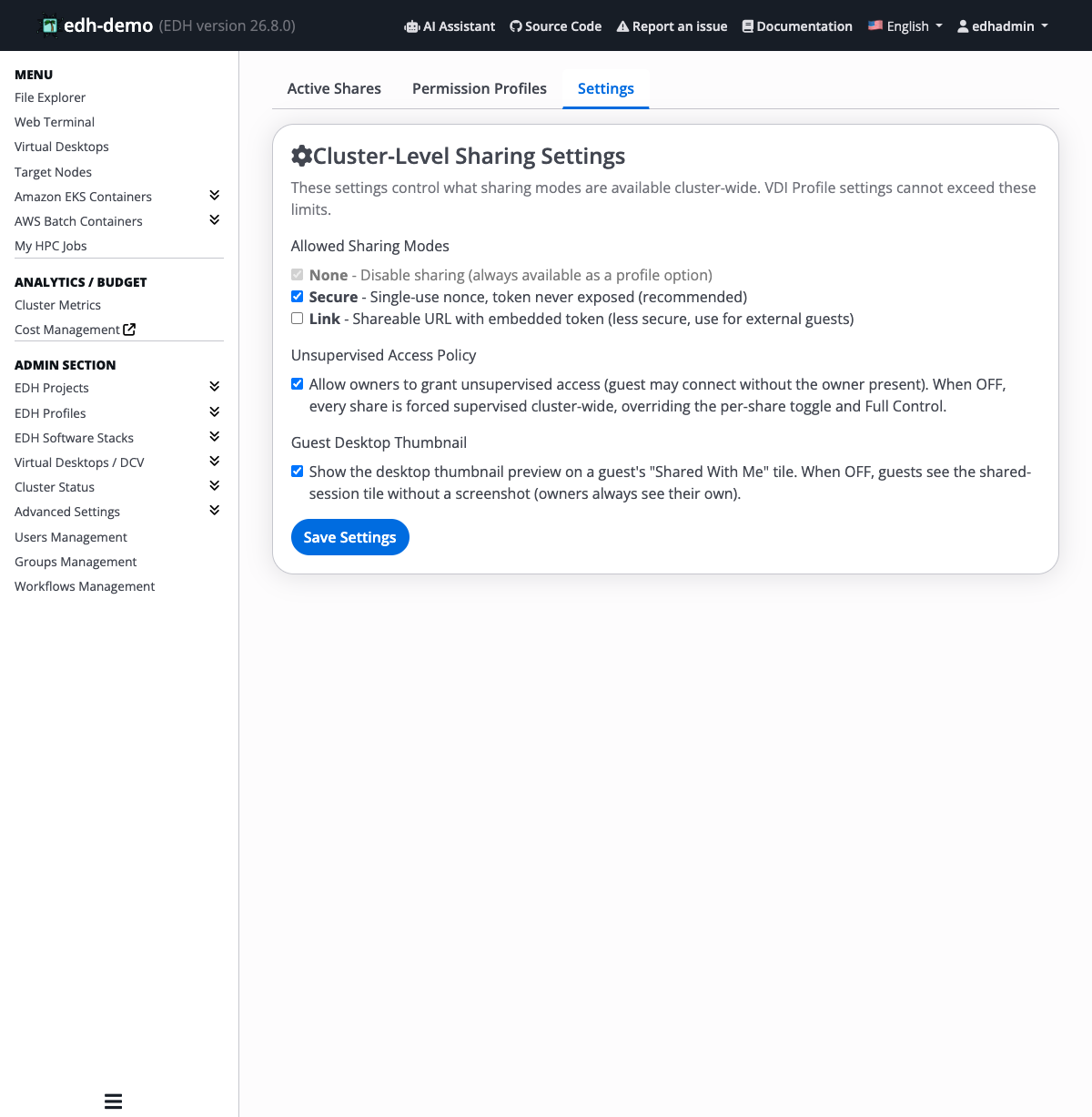
| Setting | Description |
|---|---|
| Allowed Sharing Modes | Which connection modes are permitted. None is always available (disables sharing). Secure uses a single-use nonce so the connection token is never exposed to the browser (recommended). Link produces a shareable URL with an embedded token (less secure, intended for external guests). |
| Unsupervised Access Policy | When off, every share is forced supervised cluster-wide, overriding the per-share toggle and even the Full Control profile. |
| Guest Desktop Thumbnail | When off, guests see the shared-session tile without a live screenshot preview. Owners always see their own thumbnail. |
Click Save Settings to apply. Changes take effect immediately; new shares honor the updated policy.
How access is enforced
- Secure by default. In Secure mode, the guest's DCV connection token is never handed to the browser. Clicking Connect mints a single-use, short-lived nonce that is exchanged server-side for a fresh token, so a copied link is useless to anyone else.
- Broker-enforced. Permissions are applied through the DCV broker to the live session, so they take effect without a reconnect and work identically across the whole desktop fleet.
- Revocation is immediate. Revoking a share (manually or at expiry) drops the guest's live connection regardless of any token they hold.