My Job Queue
My HPC Jobs lets you follow your own jobs from the web interface. Open it from My HPC Jobs in the left menu, or navigate to /my_jobs. Each row shows a job's scheduler, ID, owner, name, queue, status, timestamps, duration, and the resources it requested.
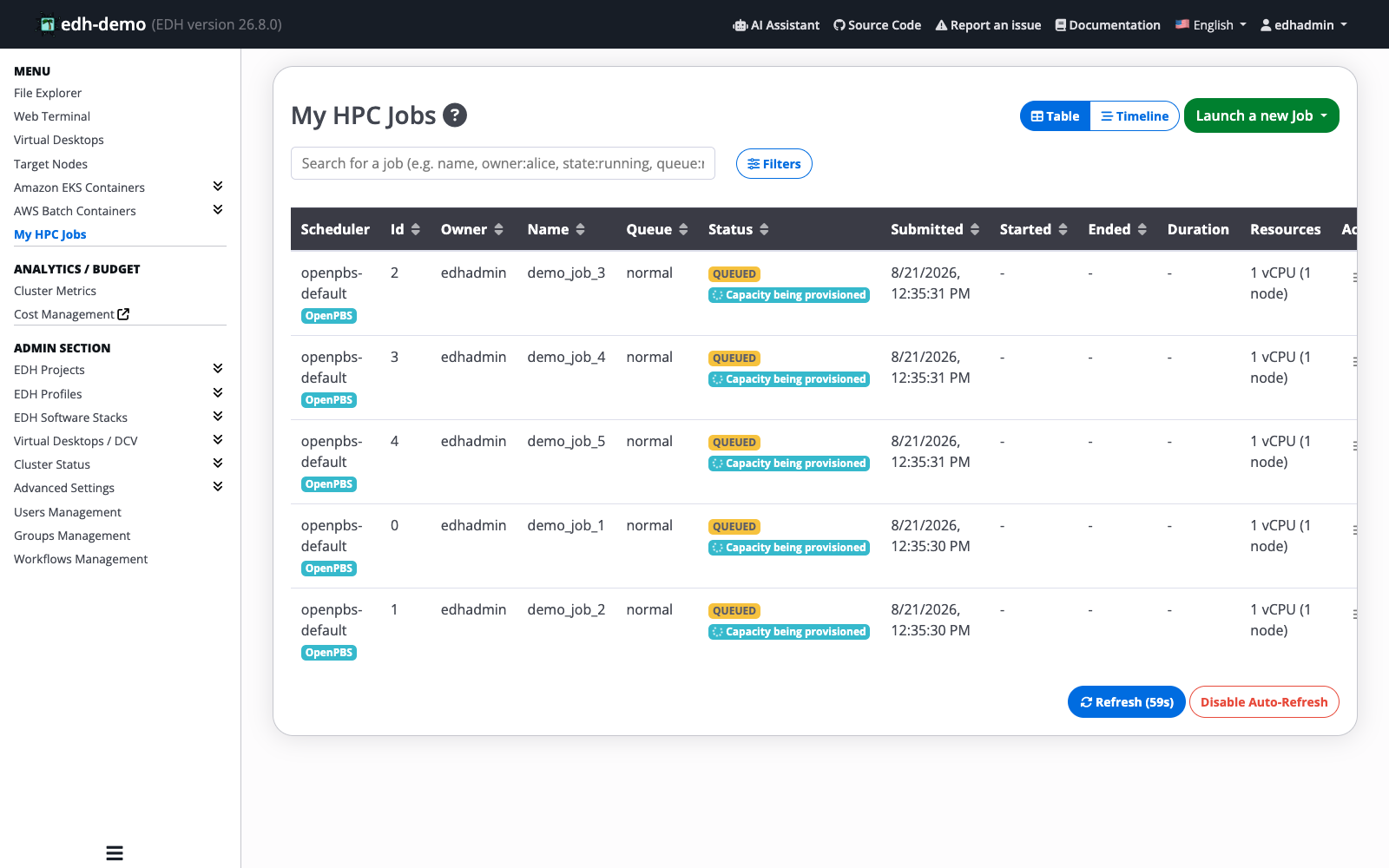
The page refreshes on its own so the status stays up to date. The Refresh button shows a countdown until the next refresh, and you can click Disable Auto-Refresh if you would rather update the page yourself.
Switch between Table and Timeline views
Use the Table and Timeline buttons at the top right to change how your jobs are displayed.
- Table is the default and lists every job with its full details.
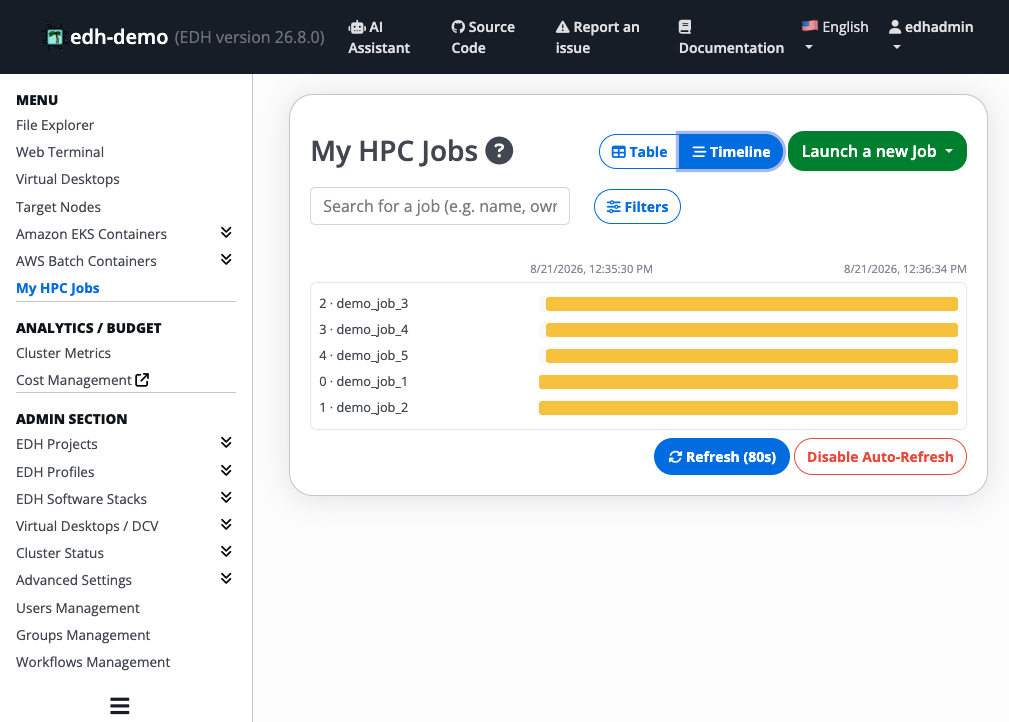
- Timeline draws each job as a bar on a time axis, which makes it easy to see when jobs ran and how long they took relative to one another.
Find a specific job
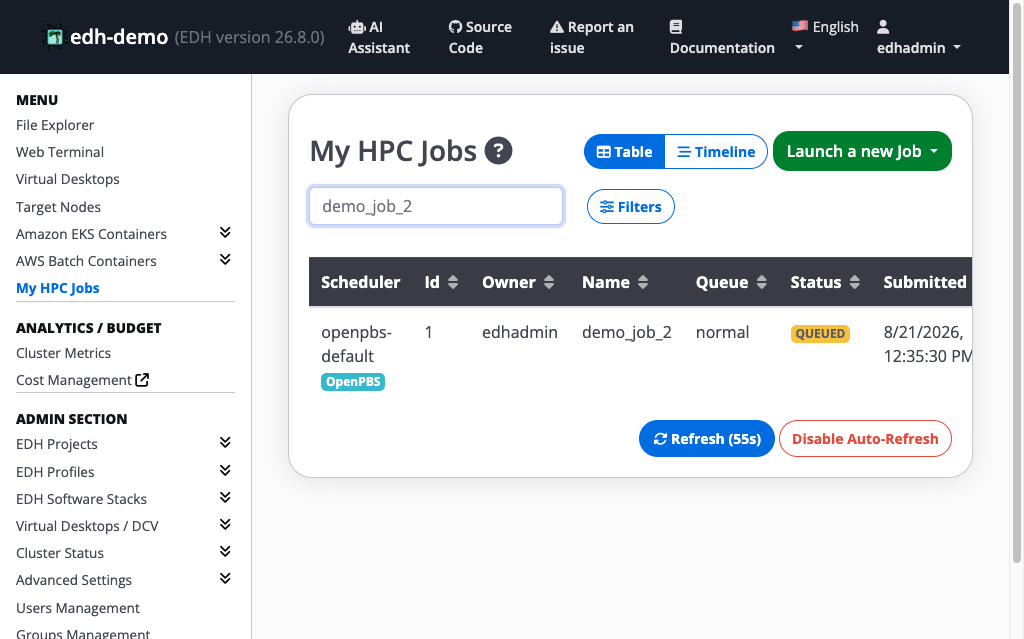
When you have many jobs, use the search box to narrow the list. Type part of a job name, or search by field, for example owner:alice, state:running, or queue:normal.
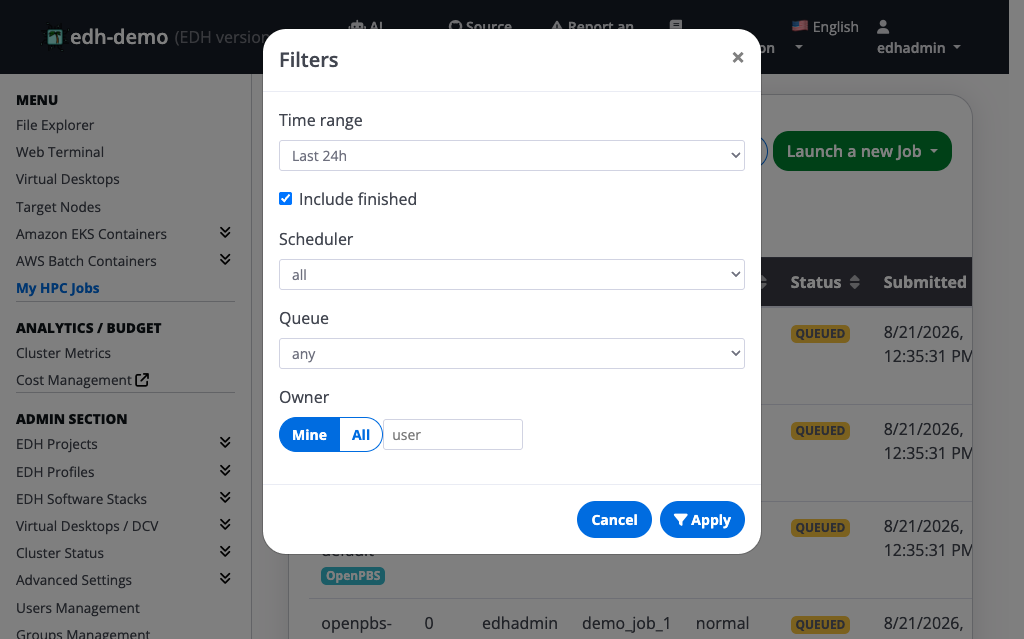
For more control, click Filters to open the filter dialog:
- Time range: limit the list to a recent window, such as the last 24 hours.
- Include finished: turn this on to also show jobs that have already completed. Leave it off to focus on jobs that are still queued or running.
- Scheduler and Queue: show only jobs from a given scheduler or queue.
- Owner: switch between Mine and All, or type a specific user name.
Click Apply to update the list.
See when capacity is being provisioned
When a job is QUEUED and EDH is starting the compute capacity it needs, the job shows a Capacity being provisioned tag. This tells you the job is waiting on new instances to come online rather than being stuck, so you know it is progressing normally.
Work with a job
Each row has an Actions menu (the button in the Actions column) with everything you can do for that job:
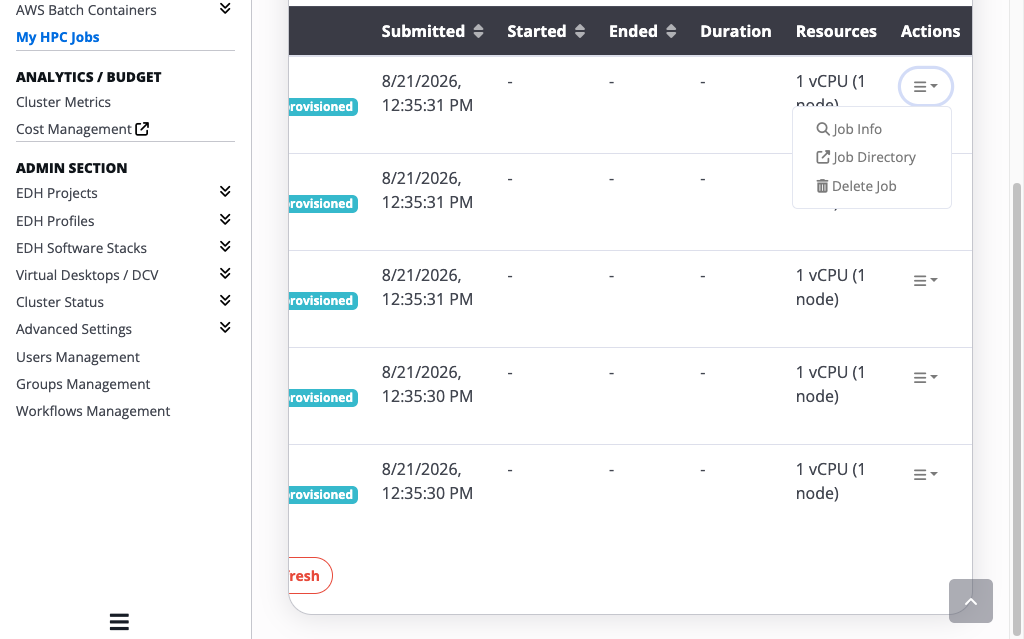
- Job Info: view detailed information about the job.
- Job Directory: open the folder where the job's output is stored.
- Delete Job: remove the job from the queue.
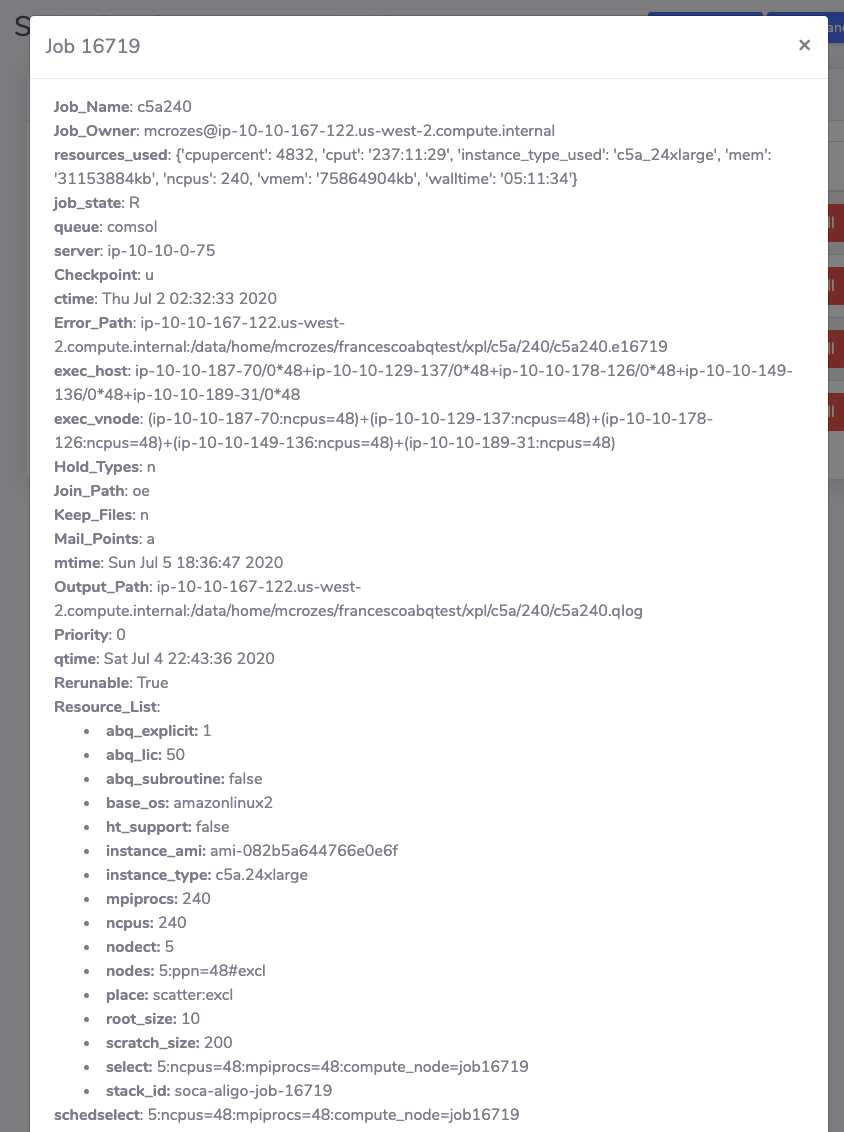
Retrieve job information
Choose Job Info to see the full details of your job.
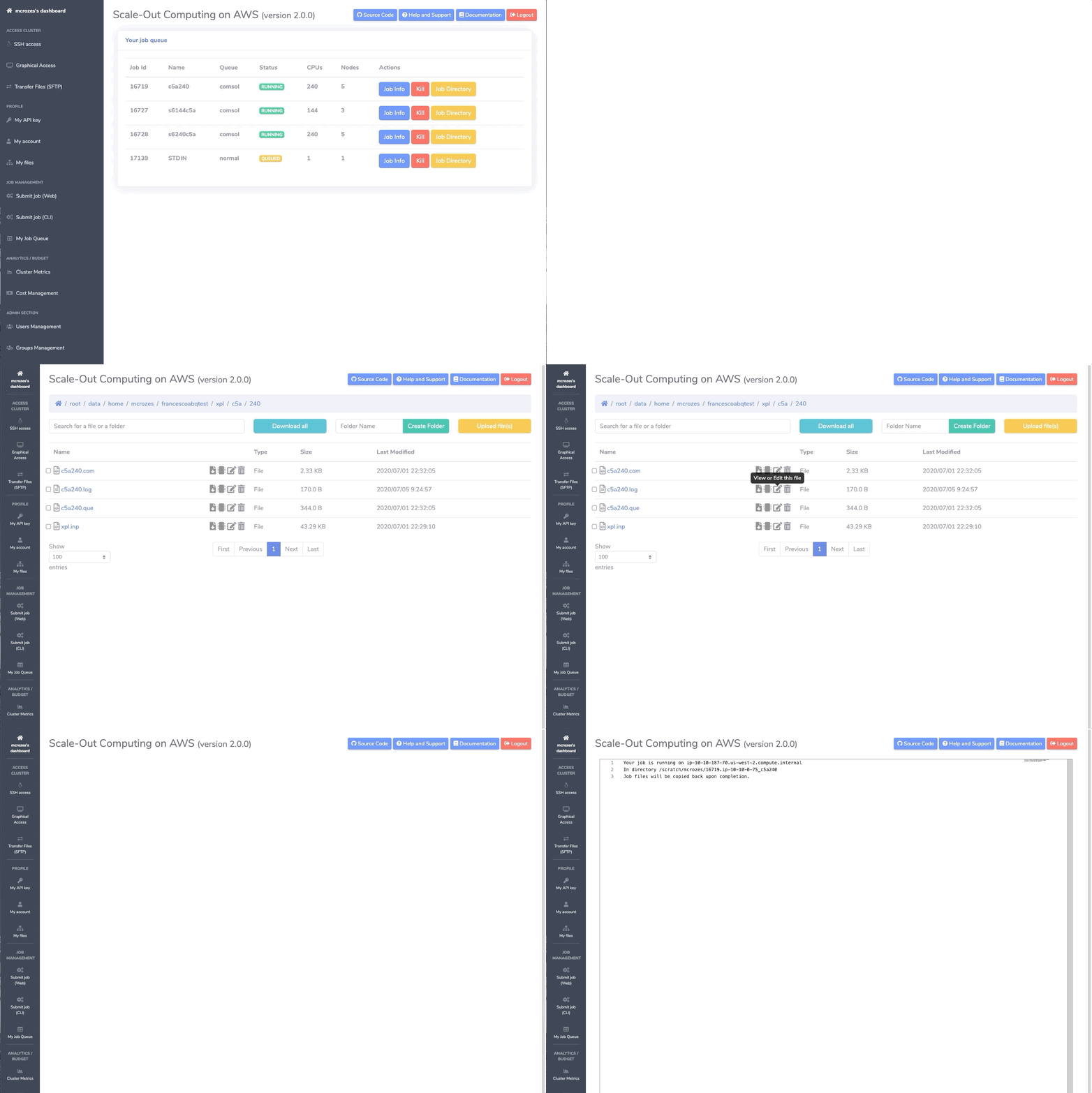
Access your job output
Choose Job Directory to open the location where your job writes its output.
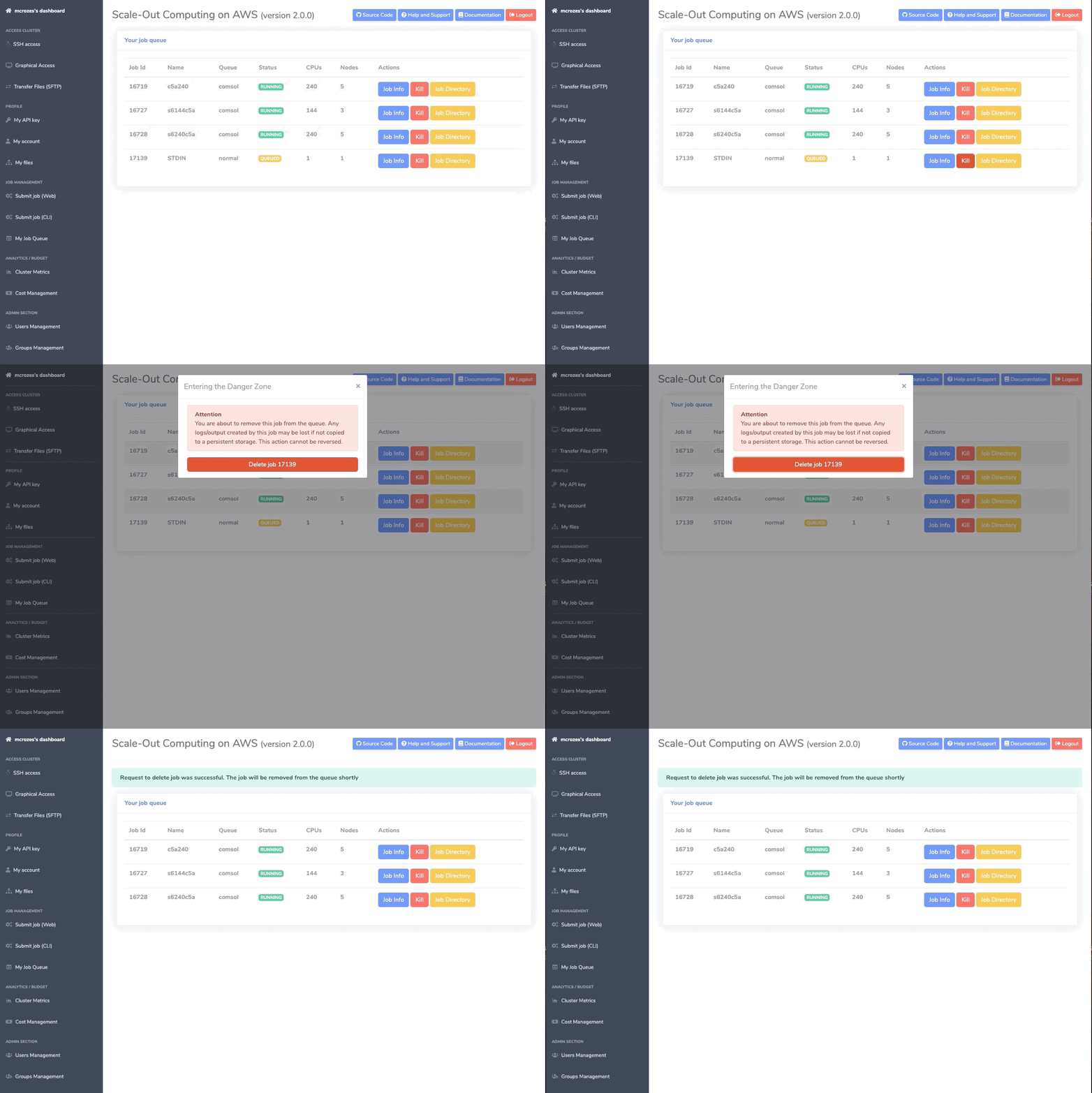
Delete a job
Choose Delete Job to remove a job from the queue.
Understand why your job cannot start
Sometimes a job cannot start because of a misconfiguration. When that happens, EDH adds a red Job Cannot Start tag to the job so you can spot it right away.
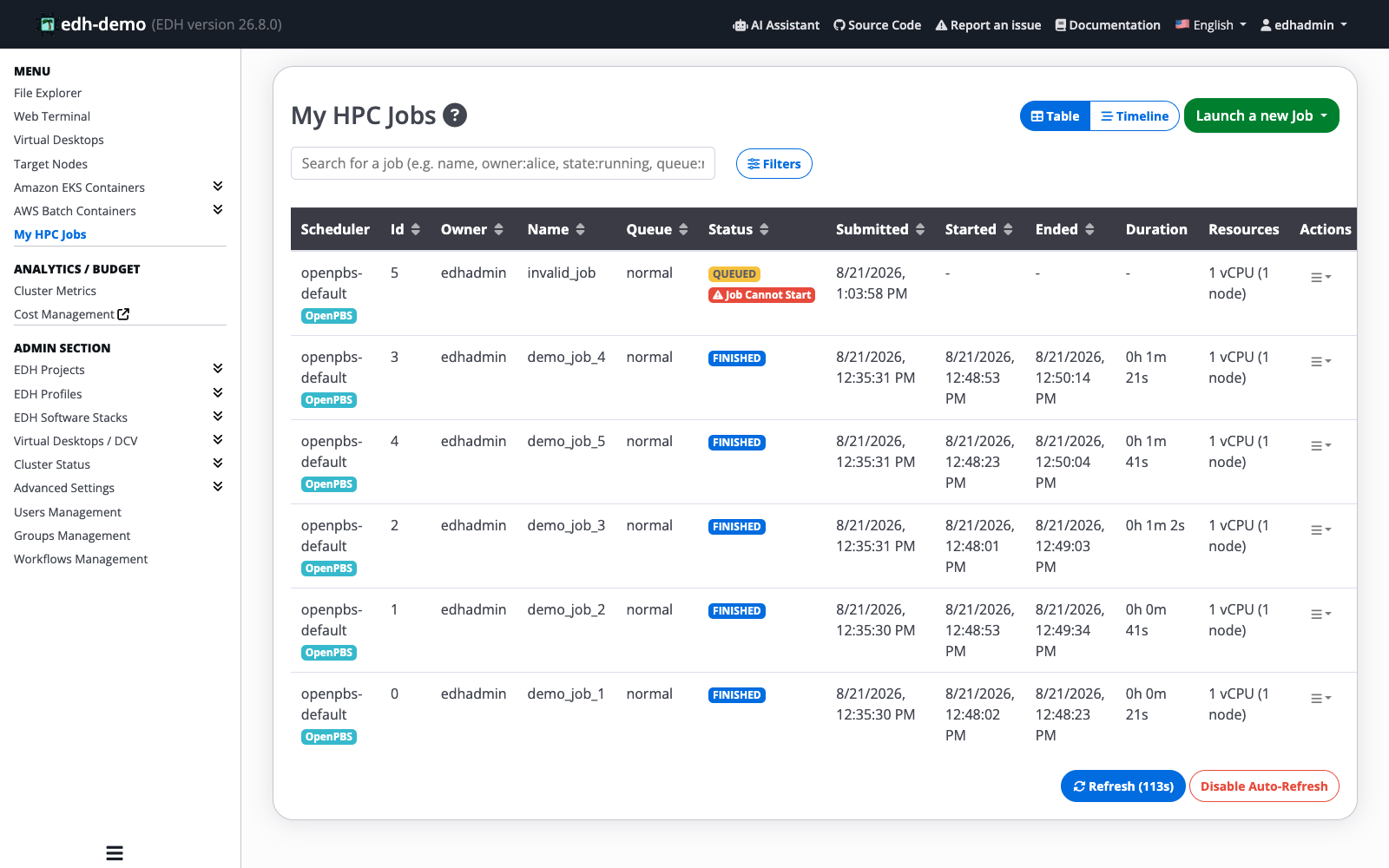
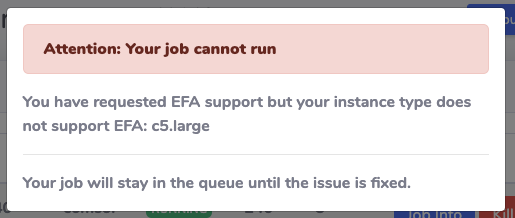
Click the Job Cannot Start tag to open a dialog that explains the problem. In the example below, the job requested EFA on an instance type that does not support it, so the job stays in the queue until the configuration is fixed.
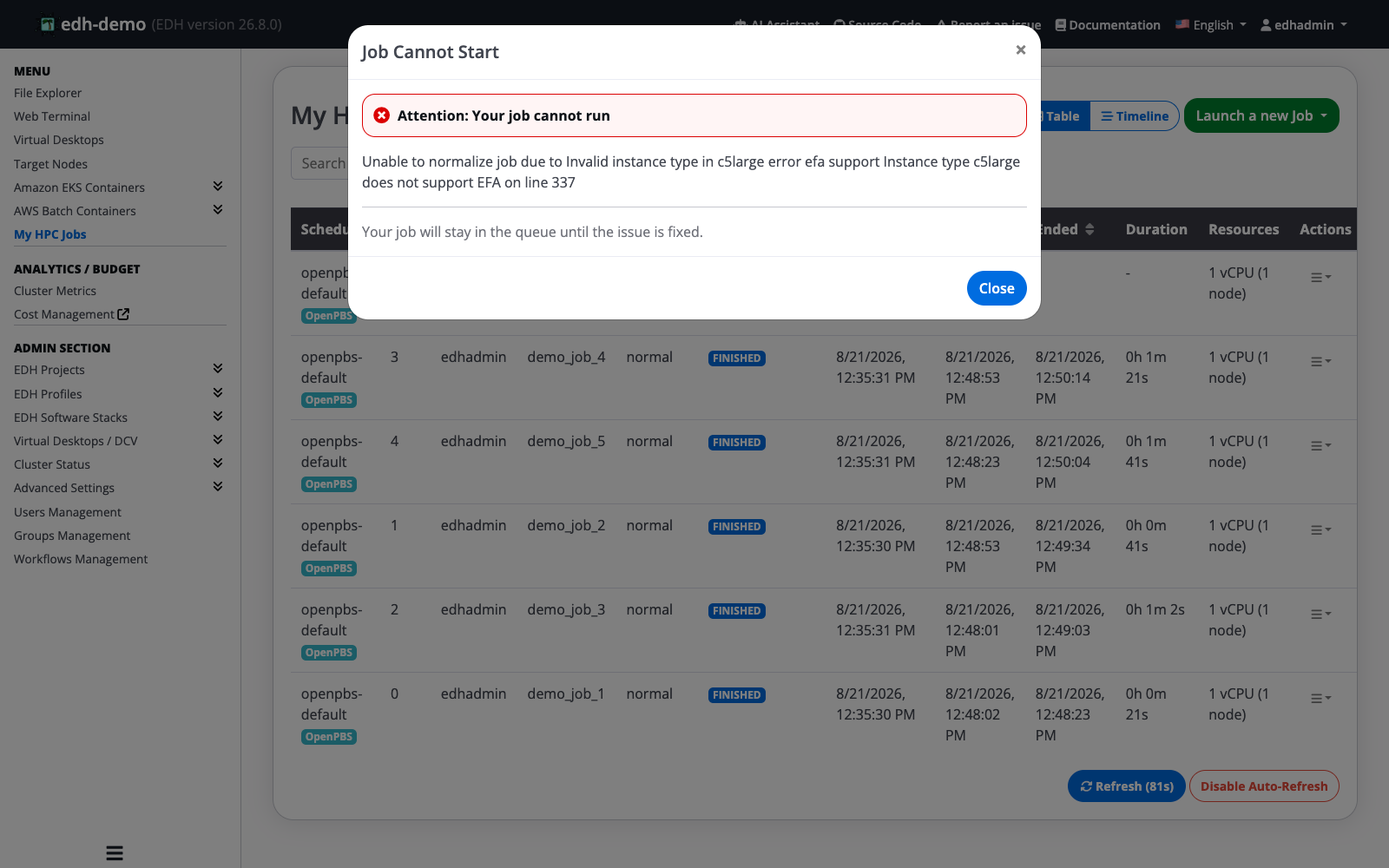
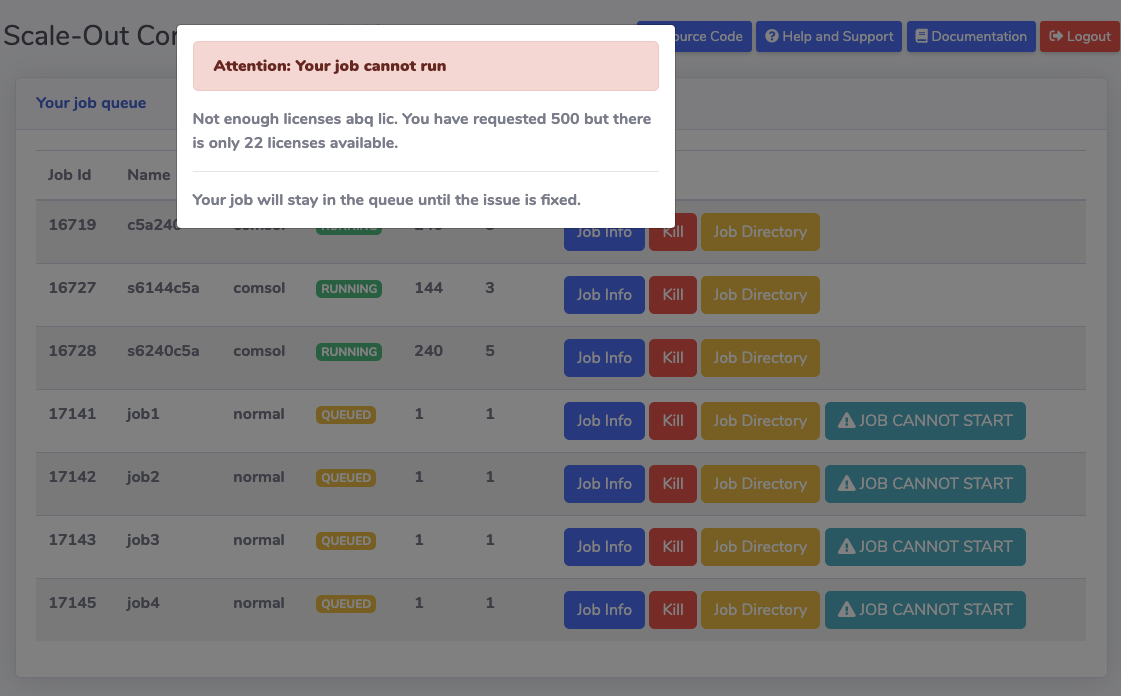
Other common reasons include:
Not enough software licenses
Typo in the instance type
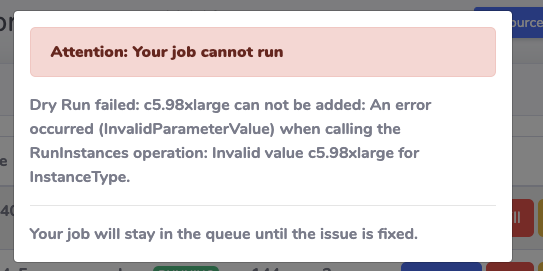
Invalid configuration (request EFA but use an instance without EFA support)
And more ...
- Limit of running jobs exceeded
- Limit of provisioning instance exceeded
- AWS Service limit errors (for example, cannot provision more EBS volume)
- Can't start a job when
force_ri=Trueif you do not have enough Reserved Instances available - ...