Web Terminal
The Web Terminal gives you a full login shell on the cluster directly from your browser, with no local SSH client, private key, jump host, or VPN configuration required. It is the fastest way to get a prompt on the cluster, whether you are on a locked-down laptop, a Windows host without OpenSSH, or simply want a shell without leaving the EDH web interface.
Under the hood, each terminal is backed by a persistent tmux session running on one of the cluster's login nodes. Because the session lives on the login node (not in the browser), closing the tab or the browser does not kill your work. You can reconnect later and pick up exactly where you left off.
Info
The Web Terminal is available on EDH 26.8.0 and newer. If you do not see the Web Terminal entry in the left sidebar, it may be disabled for your account (see Administration below).
Access the Web Terminal
Click Web Terminal in the left sidebar, or navigate to /web_terminal.
When you first open the page, no terminal is running yet. Click Start a new terminal on an EDH Login Node to open your first session.
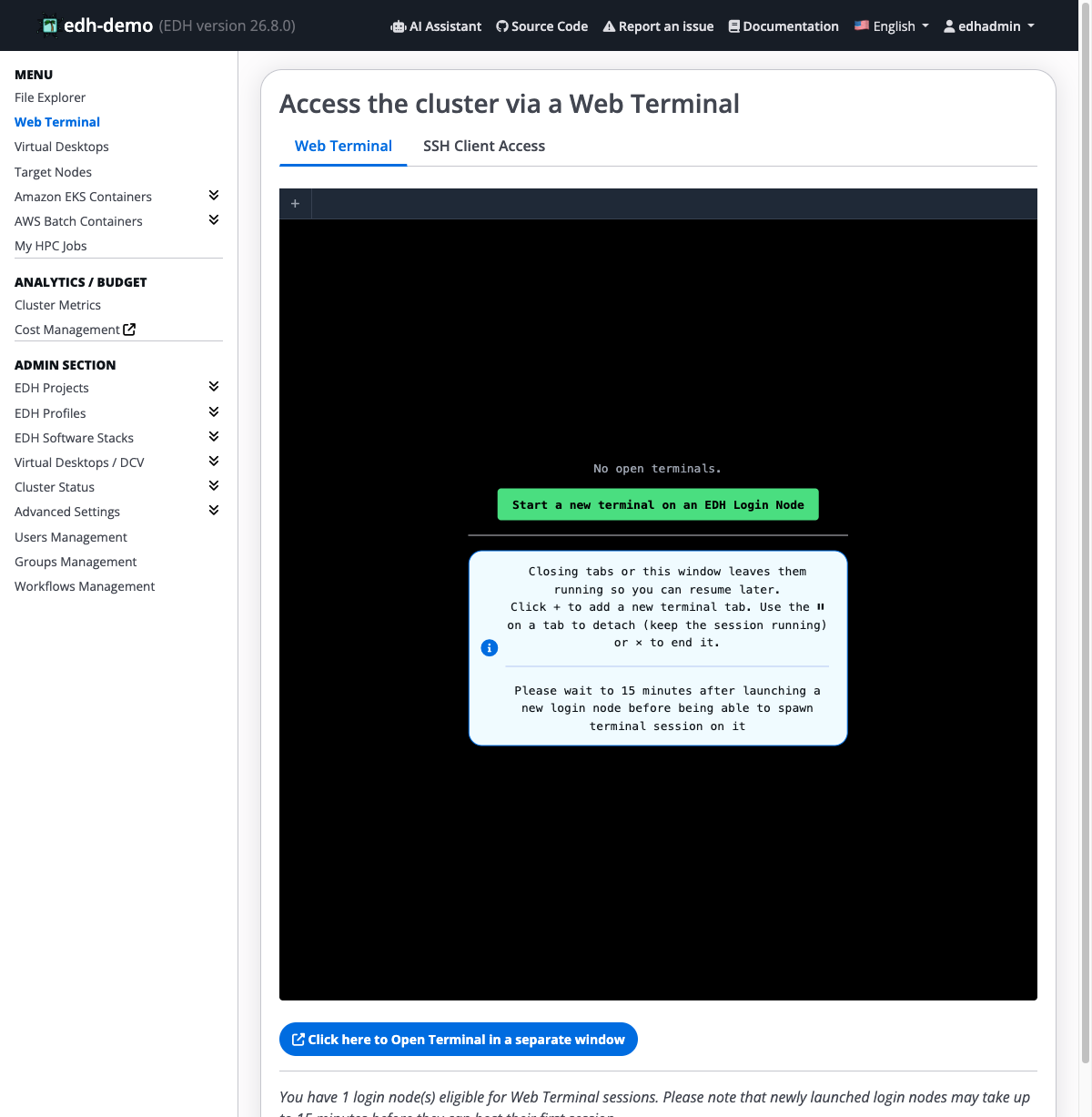
Within a few seconds you are dropped into a live shell on a login node.
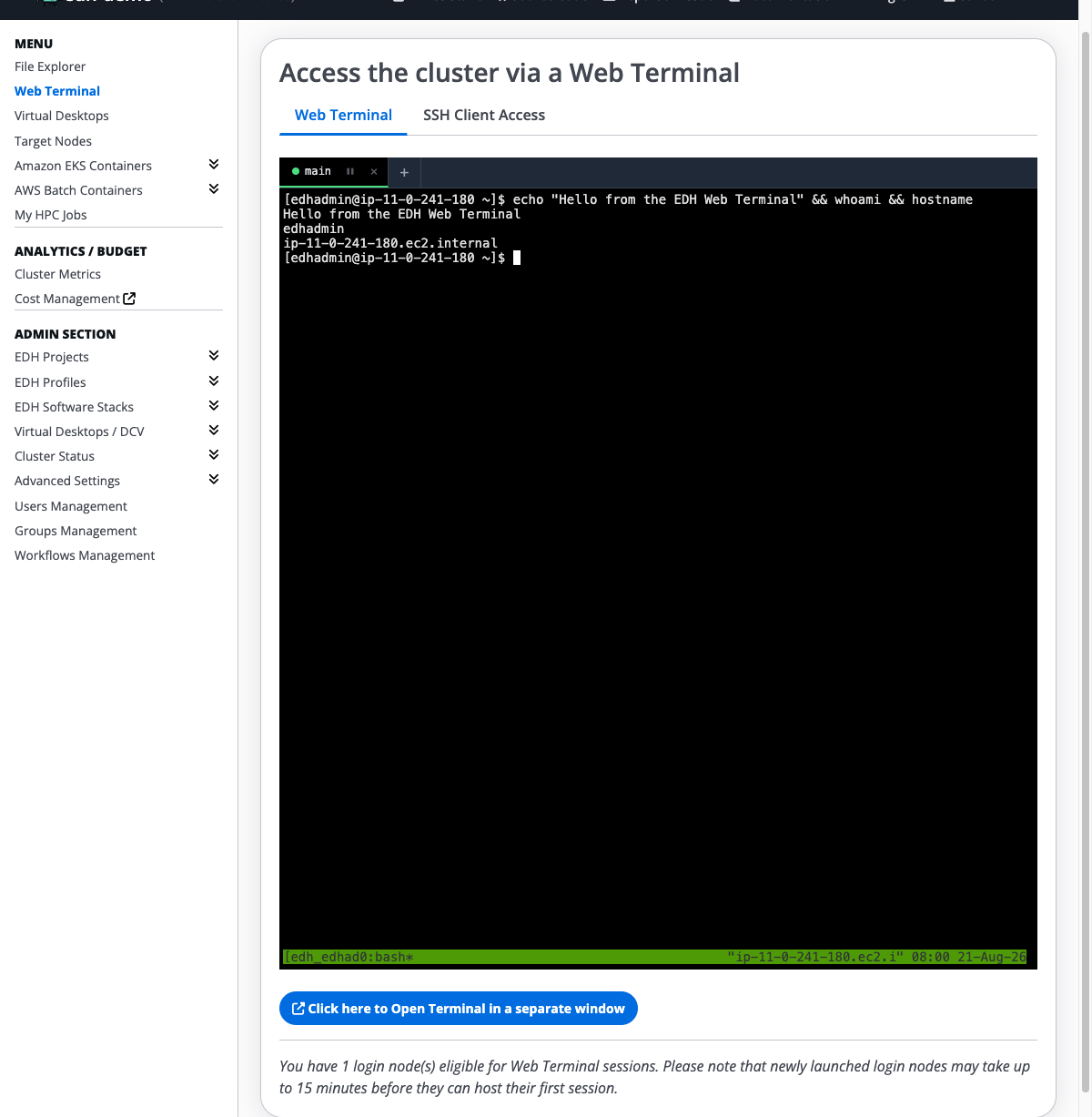
Login node availability
A message at the bottom of the page tells you how many login nodes are eligible to host Web Terminal sessions. Newly launched login nodes may take up to 15 minutes before they can accept their first session. If no login nodes are available, ask your administrator to scale up the login node fleet.
Persistent sessions
The Web Terminal is designed so that your work survives disconnections:
- Closing a tab or the whole browser window leaves the session running. Reopen the Web Terminal page later and reconnect to the same shell.
- A network blip does not lose your work. The terminal reconnects automatically and re-attaches to the running
tmuxsession. - Long-running commands (compiles,
pip install, simulations, log tailing) keep running even while you are disconnected.
This makes the Web Terminal safe to use for tasks you cannot afford to lose to a dropped connection.
Working with multiple tabs
You can run several terminals side by side. Click the + button (or press Ctrl+Shift+T) to open a new tab. Each tab is its own independent shell and its own persistent session.
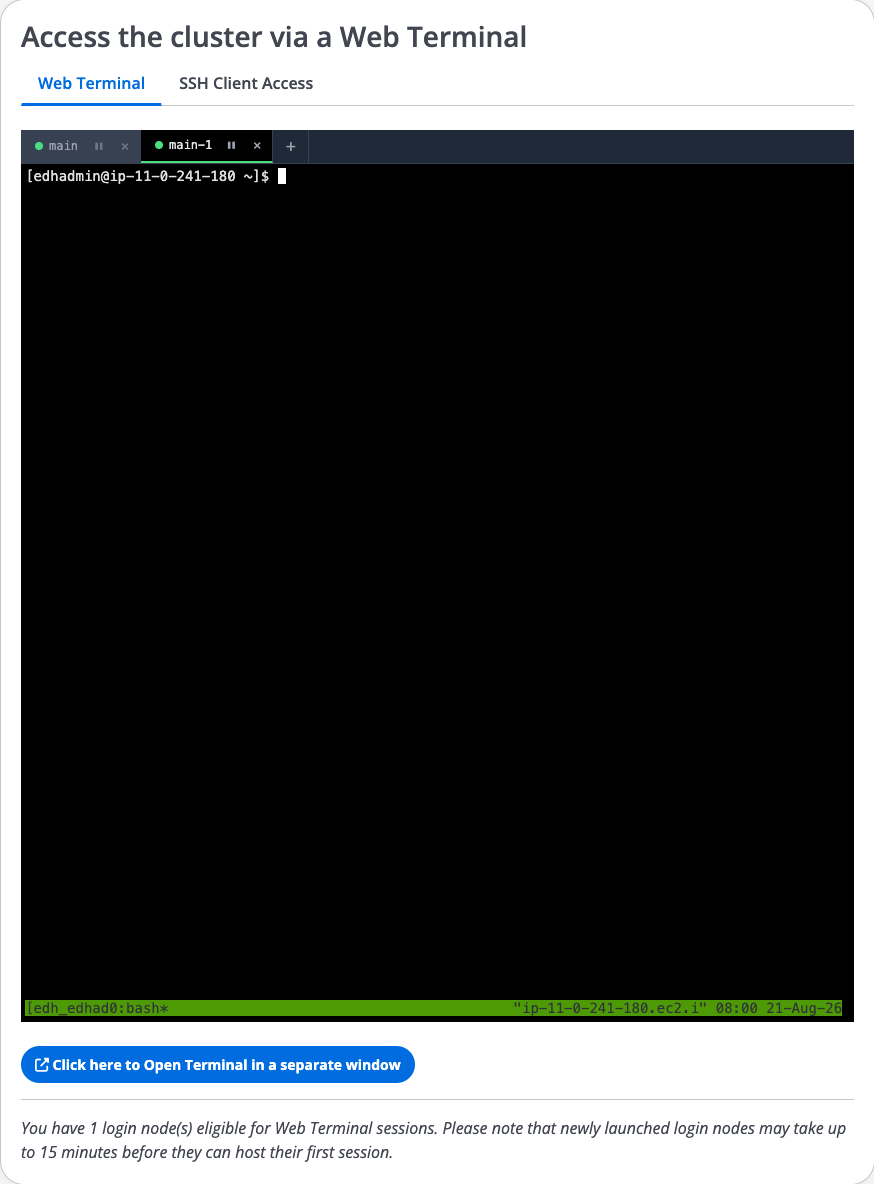
Tabs are automatically labelled main, main-1, main-2, and so on. When you end a tab, its label is freed and reused the next time you open one, so the labels stay short and predictable.
Tab controls
Each tab shows a coloured status dot and two action icons:
| Element | Meaning |
|---|---|
 Green dot Green dot |
Connected: the terminal is live |
 Yellow dot Yellow dot |
Connecting: the terminal is establishing a connection |
 Red dot Red dot |
Disconnected: the connection dropped (it will retry) |
 Grey dot Grey dot |
Detached: the session is still running on the login node but not attached in this browser |
| ⏸ | Detach: closes the connection but keeps the session running so you can resume it later |
| ✕ | End session: terminates the underlying tmux session and permanently closes the shell (you are asked to confirm first) |
Detach vs. End
Use ⏸ Detach when you want to step away but keep your work running, for example while a long job continues in the background. Use ✕ End session only when you are truly finished and want to free the resources; anything running in that shell is stopped.
Open the terminal in a separate window
If you have a multi-monitor setup or want a distraction-free, full-window terminal, click Click here to Open Terminal in a separate window. This opens a standalone terminal window without the surrounding EDH menus.
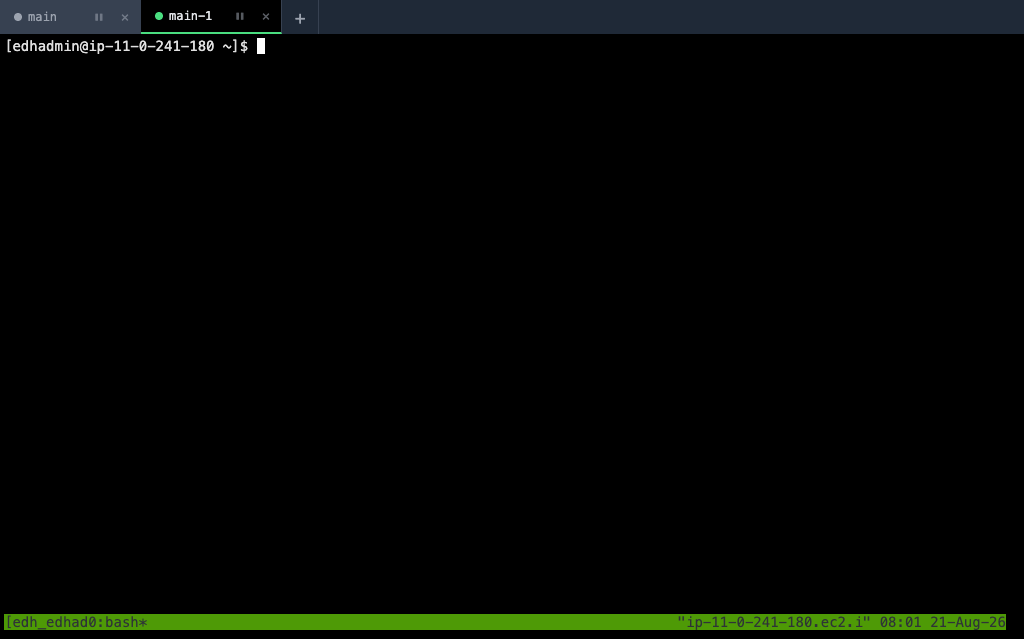
The pop-out window and the inline Web Terminal page share the same set of sessions. A session you start in one appears in the other, and detaching or ending a session is reflected in both. Re-opening the pop-out for a tab that already has a window simply brings that window back to the front instead of creating a duplicate.
Web Terminal vs. SSH Client Access
The Web Terminal page has a second tab, SSH Client Access, which shows the traditional way to reach the cluster (downloading your private key and connecting with a local SSH client).
Choose the Web Terminal when you want:
- A shell with zero local setup.
- A session that survives tab closes and network drops.
- Quick access from a machine where you cannot install or configure SSH.
Prefer a local SSH client when you need:
scp/ file transfer, port forwarding, or SSH key/agent forwarding.- Advanced multiplexing or
mosh-style mobility.
Both connect you to the same login nodes as the same user.
Administration
The Web Terminal is gated behind a feature flag and can be enabled, disabled, or restricted to specific users, in real time, without restarting the cluster. This uses the same mechanism as every other web interface, described in detail on the User Personas and Feature Flags page.
Deployment-time configuration
Login-node behaviour for the Web Terminal is controlled in default_config.yml:
Config:
  webshell:
    enabled: false        # default off; existing clusters are unchanged on upgrade
    port: 7681            # WebSocket listen port on the login nodes
    health_port: 7682     # health-check listen port
    idle_timeout: 14400   # seconds; idle terminals are disconnected after 4 hours
Info
idle_timeout closes the connection to an idle terminal; it does not kill your tmux session. Work left running in tmux continues, and you can re-attach to it afterwards.
Notes for administrators
- Sessions run on the login-node fleet, so the Web Terminal requires at least one running, healthy login node. Freshly launched login nodes need up to ~15 minutes before they can host a session.
- Each session is a per-user
tmuxsession namededh_<user>_<label>. Sessions are never shared between users. - Because sessions persist on the login node, ending a session (✕) is the only user action that stops a running shell; detaching and closing tabs do not.
Troubleshooting
The Web Terminal entry is missing from the sidebar. The feature is disabled for your account or for the whole cluster. Ask your administrator to enable it (see Administration).
"No login nodes available" or the session fails to start. There is no running, healthy login node able to host a session, or a login node was launched less than ~15 minutes ago. Wait a few minutes, or ask your administrator to scale up the login node fleet.
The terminal shows a red dot / "disconnected". The connection dropped. The Web Terminal retries automatically; if it does not recover, reload the page. Your session is still running on the login node and you will re-attach to it.
My session disappeared after I clicked ✕.
The ✕ End session action terminates the tmux session permanently. Use ⏸ Detach instead if you only want to disconnect while keeping work running.