AI Assistant
The AI Assistant is a conversational assistant built into EDH and powered by Amazon Bedrock. You can ask it questions in plain language, get help understanding your HPC jobs and cluster, and have it analyze your input and result files without leaving the web interface.
The assistant can work in three ways, depending on how your administrator has set it up:
- Chat directly with a large language model (LLM).
- Talk to an agent that can take actions on your behalf.
- Use tools made available through connected services.
You choose which one to use in the assistant's settings. See Choose how the assistant works below.
A preview feature
The AI Assistant is offered as a preview. The models available, the daily usage limit, and whether agents or tools are enabled all depend on your administrator's configuration.
Open the AI Assistant
Click AI Assistant in the top navigation bar, or navigate to /ai_assistant.
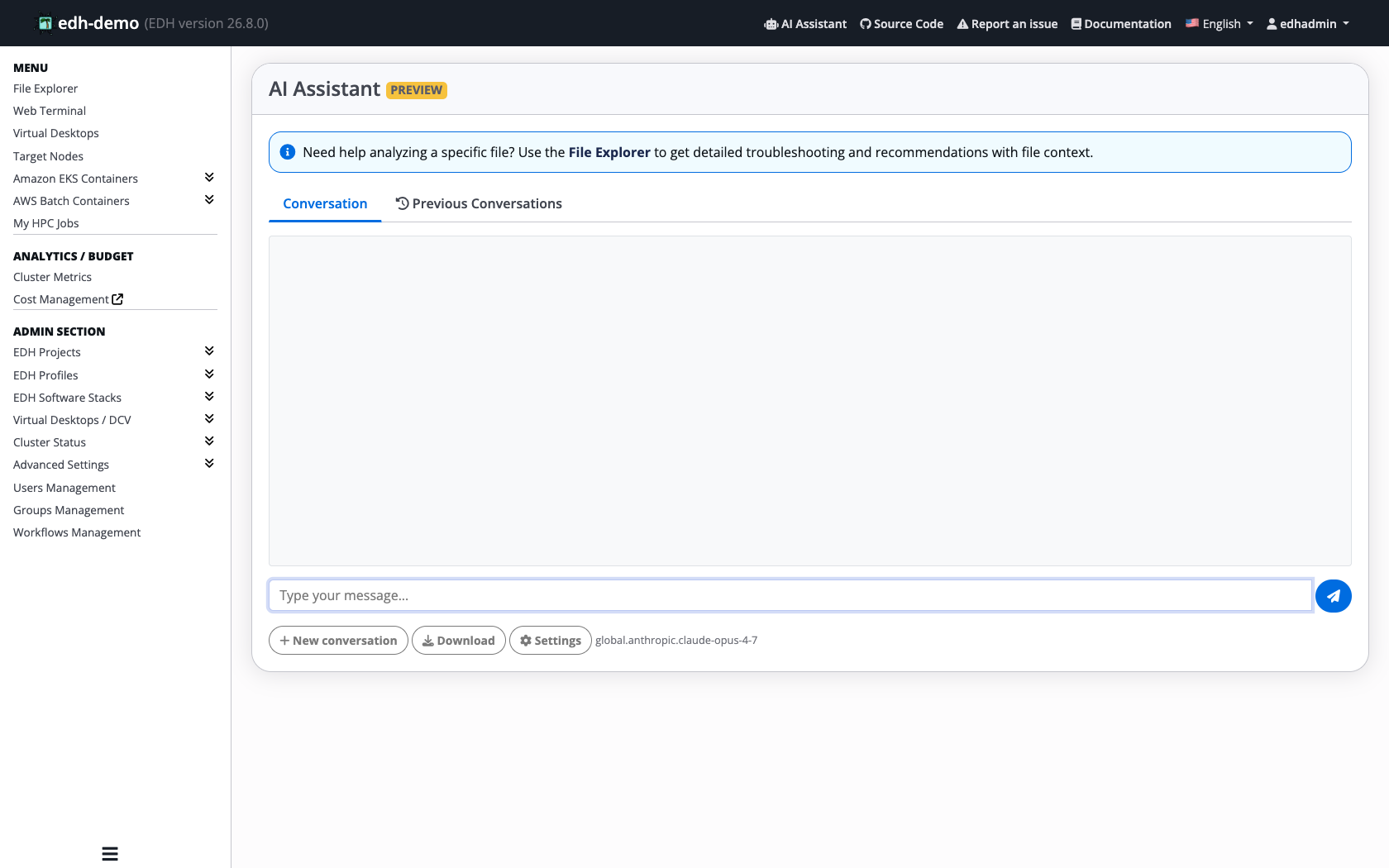
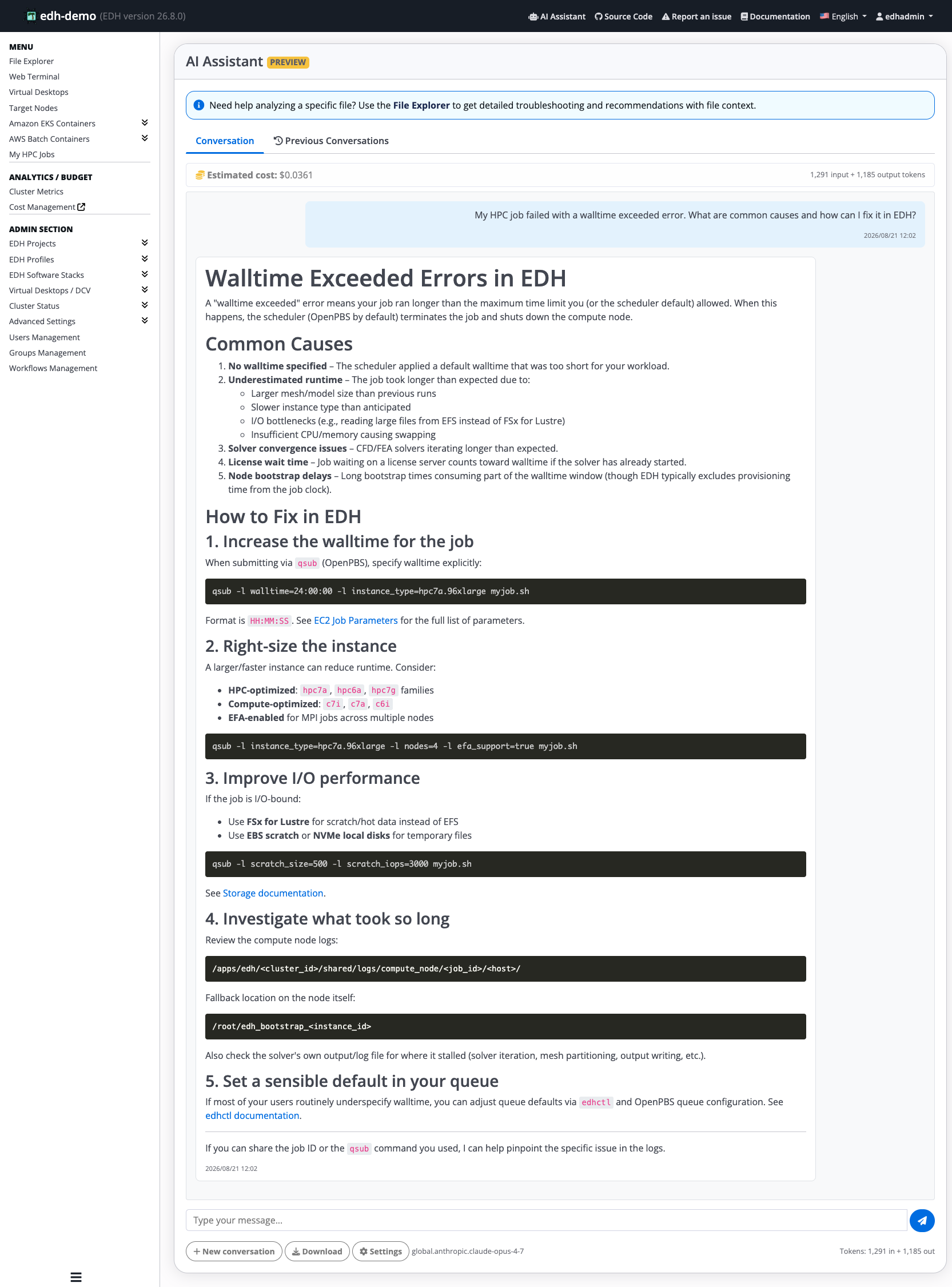
Type your question in the message box at the bottom and press Send. The assistant replies in the conversation area. Your conversation stays on this page while you work, so you can ask follow-up questions and keep the context of the discussion.
Each response shows how many tokens it used (the input it read and the output it wrote) and an estimated cost, so you always know what a question cost you. A token is the unit Bedrock uses to measure text; longer questions and longer answers use more tokens.
Analyze a file with the AI Assistant
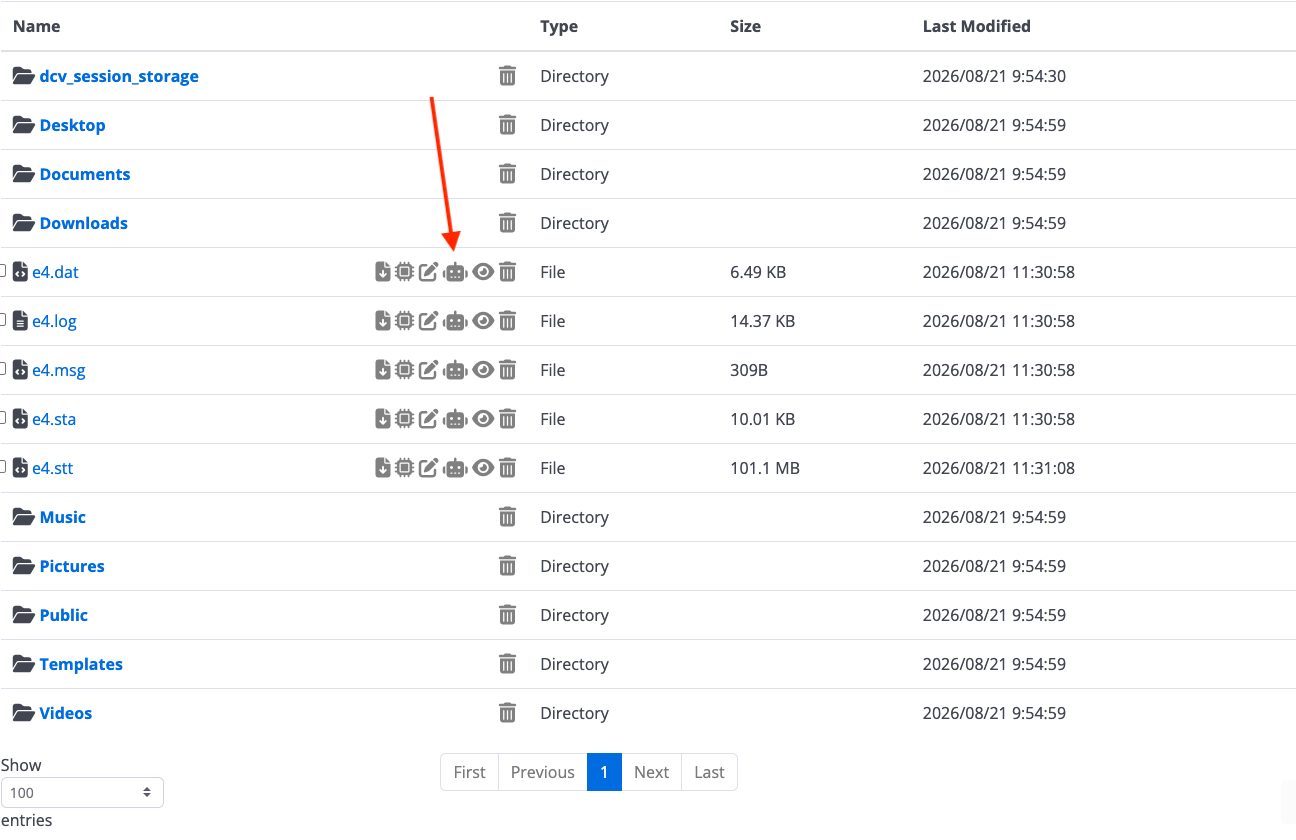
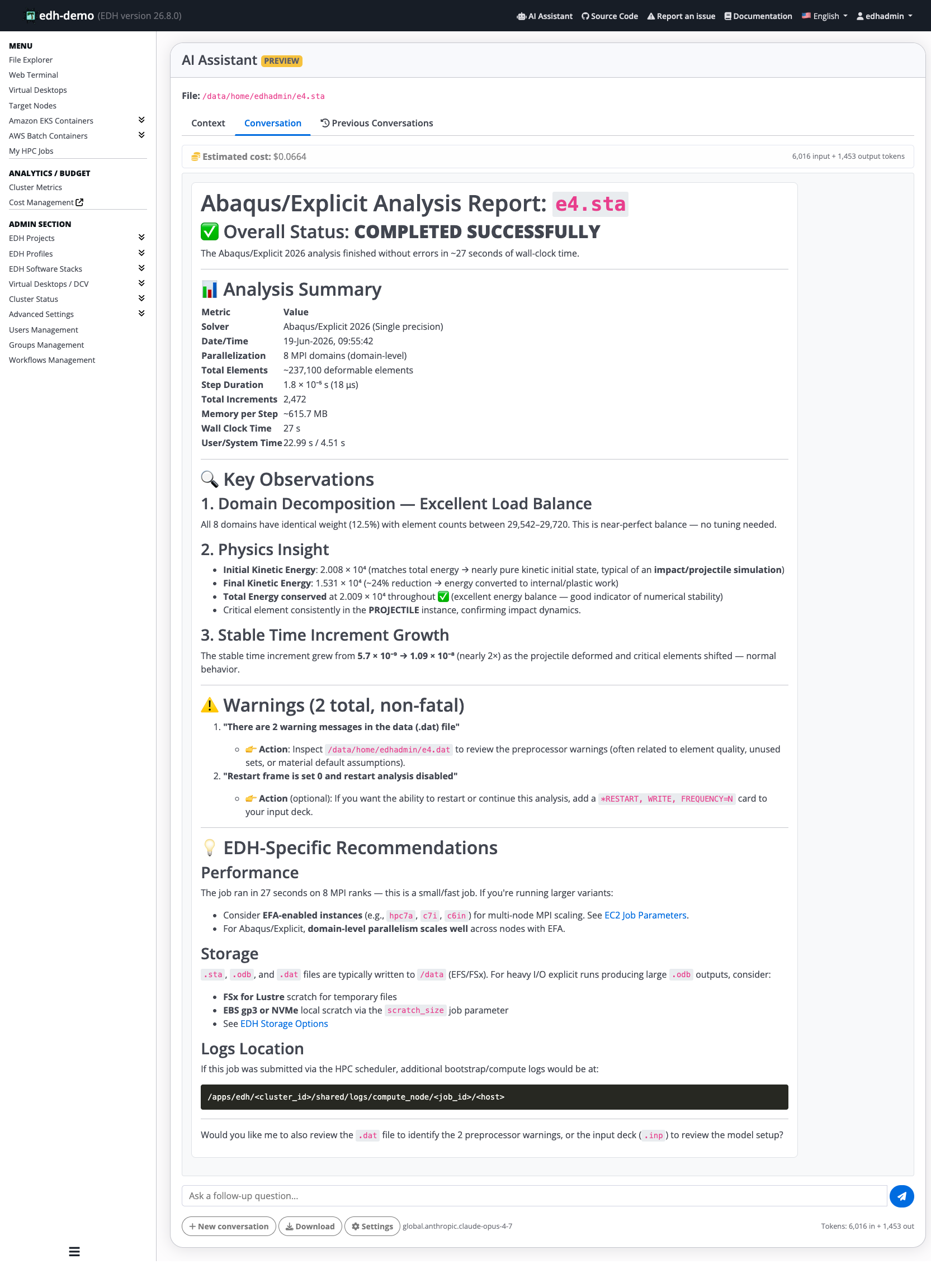
You can send a file from the File Explorer straight to the assistant for analysis. This is handy for making sense of a solver log, a results summary, or an input deck without reading through it line by line.
- Open the File Explorer (
/file_explorer) and find your file. - On the file's row, click Analyze with AI Assistant (the robot icon in the row actions).
The assistant opens with a Context tab showing the contents of your file. This is the text that will be sent to the model as background for its analysis.
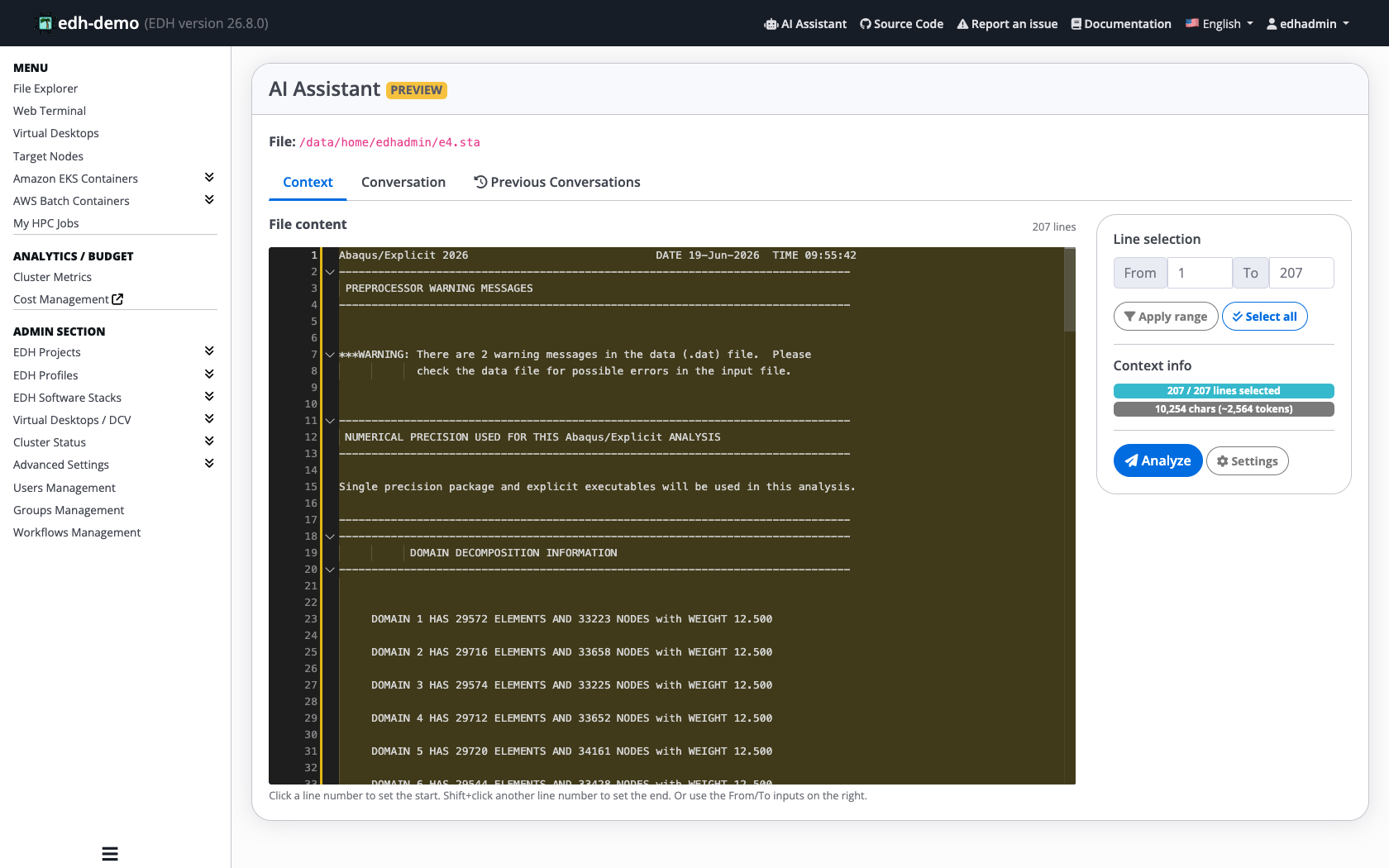
You do not have to send the whole file. Use the context controls to send only the part you care about, which also keeps token usage down on large files:
- Set a line range with the From and To boxes, or click a line number and shift-click another to select a range, then click Apply range.
- Click Select all to include the entire file.
The panel shows how much you have selected (the number of lines and characters, and an approximate token count) so you can gauge the size before you send it.
When you are happy with the selection, click Analyze. The assistant reads the selected text and writes a report in the conversation, then you can ask follow-up questions about it. As with any response, the token usage and estimated cost are shown.
Choose how the assistant works
Open the settings (the gear icon) to control how the assistant behaves. The most important choice is the mode, which decides what the assistant talks to.
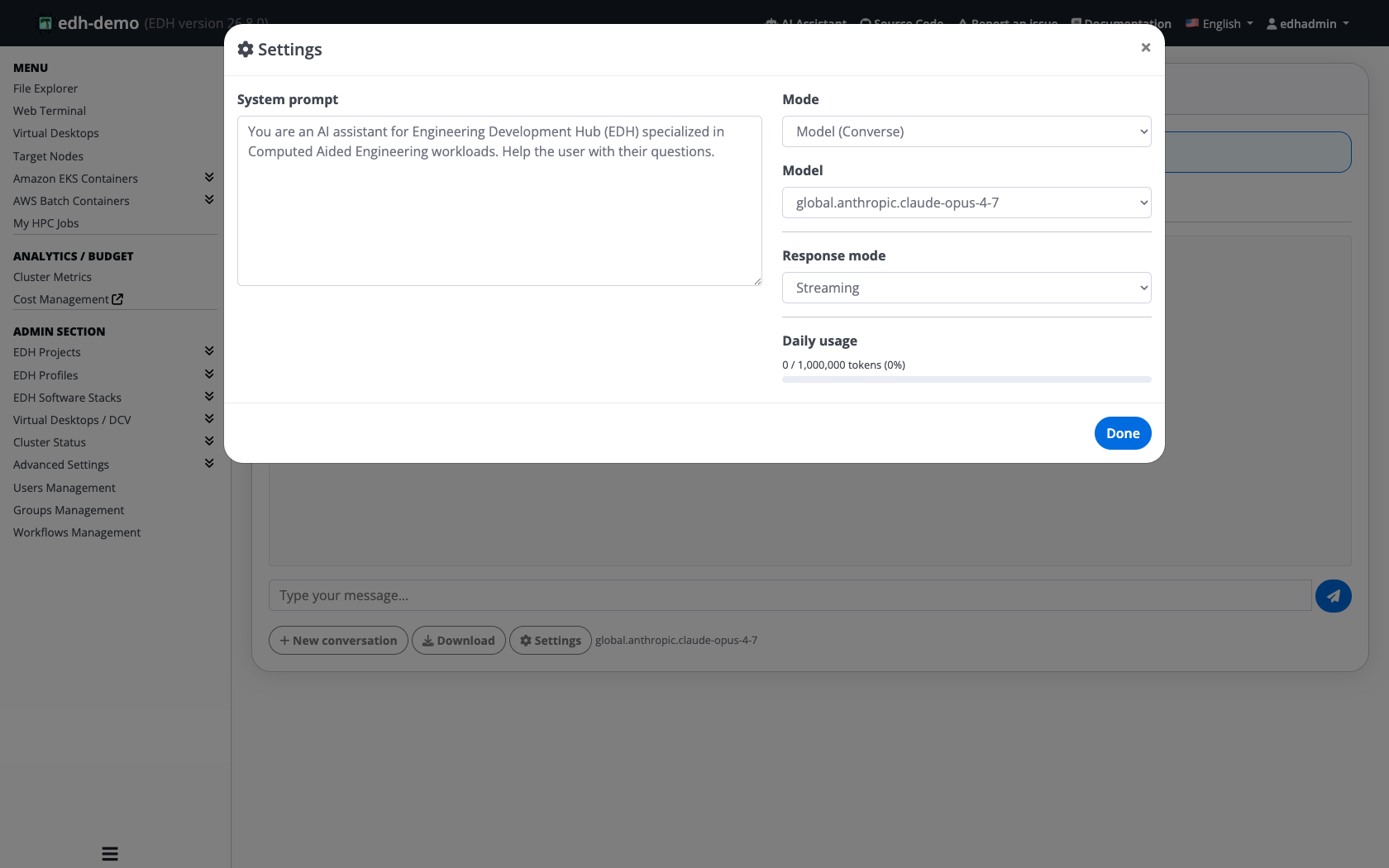
In Model mode, the assistant sends your message straight to a Bedrock model and returns its answer. This is the simplest mode and is best for general questions, explanations, and help interpreting your files. You can pick which model to use from the Model list (see Available models).
You can also set:
- System prompt: optional instructions that shape how the assistant responds (for example, "answer concisely" or "explain for a beginner"). Leave it as is if you are not sure.
- Response mode: choose Streaming to watch the answer appear as it is written, or Standard to receive it all at once.
Agent mode
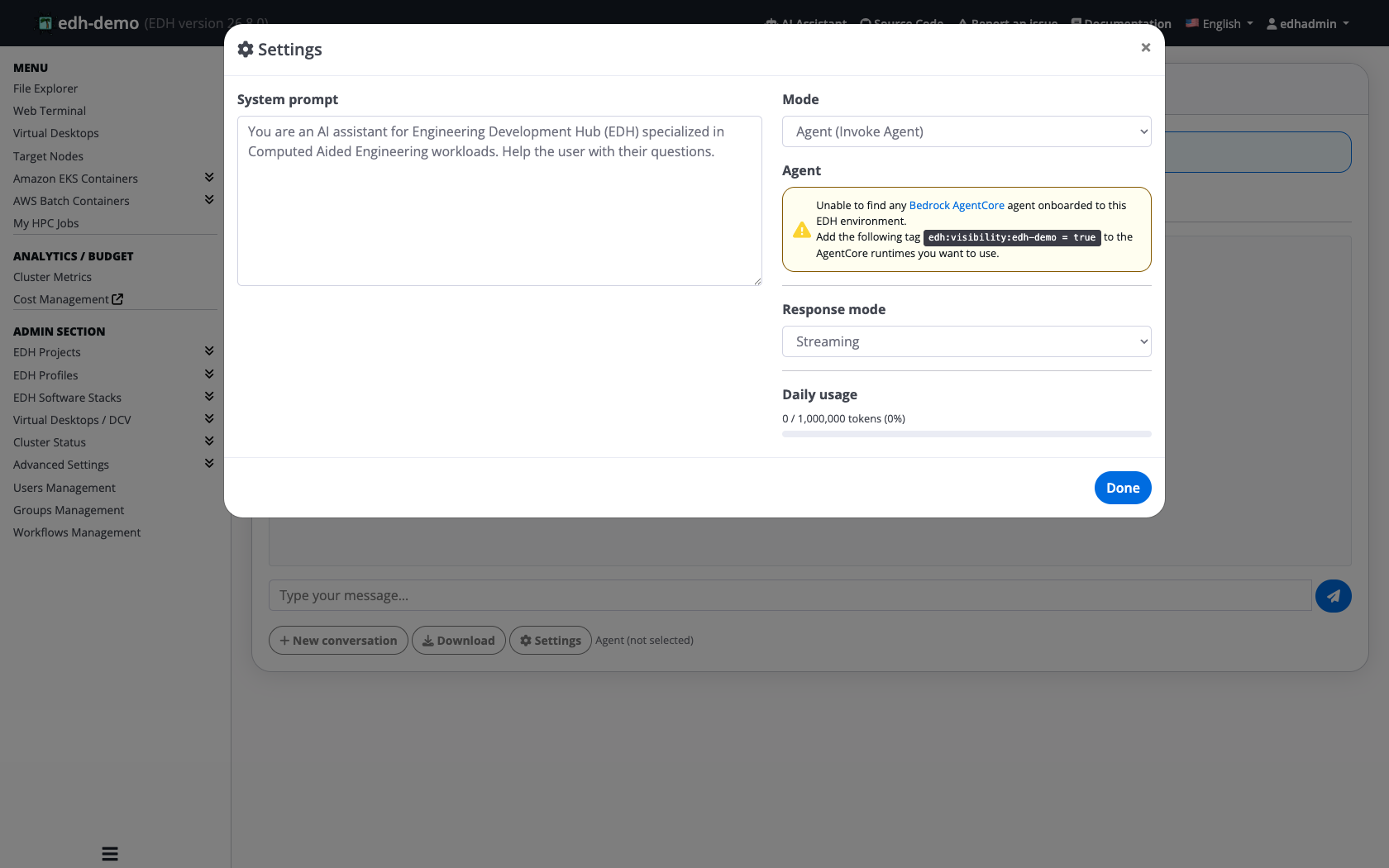
In Agent mode, the assistant talks to an agent rather than a plain model. An agent can follow multi-step instructions and take actions for you. Pick the agent you want from the list.
Making an agent available (administrators)
An agent only appears in this list once it has been made visible to your cluster. To make an agent available, add the following tag to it, using your cluster's identifier:
edh:visibility:<cluster_id> = true
For example, on a cluster named edh-demo the tag would be edh:visibility:edh-demo = true. Only agents that are ready and carry this tag are shown, so users on one cluster do not see agents that belong to another.
Tools (MCP) mode
In MCP mode, the assistant can use tools that your administrator has connected to EDH. Tools let the assistant reach out to other systems to look something up or perform an action as part of its answer.
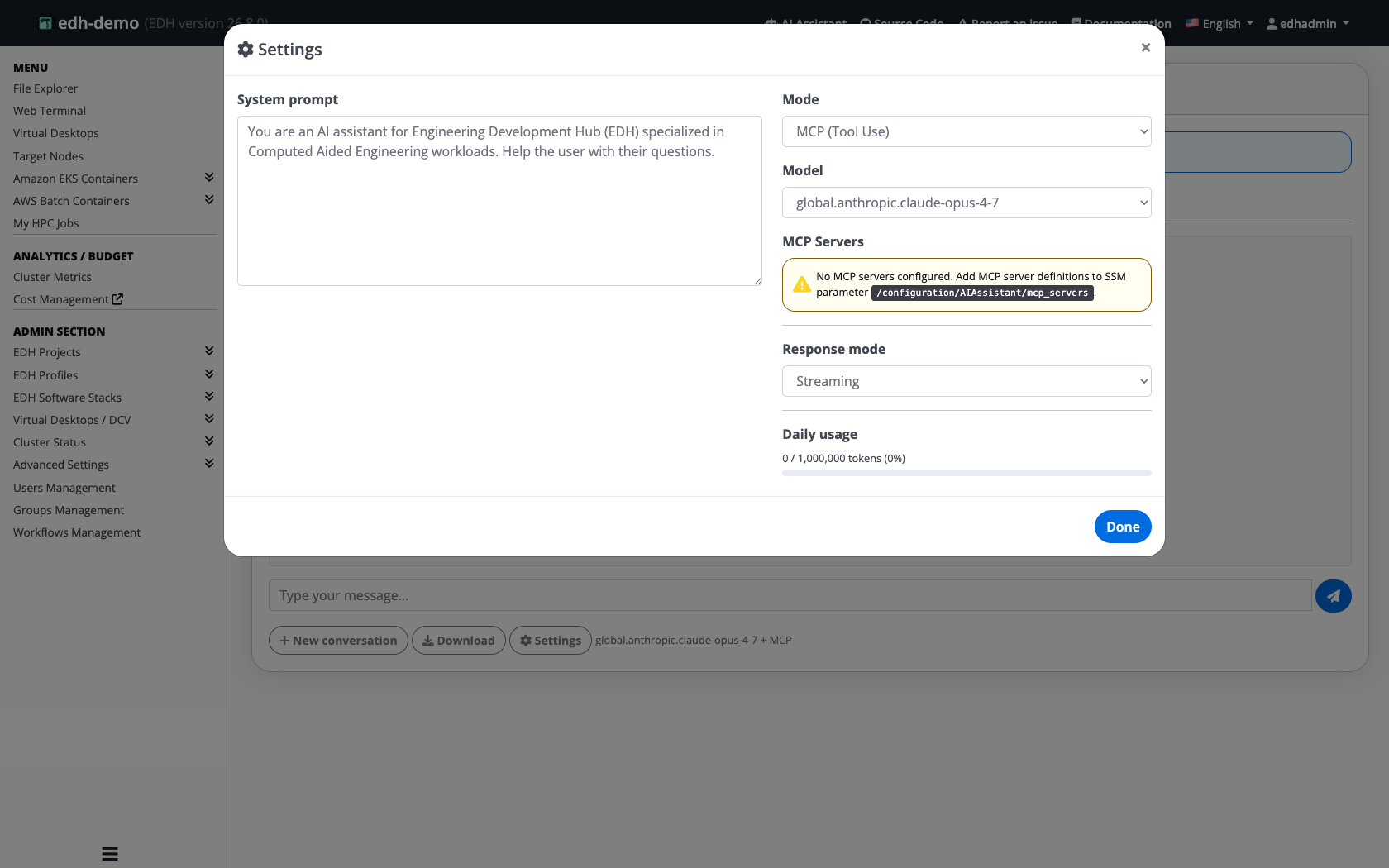
If no tools have been connected, you will see a message saying there are none configured. In that case, ask your administrator to connect the tools you need, or use Model or Agent mode instead.
Use the AI Assistant to troubleshoot
The AI Assistant is not limited to answering questions. You can also point it at your environment to help you troubleshoot, for example:
- Make sense of a web interface error and get suggested next steps.
- Understand why an HPC job failed by analyzing its bootstrap logs.
Administrators can run the same analysis from the command line with edhctl logs, which can pass matching log lines to Amazon Bedrock and return an explanation. See Analyze errors with the AI Assistant.
Building more complex integrations
If you want to build your own AI-driven tooling on top of EDH (custom log analysis, summaries, or automated triage), you can build on the same AI Assistant that powers these features.
Track your usage
The AI Assistant uses Amazon Bedrock, which is billed by usage. To keep costs predictable, each user has a daily token limit set by your administrator. The settings panel shows how much of your daily allowance you have used, for example 0 / 1,000,000, and every response shows its own token count and estimated cost.
If you reach your daily limit, wait until it resets or ask your administrator to raise it.
Available models
The models you can pick in Model mode are chosen by your administrator from the models available on Amazon Bedrock. The first model in the list is used by default. To change the list, see Configuration (administrators) below.
Configuration (administrators)
Administrators control the AI Assistant through the cluster configuration. The relevant settings are grouped under ai_assistant and are defined in the default_config.yml file on GitHub, which you edit to update the configuration:
ai_assistant:
  allowed_daily_tokens_per_user: 1000000 # Daily token limit per user for AI assistant usage.

  allowed_bedrock_model_ids: # list of allowed Bedrock model IDs for AI assistant usage. First model is the default one.
    - "global.anthropic.claude-opus-4-7"
    - "global.anthropic.claude-opus-4-8"
    - "global.anthropic.claude-sonnet-4-6"
    - "global.anthropic.claude-sonnet-5"

  allowed_mcp_servers:
    ~ # list of allowed MCP servers
    # example format
    # -  {
    # "name": "my-mcp",
    #  "endpoint": "https://my-mcp.internal.com/mcp",
    #  "headers": {"Authorization": "Bearer <token-if-needed>"}
    #   }
allowed_daily_tokens_per_user: the daily token limit applied to each user. Lower it to tighten cost control, or raise it if your users hit the limit often.allowed_bedrock_model_ids: the list of Bedrock model IDs users can pick in Model mode. The first entry is the default. Add or remove IDs to change what appears in the model list.allowed_mcp_servers: the tools (MCP servers) the assistant may use in MCP mode. Leave it as~(none) to disable tools, or add one entry per server following the commented example, giving each aname, anendpoint, and anyheadersthe server needs.
Agents are onboarded with a tag, not this file
Agents shown in Agent mode are not listed here. An agent becomes available once it is tagged for your cluster with edh:visibility:<cluster_id> = true. See Agent mode above.
The current values for the model list and daily token limit are also visible to users in the assistant's settings panel, so users can see which models are offered and how much of their daily allowance remains. These settings match the defaults published in the EDH default configuration.