Save and Resume Your Desktop (Saved Desktops)
Saved Desktops lets you capture the full state of a running virtual desktop (its installed applications, files, and settings) as a restore point, shut the desktop down so you stop paying for compute, and bring it back later exactly as you left it. You can even resume onto a different instance size.
This is ideal when you want to step away for a while, keep a known-good restore point before a risky change, or run on lower-cost interruptible capacity without risking your work.
Info
Saved Desktops may need to be enabled for your cluster by an administrator. If Save & Shut Down does not appear in your desktop's menu, the feature may be disabled. Resume is currently available for Windows desktops.
Save & Shut Down compared with Pause
EDH gives you two ways to step away from a desktop, and they are not the same:
| What it does | When to use it | |
|---|---|---|
| Pause | Stops the same instance and keeps its disk in place. Resuming is quick because nothing is rebuilt, but the desktop stays tied to that one instance. | Short breaks on a standard desktop. See Pause/Hibernate your desktop. |
| Save & Shut Down | Creates a portable restore point, then shuts the desktop down. You can resume it later, even onto a different instance size, and it works with interruptible (lower-cost) capacity. | Longer breaks, keeping a restore point, or running on interruptible capacity. |
Save your desktop
Open the desktop's menu and choose Save & Shut Down. EDH captures your desktop as a restore point and then shuts it down. Your applications, files, settings, and (for domain-joined Windows desktops) your domain membership are all preserved, so you do not have to reinstall or reconfigure anything when you come back.
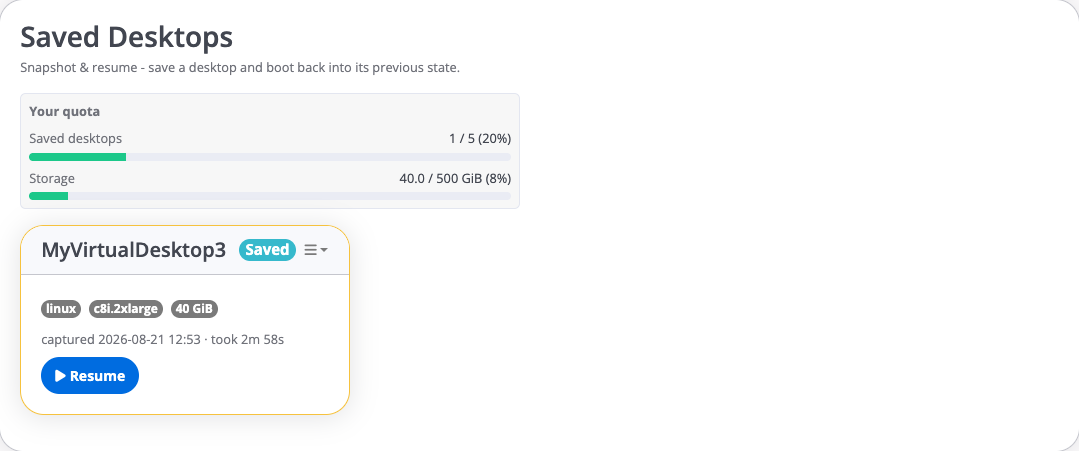
While the restore point is being prepared you can follow its progress. Once it is ready, the saved desktop appears in the Saved Desktops list on the Virtual Desktops page, marked Saved and ready to resume. The list also shows how much of your saved-desktop and storage quota you are using.
What you pay while a desktop is saved
While a desktop is saved you are not charged for compute, because the instance is shut down. A saved desktop does use storage, which carries a small ongoing cost, so delete restore points you no longer need.
Resume a saved desktop
Pick a saved desktop and choose Resume. If your administrator offers it, you can choose whether to run on Standard or Interruptible (lower-cost) capacity, and select the instance size from the sizes your administrator allows.
EDH launches a fresh desktop from your saved state and reconnects it to the cluster. Because your settings and domain membership were preserved, the desktop comes back quickly without a full rebuild.
A restore point is single-use for resume: resuming it launches your desktop and consumes that restore point. Save the desktop again whenever you want a new restore point.
Automatic save when interruptible capacity is reclaimed
Interruptible capacity costs less, but AWS can occasionally take it back. If your desktop is running on interruptible capacity and it is reclaimed, EDH automatically captures your desktop's state in the short window before the instance goes away. You can then resume it later instead of losing your work.
This is why interruptible desktops pair well with Saved Desktops: you get the lower cost, and your work is protected if the desktop is reclaimed.
Recover a deleted saved desktop
When you delete a saved desktop it is moved to a recycle bin rather than removed straight away, so you can recover it if you change your mind. After a retention period it is permanently deleted and can no longer be recovered.