Active Directory 42-day maximum password age
By default, AWS Directory Service enforces a 42-day maximum password age. Every EDH user and service account must update its password at least every 42 days or it gets locked out. We recommend changing this setting unless you already manage password expiration another way.
Warning
If the EDH AD service account (UserDirectoryServiceAccount) is locked, no new computers can
join the AD domain. Virtual desktops, login nodes, and HPC nodes will fail to provision.
Step 1: Launch a Windows virtual desktop on EDH
To change the password age policy, log in to EDH and launch a Windows Virtual Desktop.
Step 2: Install the ADDS server role
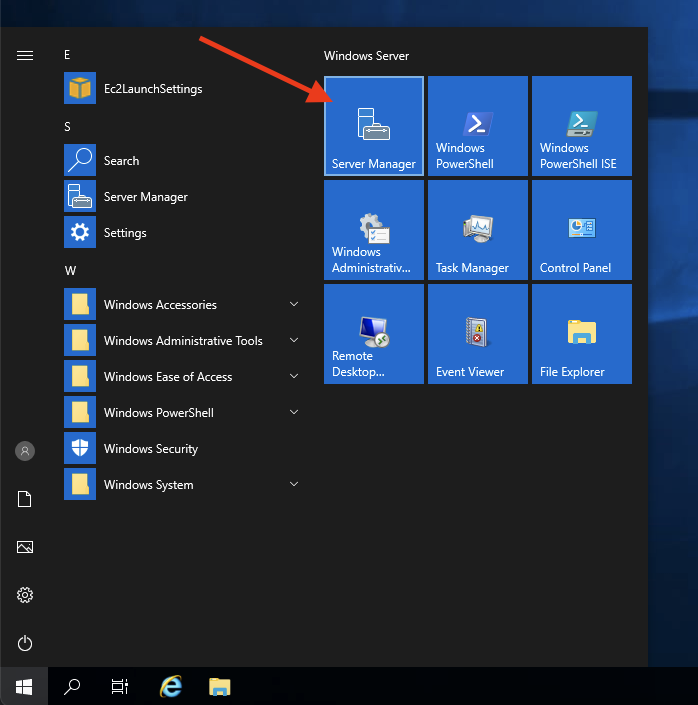
Connect to your Windows virtual desktop once it is available. Click the Windows Start button, then Server Manager.
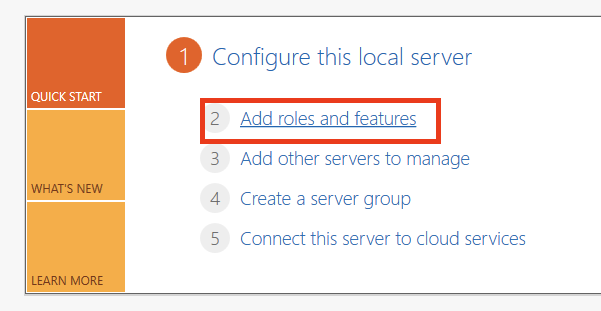
Click Add Roles and Features.
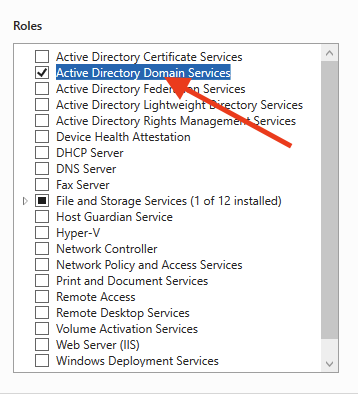
Click Next > Role-based or feature-based installation, then leave the current server selection as is. In the Roles list, check Active Directory Domain Services. This adds several sub-features, including Active Directory Administrative Center.
Leave everything else as default and complete the installation of the Active Directory modules. Click Close when it finishes.
Step 3: Update the GPO
First, retrieve your EDH UserDirectoryServiceAccount in AWS Secrets Manager. The secret name
is /edh/<EDH_CLUSTER_ID>/UserDirectoryServiceAccount. Once you locate it, click Retrieve
Secret Value to reveal the username and password.
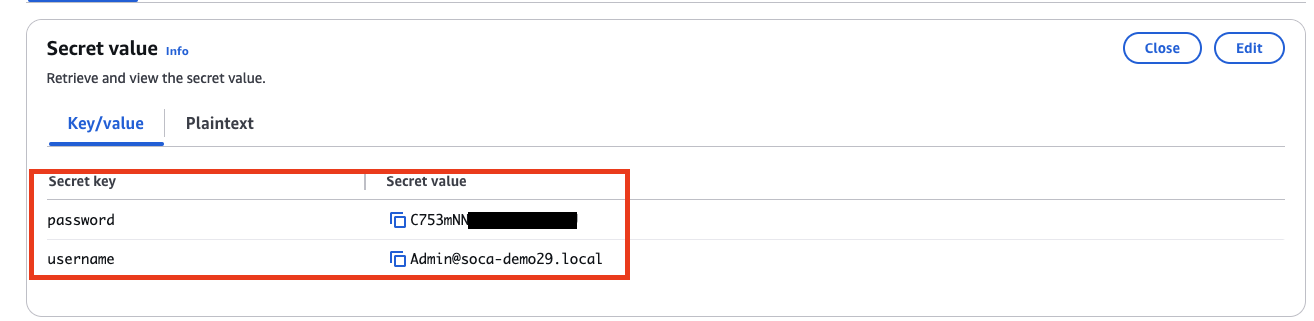
Info
Your username is the part before @. In this example, that is Admin.
Go back to your Windows virtual desktop, open a terminal, and run the following command to start
Active Directory Administrative Center (ADAC). Replace ADMIN_USER and ADMIN_USER_PASSWORD
with your own values.
runas /user:<DOMAIN>\<ADMIN_USER> "cmd /c Start /B dsac.exe"
Example:
C:\Users\mcrozes>runas /user:SOCA-DEMO29\Admin "cmd /c Start /B dsac.exe"
Enter the password for SOCA-DEMO29\Admin: <ADMIN_USER_PASSWORD>
Attempting to start cmd /c Start /B dsac.exe as user "SOCA-DEMO29\Admin" ...
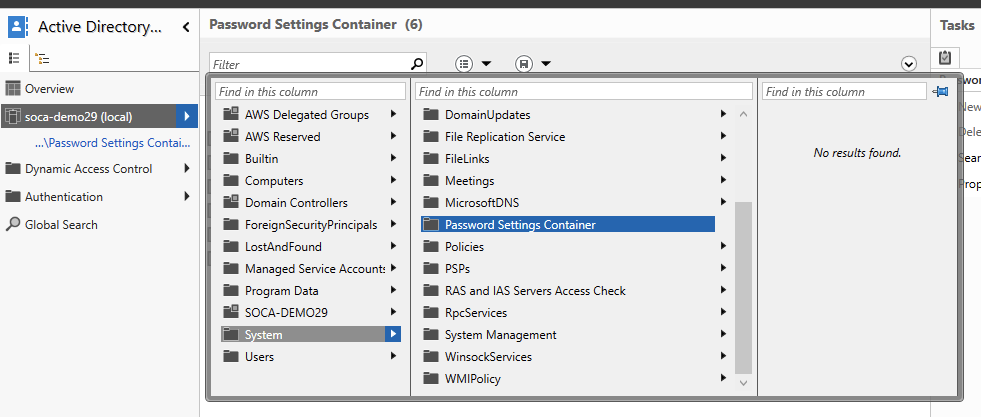
This opens the ADAC interface with a privileged user. Choose your EDH Active Directory domain in the left sidebar, then select System, then Password Settings Container.
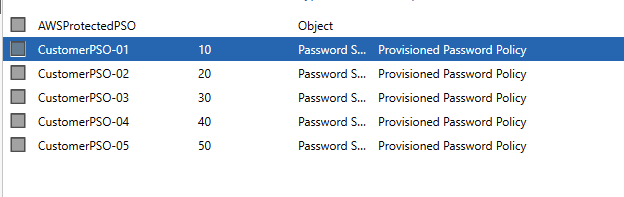
Open the first policy, CustomerPSO-01.
Uncheck all settings under Password Age Options.
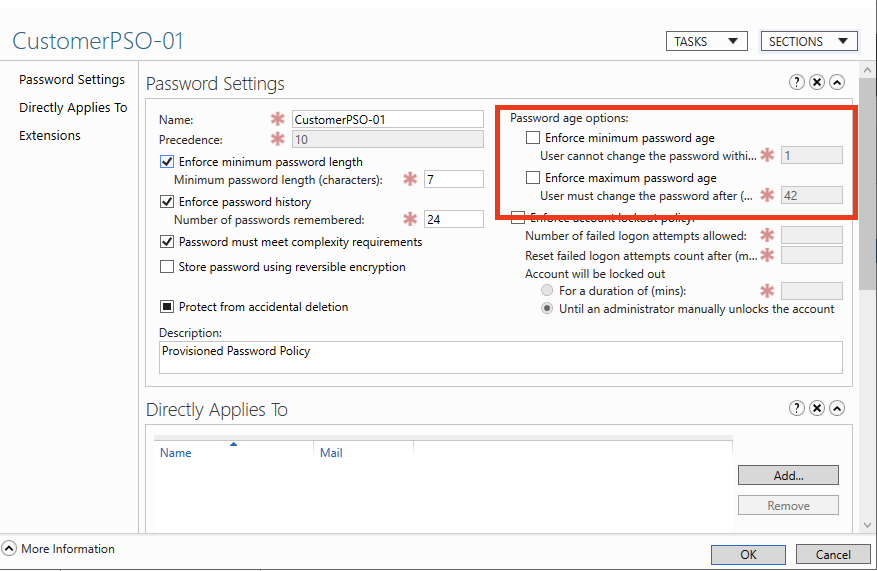
Click OK, then repeat the same steps for every other policy.
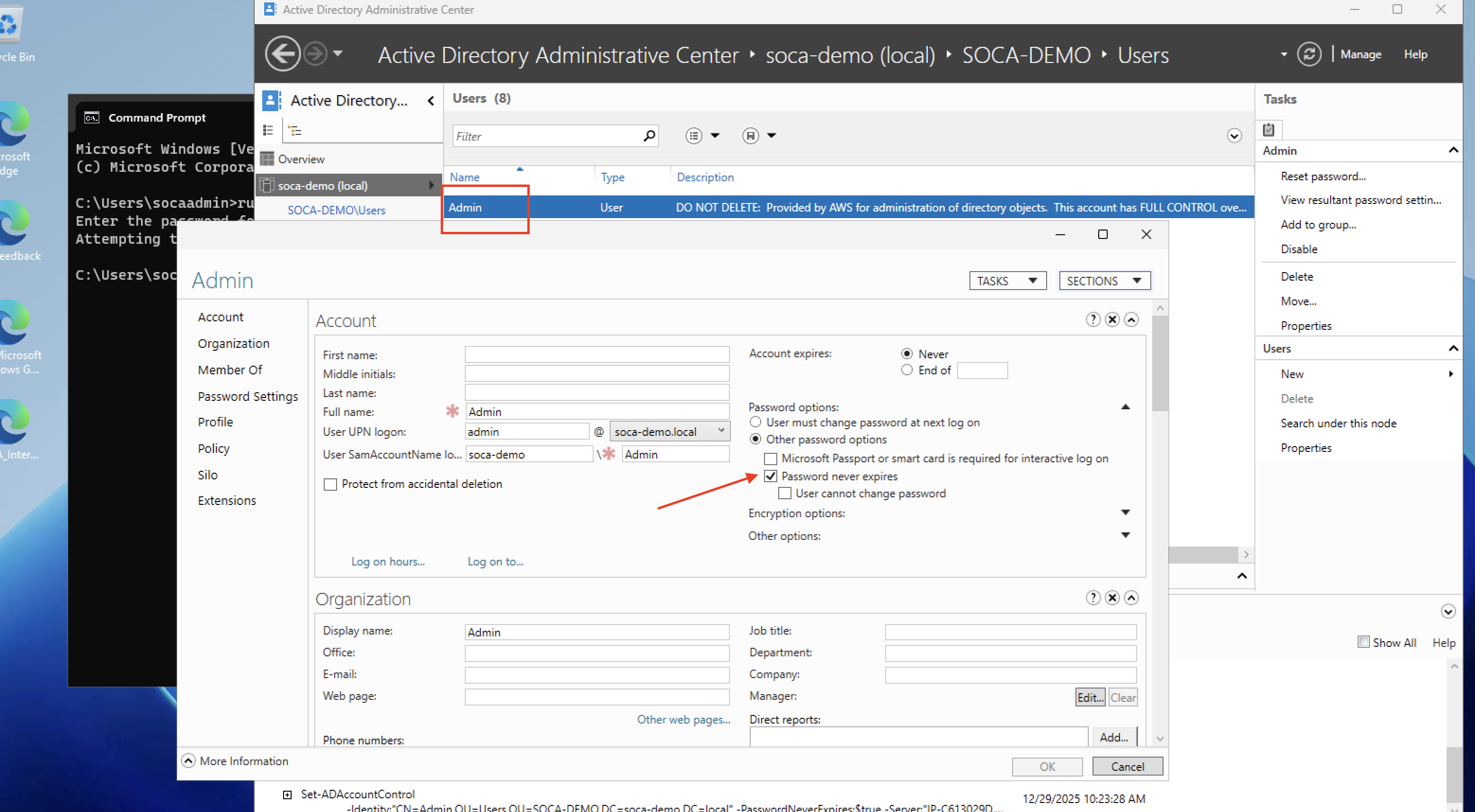
Alternatively, you can change the policy for specific users without updating the policy itself. Check Password Never Expires for a given user: